Video and Audio not working in WebMeeting from WebClient

Status
Not open for further replies.

davidsteelerose

Forum User
Joined
Apr 6, 2015
Messages
24
Reaction score
2
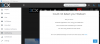
We can start a WebMeeting and video and audio will work fine from the People screen.

upload_2018-8-21_10-7-24.png

However, we can not use Video or Audio if we start a new WebMeeting from the WebMeeting menu option.

upload_2018-8-21_10-8-25.png

Current Version 15.1 SP4 also tested in SP5 with same results
 
Last edited:
Which browser?
I just tested this on Chrome for Mac and it detects my webcam fine in the WebMeeting section.

You do not mention platform or browser.
 
Which browser?
You do not mention platform or browser.

Thank you for testing. I've tested with two company instances with multiple extensions, laptops and workstations. All Windows OS and all using Chrome. I can test tonight from a Mac as well from home.
 
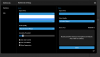
Looking at the new Multimedia Settings there is a pull down for Audio and Video Input Device, but nothing in the pulldown.

upload_2018-8-21_13-45-46.png
 
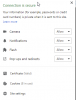
This dialog saying: "Allow" for cameras and microphones doesn't mean a camera was detected. It just means that if one is detected, it will be allowed.

1) Are you connected to the WebClient via HTTP or HTTPS?

2) Can you go to Start and type "Device Manager", in here please dropdown the sections in regards to "Sound, video and game controllers" and the "Imaging devices" sections take a screenshot so we see if you have any devices at all connected.
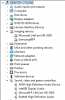
3) Are you on PBX SP3 or below? You'll need to upgrade if you want to use WebMeeting via the WebClient as Chrome has deprecated some things critical to WebMeeting usage via the WebClient for that version.
 
Many thanks for helping me dig into this.

1) Are you connected to the WebClient via HTTP or HTTPS?

We are connecting via HTTPS in all cases.

2) Can you go to Start and type "Device Manager", in here please dropdown the sections in regards to "Sound, video and game controllers" and the "Imaging devices" sections take a screenshot so we see if you have any devices at all connected.

upload_2018-8-22_14-17-52.png

3) Are you on PBX SP3 or below? You'll need to upgrade if you want to use WebMeeting via the WebClient as Chrome has deprecated some things critical to WebMeeting usage via the WebClient for that version.

I have tested on 4 different client installations. 2 are SP4 and 2 are SP5
All work if I select WebMeeting from the People screen on an individual contact's webmeeting icon.

I have had two other employees here try the same thing and whenever we use the WebMeeting from the left Menu in the WebClient, it does not work. It provides the Could Not Detect Your Webcam error message.

I've also used WebMeeting in this way dozens of times with no change to my computer that I can think of, other than standard patches to Windows. I'm trying to think of what could have changed.
 
Last edited:
1) Could you open the Chrome debug console by pressing F12 and navigate to "Console"?
Once you do that, refresh the page and see if any red/errors appear in the console.

If they do, please paste them here.


2) Additionally, if you create a new meeting and enter, does it work? I want to discount that the iFrame in the WebClient is causing issues.
 
F12 shows the following error:

VideoCapture permission has been blocked because of a Feature Policy applied to the current document. See https://goo.gl/EuHzyv for more details.

If I create a new meeting from People by clicking on one of our employee extension WebMeeting Icon it works fine. Also, if I schedule a meeting and receive the link in an invitation, it works fine.

It's only when I use the WebMeeting link on the left menu.
upload_2018-8-23_9-9-38.png
 
Thank you for continuing to look into this. I'm surprised, since it is a hosted service, that no one else is reporting this same issue. The WebClient is the newest version. I'm on SP5 and Chrome updates automatically.

I do have a work around, but I do think some of our other customers will run into this eventually unless it's fixed. I have tested on 4 instances of 3CX with multiple computers, all Windows 10 and up-to-date Chrome and all SP4 or SP5. Fortunately our customers generally rely on the Scheduled feature, which sends out a link that works fine.

I'm just trying to provide information, in case this is something that needs to be fixed within the WebClient application.

I'm looking forward to SP6 to use the WebClient without a physical phone and test the Chat toaster. I'm getting more customers turned on to using it and have showed many how to create a shortcut using Chrome which creates a tab-less window and pin to toolbar for quick clean UI.

upload_2018-8-23_10-37-49.png
upload_2018-8-23_10-37-53.png

Google Chrome is up to date
Version 68.0.3440.106 (Official Build) (64-bit)
 
This is really strange.

Just in case, which MCU are you connecting on? You can see this from inside the meeting in the settings panel in the info tab.
 
Additionally can i ask you that you try the WebClient from an incognito Chrome window and see if the issue remains?

Btw keep this in mind. Since a few updates ago, Microsoft kind of bricked user's PC by switching the Microphone OFF by default and users had to go and re-enable it manually. You could check this + the cam permissions too.
https://support.microsoft.com/en-au/help/10557/windows-10-app-permissions
 
Still not working Incognito.

MCU is:
Server info:USA East Coast (Miami) - us009-mia.3cx.net (38.132.118.218) - US United States Hialeah

Another interesting side effect is that when I start a meeting from the WebMeeting menu item and experience video and audio not connecting, the Copy Link has not been working. I went to answer your question regarding which MCU and noticed there is no Meeting link there. #redhering


upload_2018-8-23_13-19-43.png
 
The meeting link missing i've been able to reproduce. I'm finding it quite unbelievable to be honest.
We'll take a look at it.

For the missing options, i'm seeing this work correctly. I don't have anything for you on this right now.
 
The meeting link missing i've been able to reproduce. I'm finding it quite unbelievable to be honest.
We'll take a look at it.

For the missing options, i'm seeing this work correctly. I don't have anything for you on this right now.

Any update on the missing link? It is still an issue for me. I am not able to copy a link and invite a user to a Quick Meeting.
 
Yes, i understand now. This feature is only available when using your extension's Quick Meeting in "Shared Meeting" mode. You likely have "Private Meeting" mode enabled in your extension's settings.

You'll need to switch it to "Shared Meeting" mode.
 
Status
Not open for further replies.

Members Online Now

Forum statistics

Threads
111,863
Messages
589,445
Members
164,702
Latest member
iamatlas