Windows V18 Client wont provision

Status
Not open for further replies.

NicoC

Bronze Partner
Intermediate Cert.
Joined
Sep 3, 2020
Messages
33
Reaction score
4
Hi Folks,
I have upgraded to v18 and installed the new desktop client. I have also removed the browser extension but am running into an issue with provisioning the desktop client.
When I go into the WebClient, click on the windows icon and press provision nothing happens. It never launches the desktop client. If I open the desktop client first this makes no difference and the desktop client simply tells me to go to the WebClient and press provision.

The other thing I have noticed is that the new desktop app does not load on login (Even though the option is ticked) and it does not appear to be installed in any of the start menu. If I want to get the application to come up again I need to press the install button from the WebClient.

This is running on a windows server 2016 machine. Any ideas?
 
Last edited:
I got the same problem with provisioning of the Desktop app on my HP laptop. Removed the program, installed it again from the webclient and same problem. After removing HP sureclick from my laptop the provisioning button works.
 
@NicoC
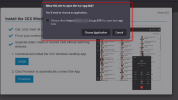
Is it possible that are some security settings preventing browser prompts like this one?
1629469453195.png
 
Same problem, it was provisioned but today it won't provision:

"
Unable to provision 3CX Desktop App
Reason: An unknown error occurred
If problem still persists follow the steps below:
  1. Open Web Client and login with your credentials.
  2. Click on
  3. Press Provision to automatically connect the App
"
I uninstalled the app and reinstalled the same app version that was working a couple days ago but same problem. Works from my laptop for the same extension. I think there are some install files that stuck through the uninstall that are corrupted or something that need to be removed and potentially reinstall the app again.
 
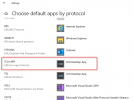
In the Win10 settings, is the default protocol for "TCX+APP" set to the Desktop App?
1629816857645.png
 
I uninstalled it a third time earlier this morning and left it uninstalled for a few hours. Just reinstalled it and now it provisions again... Strange.
 
  • Like
Reactions: NickD_3CX
That is strange indeed, I'm glad to hear it's OK now though.
 
In the Win10 settings, is the default protocol for "TCX+APP" set to the Desktop App?
View attachment 23946
When going to apps by protocol TCX+APP is not listed at all (Windows server 2016)
We are also using an antivirus application called bitdefender which I have totally disabled but this has not allowed for the desktop app to be provisioned either

Also when the app installs where is the install directory as it never shows as an app anywhere. There is nothing in %Appdata% and there is nothing in program files or program files x86

I have also checked in the remove programs area of windows and the only 3cx there is the call flow designer.

The app definitely installs from the weblogin page and fires up but it doesn't appear to be installed anywhere?
 
Last edited:
Also when the app installs where is the install directory as it never shows as an app anywhere. There is nothing in %Appdata% and there is nothing in program files or program files x86
The actual application files are located in C:\Users\[USER]\AppData\Local\Programs\3CXDesktopApp\ .
The references and selected options (e.g. window size) are stored here: C:\Users\[USER]\AppData\Roaming\3CXDesktopApp\


The app definitely installs from the weblogin page and fires up but it doesn't appear to be installed anywhere?
So the App does appear, it's just the provisioning that doesn't work. If you right-click on the Desktop app icon in the Notification Area, then selected "About", what version does it say you have?


When going to apps by protocol TCX+APP is not listed at all (Windows server 2016)
I'd highly suggest double-checking that BitDefender is uninstalled (important: not disabled, uninstalled, and restart your PC after this), uninstall the Desktop App and then re-install again.
 
The actual application files are located in C:\Users\[USER]\AppData\Local\Programs\3CXDesktopApp\ .
The references and selected options (e.g. window size) are stored here: C:\Users\[USER]\AppData\Roaming\3CXDesktopApp\


So the App does appear, it's just the provisioning that doesn't work. If you right-click on the Desktop app icon in the Notification Area, then selected "About", what version does it say you have?


I'd highly suggest double-checking that BitDefender is uninstalled (important: not disabled, uninstalled, and restart your PC after this), uninstall the Desktop App and then re-install again.

Hi Nick, the app itself will only ever open after being installed. Once the app is open it can not be provisioned. Pressing the provision button once the app has been closed fails to launch the app. The only way for me to launch the app to perform an install using the .msi again

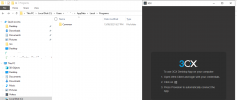
When checking the path you have mention i can only get to the programs folder in local. There is no 3CX desktop app folder. I have just run a frsh install and have the parth you mentioned open with the 3cx app running but the folder has not populated in there

1630545012037.png
 
Then something is seriously wrong with this Windows. Can you confirm that you have uninstalled BitDefender and rebooted?
Also can you please try installing it on a completely different PC on which BitDefender has never been installed?
 
Status
Not open for further replies.

Forum statistics

Threads
112,349
Messages
592,027
Members
165,513
Latest member
megalmazan