


- Joined
- Oct 9, 2019
- Messages
- 44
- Reaction score
- 19
I upgraded a Windows system from v16 to v18 today following this simple uninstall/reinstall procedure. It was pretty painless--the whole process only took about 20 minutes. Maybe these notes will help others.
1. Before doing the full backup of the old system, consider cleaning up (removing) old phone firmware as described in this post. I wound up doing this after the upgrade, which also worked. Backup file size shrank from 453MB to 148MB.
2. Before the upgrade, take screenshots of the 3CX dashboard (including the static IP) and of the Backup Schedule configuration.
3. During the install, a DOS window asks if you want to work at a command line or web browser. Choose web browser. Confirm the static IP when prompted.
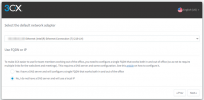
4. This screen confused me a bit--it sounds like it is asking whether I want to access the system using an FQDN or an IP address. The default was "local IP". I wanted to continue using the 3CX-provided FQDN, but I took a chance and left it on "local IP". The existing 3CX FQDN was picked up automatically in the next step. Registering it and obtaining the certificate took a few minutes.
5. After the upgrade, go to the Backup screen and re-enable the scheduled backups.
Anything I'm missing? Does anything else need to be reconfigured?
1. Before doing the full backup of the old system, consider cleaning up (removing) old phone firmware as described in this post. I wound up doing this after the upgrade, which also worked. Backup file size shrank from 453MB to 148MB.
2. Before the upgrade, take screenshots of the 3CX dashboard (including the static IP) and of the Backup Schedule configuration.
3. During the install, a DOS window asks if you want to work at a command line or web browser. Choose web browser. Confirm the static IP when prompted.
4. This screen confused me a bit--it sounds like it is asking whether I want to access the system using an FQDN or an IP address. The default was "local IP". I wanted to continue using the 3CX-provided FQDN, but I took a chance and left it on "local IP". The existing 3CX FQDN was picked up automatically in the next step. Registering it and obtaining the certificate took a few minutes.
5. After the upgrade, go to the Backup screen and re-enable the scheduled backups.
Anything I'm missing? Does anything else need to be reconfigured?
Last edited:


