Solved YEALINK T31G missing provisioning

Status
Not open for further replies.

diego.zandolin

Customer
Basic Certified
Joined
Mar 26, 2020
Messages
15
Reaction score
1
Dear sirs
We have installed and configured the 3cx on premise in a Hyperv host.

The provisioning on Android mobile phones and browsers works but provisioning on YEALINK T31G VOIP phones does not work.
Once connected to the network, the phones get their IP from DHCP regulary and I can reach them from browser.

Theoretically they should already appear in the list of phones but you can't see anything.
I updated the 3cx and restarted it to see if it could recognize phones but nothing happen.

So I followed the procedure https://www.3cx.it/sip-phones/yealink-t32g-t38g-t42g-t46g/
Step 1: Update to the required firmware:
I connected with the browser to the phone's IP and updated the firmware manually by downloading it from here: https://www.3cx.com/support/phone-firmwares/

Step2: I did the factory reset from the browser
Step 3: Phone procurement - Local LAN or SBC: Provision via Plug'n'Play
1. Connect the phone to the network. A PnP request will be automatically sent to 3CX Phone System.
2. Go to 3CX Management Console ⇒ Phones. The new phone will appear in bold <= NOT WORKING

Then I tryed manual configuration following this: https://www.3cx.com/sip-phones/manually-provision-yealink/
Anyway no phone are listed.

How can we fix this?
 
Dear JohnS

I integrate the following:

  • 3CX Version, Standard Annual 18.0 (Build 461)
  • Server OS, e.g. Debian 10 on a Hyperv
  • Is the 3CX Server Hosted and where? On-premises
  • IP Phone Make/Model/Firmware version, Yealink T31G, Firmware Version:124.86.0.40, Hardware Version:123.1.0.32.2.0.0
  • Provisioning Method: Local
  • Trunk Provider or VoIP Gateway Make/Model, Modem/Router FritzBox 7530 AX
  • Has the Firewall Checker passed: YES
  • Are custom Phone Templates being used: we used the provisioning method described in 3cx manual starting from a brand new phones
 
Hi Diego,

Thanks for sharing the details, just two more things please:

1. Does your virtual machine have only 1 LAN card ?

2. Did you read this document to ensure the Hyper-V VM and guest OS have the required settings as described here?https://www.3cx.com/docs/installing-microsoft-hyper-v/
 
Are the phones on the same network as the 3cx server, no vlans involved

Do you have option 66 configured on the dhcp server ?, if so remove it
 
1. My VM has 1 LAN card.
2. Read it. I follow the instruction and I modified a dynamic MAC with a static one.

No particular changes happened.
If can help I attached some screenshots from 3cx where you may see that one Yealink phone seems associated to user 01 but it is not present in phone list.
 
Ok sounds good so far. You now need to make sure that the FritzBox is not blocking multicast messages.

You must connect a network switch on the FritzBox, and put the Server and Phone on this network switch. They must not be directly connected on the Fritz LAN ports. If you factory reset the Yealink, it will send a multicast message to make it appear in your phones page as "New".

I suspect that the FritzBox is blocking this network message, and this is why you are not seeing the phone there. This test should bypass the modem and allow the message to be delivered.
 
Ok sounds good so far. You now need to make sure that the FritzBox is not blocking multicast messages.

You must connect a network switch on the FritzBox, and put the Server and Phone on this network switch. They must not be directly connected on the Fritz LAN ports. If you factory reset the Yealink, it will send a multicast message to make it appear in your phones page as "New".

I suspect that the FritzBox is blocking this network message, and this is why you are not seeing the phone there. This test should bypass the modem and allow the message to be delivered.
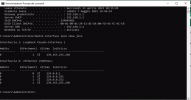
Following this https://www.3cx.com/docs/plug-and-play-ip-phone/
I make this test and only one nic appear.
On the other hand the phones and the 3cx are connected on the same switch (you may see the shreen shot of Advanced IP scanner)
 

Attachments

  • 1 nic.PNG
    1 nic.PNG
    219 KB · Views: 9
Last edited:
Your screenshot shows that you made the test on Windows.
But 3CX is not running on Windows, its running inside a VM on Debian.
So the test above is not showing you what you want to see.

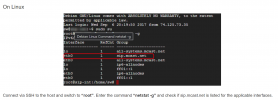
You need to do the Linux test:
1651222105113.png
 
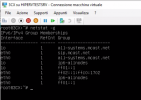
Yes, it is. I enter command netstat -g and sip.mcast.net is listed.
 

Attachments

  • netstat-g.PNG
    netstat-g.PNG
    55.4 KB · Views: 9
Ok, this looks good, itshows that the PBX is joined in the SIP multicast group.

However, notice what I said above:
You must connect a network switch on the FritzBox, and put the Server and Phone on this network switch. They must not be directly connected on the Fritz LAN ports.

The Hyper V host machine must not be connected on a FritzBox LAN port.

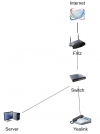
1. You must connect a simple ethernet switch (unmanaged) to one of the Fritz LAN ports
2. You must connect your Hyper-V machine on the switch (not on Fritz)
3. You must connect the Yealink on the switch (not on Fritz)

So the connection must look like this

1651223360824.png
 
It is. 3cx and yealink are connected on the same switch Poe.
Fritz is connected only with the switch Poe.
 
Go to your management console main page, click on Blacklisted IPs and check if the IP address of the Yealink is there.

If it is, please remove it, and then factory reset your phone
 
There are no Blacklisted IPs
 
Do you want that I factory reset all phones anyway?
 
Do you want that I factory reset all phones anyway?

Delete the phone from the phone provisioning tab first

Factory default the phone

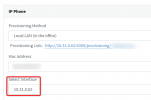
If the phone appears in the list, make sure change the 'Select Interface' to the local IP address of the server (as you see in the sceenshot , you have select your FQDN - this will only work if your FQDN resolves to the 3cx internal IP address)
 
There is something that is still blocking the PnP multicast messages if you reset the phone again and saw nothing appear.

At this point, you should try and manually provision the phone as described here:
https://www.3cx.com/sip-phones/manually-provision-yealink/

You should first change your interface to point to the IP of your PBX. The link that appears on the screenshot currently will not work. It must change to be like my example:
1651228566994.png
 
After deleting phones from users 01 and 02 and factory resetting the 2 yealink then finally appared in the phone list.
I changed Select interface to the local IP address and finally it worked... It was hard...
Thank you very much
 
  • Like
Reactions: JohnS_3CX
Glad to hear!
 
Status
Not open for further replies.

Members Online Now

No members online now.

Forum statistics

Threads
111,831
Messages
589,277
Members
164,660
Latest member
RJenkinsROCK