





As you might have heard already, we have just released a new 3CX app for Android Version 16 BETA, and are working round the clock to add the last remaining features…yes, including video calls!!! Those of you that have not tried the app yet can opt in to become a beta tester. And, do not forget to rate the app and give us your feedback!
Comments and ratings from the Google Play store were overall great but there was one problem which collected a large number of 1-star ratings: Push Notifications arriving late or not arriving at all.

In response to this, we decided to delve deeper into Android Push Notifications and provide a collection of fixes and techniques to solve this problem.
Android Push notifications are awesome and work reliably. But when these notifications are not sent or are delayed, the reasons can lie in one or more of these factors:
- Active maintenance - Check the maintenance status of your PBX in "Settings" > "License". Push notifications rely on having an active 3CX maintenance to work.
- Google Firebase issues - Firebase servers can be down. Check the status indicator page here.
- Expired Firebase Subscription: If the app has not been launched for more than 7 days, the subscription can silently expire without informing the user. This is fixed in the new Beta app v16.3.021, by notifying the user and then automatically renewing the subscription. If you are not on the latest version, to fix this issue you need to manually restart the app to renew the subscription.
- Multiple Accounts - Only the active account can subscribe to the Google Firebase Push service. Switching between multiple PBX accounts, "steals" the Firebase Push subscription every time the app is launched with a different active account and may result in getting the device blacklisted by the service. Based on this, we suggest a maximum of three (3) accounts per device. To switch accounts, launch the app with the account you want to use and then kill the app. Push notifications will work immediately.
- Bugs in the application - Report issues via the Google Play Store.
- User Settings/configuration issues - Users may have configured options or installed apps in the hope of extending or improving their device’s battery life and/or performance.
- Manufacturer, phone incompatibility/technical issues - In contrast with Apple iOS, phone manufacturers’ custom Android flavors and their default settings can cause glitches, odd behaviors and delays.
This guide will focus on the latter two possible causes, user settings and manufacturer issues.
Android Connectivity Issues
When Push notifications fail, we noticed that the PUSH registrations against Firebase servers would be in an active state but never received by the device. At this point it would be wise to check if 3CX app is the only app affected. See if notifications work from other apps.
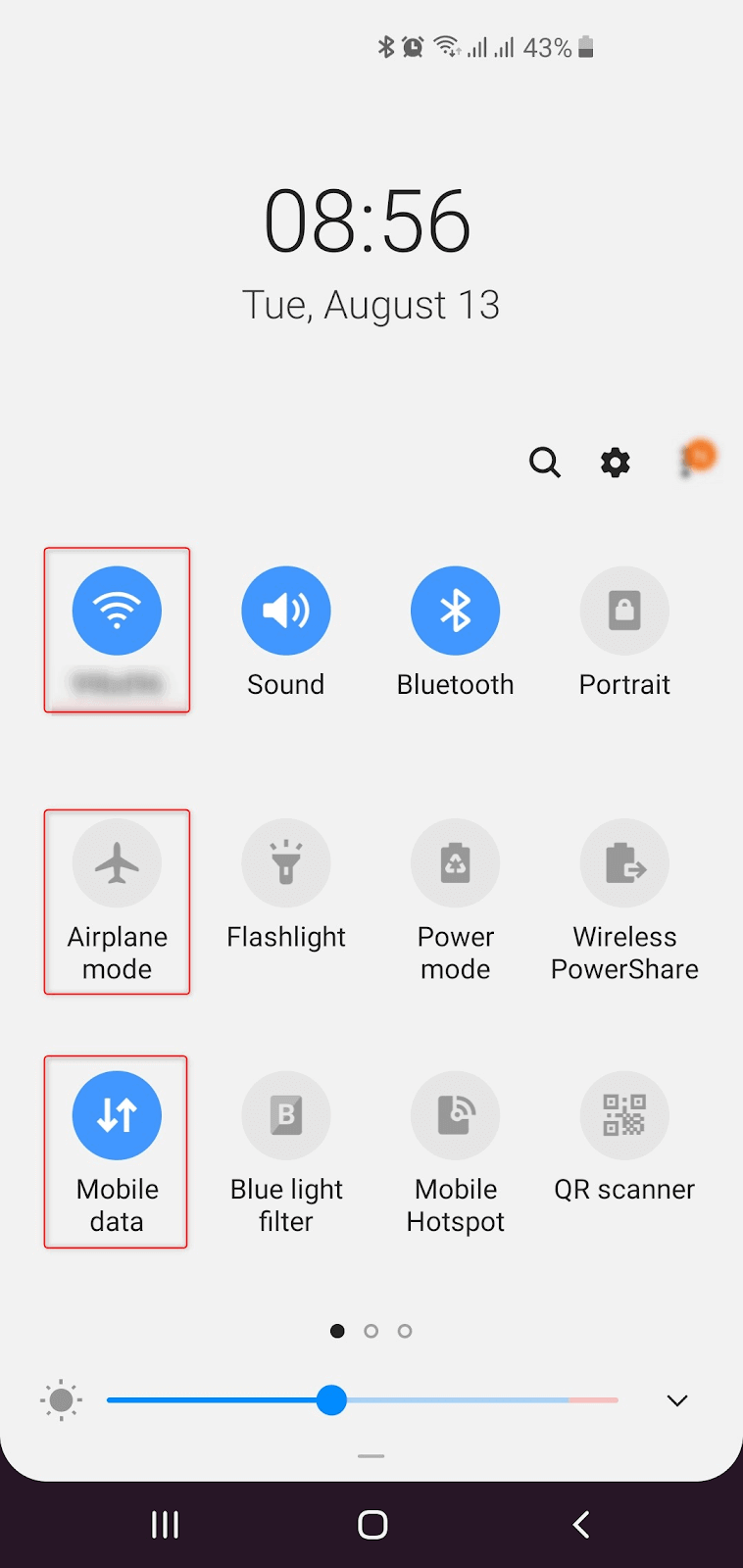
If no notifications work, then the problem is device wide so all apps would be affected. Set the device to “Airplane mode”, restart WiFi and mobile data connections or, as a last resort, reboot the phone or reset network settings. These actions attempt a soft or hard reset to Android’s network stack with the aim to start processing notifications. If 3CX is the only app affected, you can also reinstall the app.
The Power-saving Apps Factor
Manufacturers create their own power saving apps even though Google provides built-in ones in Android. These apps generally try to reduce power consumption, but might make apps running on the device unstable. We suggest disabling these apps and leaving only those provided by Google.
Warning…Overheating!! CPU and device usage require power. And when power is required, heat is generated. One of the main reasons why phone manufacturers ship their own variants of power-saving apps, is purely to overcome overheating issues which Android’s inbuilt system cannot cope with. We have all heard of exploding phones, devices catching fire and FCC in-flight bans. These apps are designed to address the device’s hidden hardware issues, which essentially generate a “cooling off” routine to keep the device’s temperature under control and bypass the health hazard risk. So disable these routines with care, after testing and using properly rated power cables and power adapters. Charging your device using cheap unmarked cables will definitely increase the risk of power deficiencies and battery life issues.
Background Data Restriction
An app that uses background data means that the app sends and receives data even when the device is not in use. An example of this is background data syncing, used to keep apps updated with the latest notifications and status updates. This may come with a monthly mobile data cost.
To combat this problem, Android employs Background Data Restriction, which restricts apps from utilizing mobile data usage whilst the device is idle. This restriction might affect 3CX notifications on incoming calls, because when a call comes in, an incoming PUSH request needs to be processed by the phone to wake up the app. If data is being restricted, the notification will be restricted and the app will not wake up.
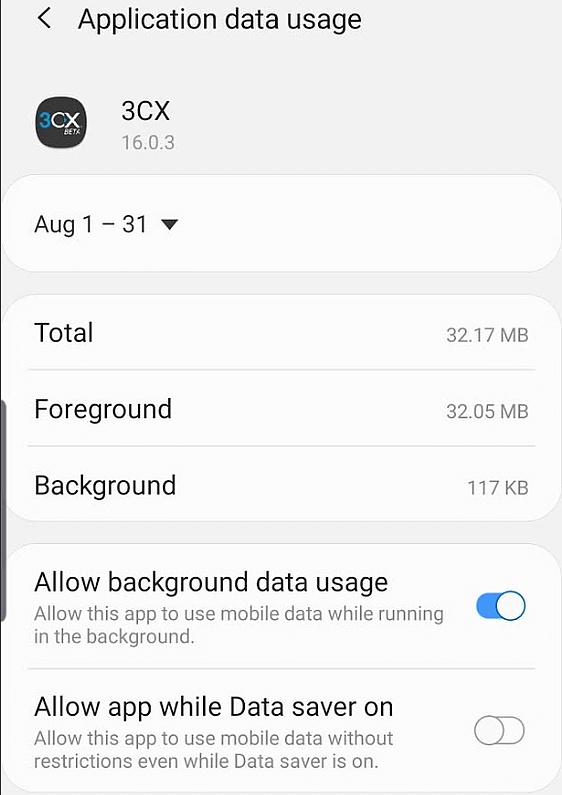
You can remove the app from the Background Data Restriction list by going to “Settings” > “Apps & Notifications” > “3CX” > “Mobile Data” > “Background Restriction” or “Allow background data usage”.
Data Saver On?
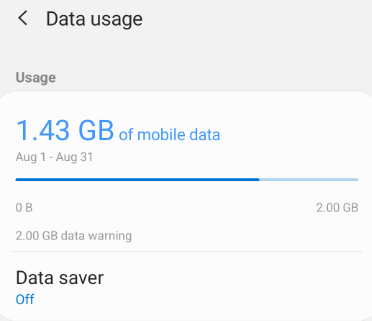
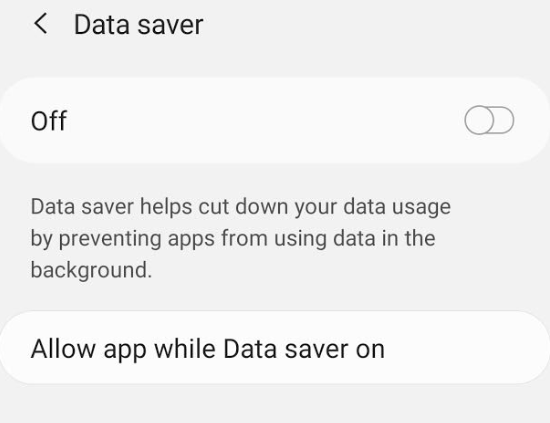
Data saver is a mechanism restricting the amount of data apps use when not on Wi-Fi, to keep mobile costs low. This can help you save money on your mobile phone bill, but can also cause missed notifications.
Doze Mode - Optimize for Doze and App Standby
Last but not least is “Doze mode”, my favourite as it is the most interesting. Starting from Android 6.0 (API level 23), Android introduced Doze which reduces battery consumption by deferring CPU and network activity for apps when the device is unused for long periods of time. This stops apps syncing unnecessarily when your phone is not in use with the screen off. Doze is a new definition to an idle device, i.e. it puts the device in a paused, light sleep state to let the device take a breather. This is a smart AI software optimization to preserve battery life and deactivate background apps that are not regularly used.
This also means that notifications and jobs are postponed or batched up to be processed later when the device wakes up. This explains why 3CX Push notifications may arrive late or not at all, even though the 3CX app sends these notifications in high priority to override Doze mode. If a Push message arrives late, then the call arrives late. Answering a late call will result in a ghost call - a call with no legs nor audio. Additionally, many devices may not respect or adapt fast enough to entering and exiting Doze and as a result of this, the Android Notification System and Push notifications are affected.
If your notifications are arriving late or not arriving at all, a good test to check whether Doze is implicated or not is to plug the charger into your device, wait a couple of seconds until you confirm that the device is actively charging and then make a call. If the call is successful and Push comes through, you know that the cause is Doze, since charging is the only action that immediately forces the device to exit Doze. Moving a device or switching on the screen might not exit Doze completely.
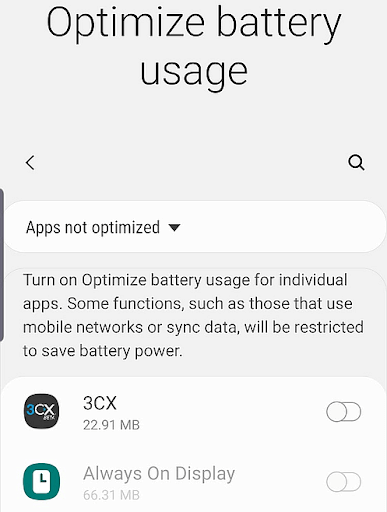
You can exclude an app from Doze by going in the Battery Optimizations module in “Settings” > “Apps & Notifications” > “3CX” > “Optimize Battery Usage” and turn the slider next to 3CX off. This will guarantee that anything that 3CX requests from the device, will be provided irrespective of Doze.
We hope you found this informative, don’t forget to leave us a comment below!









 Copyright © 2026