Solved 3cx upgrade v18 went bad crashed** Please Help*** system is down

Status
Not open for further replies.

Mark Jones

Forum User
Intermediate Cert.
Joined
Oct 26, 2017
Messages
128
Reaction score
12
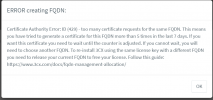
I attempted to update our local linux machines via 3cx upgrade, I waited for 3 hrs and nothing, I reinstalled 3cx linux on our primary and secondary servers using v16 debain an ISO and restored from a backup I went through the next steps and these are the errors i am getting and now Im getting fqdn has been tried too many times I got to have this system up by first light in the morning or im out of a job. someone help***


System.Exception: Error in CreatingCloudServerManagementDatabase.sql: 28P01: password authentication failed for user "phonesystem" ---> Npgsql.PostgresException (0x80004005): 28P01: password authentication failed for user "phonesystem" at Npgsql.NpgsqlConnector.g__ReadMessageLong|194_0(NpgsqlConnector connector, Boolean async, DataRowLoadingMode dataRowLoadingMode, Boolean readingNotifications, Boolean isReadingPrependedMessage) at Npgsql.NpgsqlConnector.AuthenticateMD5(String username, Byte[] salt, Boolean async, CancellationToken cancellationToken) at Npgsql.NpgsqlConnector.Authenticate(String username, NpgsqlTimeout timeout, Boolean async, CancellationToken cancellationToken) at Npgsql.NpgsqlConnector.Open(NpgsqlTimeout timeout, Boolean async, CancellationToken cancellationToken) at Npgsql.NpgsqlConnection.<>c__DisplayClass41_0.<g__OpenAsync|0>d.MoveNext() --- End of stack trace from previous location --- at Npgsql.NpgsqlConnection.Open() at PostInstall.DBConnection.get_Connection() at PostInstall.DBConnection.ExecuteScript(String sqlQuery, IDictionary`2 parameters) at _3CXCloudDBManager.DbConnectionExtensions.ExecuteScript(IDBConnection connection, Object configurationStructure, String scriptText, Boolean asResourceName) Exception data: Severity: FATAL SqlState: 28P01 MessageText: password authentication failed for user "phonesystem" File: auth.c Line: 308 Routine: auth_failed --- End of inner exception stack trace --- at _3CXCloudDBManager.DbConnectionExtensions.ExecuteScript(IDBConnection connection, Object configurationStructure, String scriptText, Boolean asResourceName) at _3CXCloudDBManager.CloudDBManager.CreateCloudServerManagementDatabase(IDBConnection superuser, CloudServerManagementDatabaseConfiguration configuration) at PostInstall.SetupExecutor.CreateCloudServerManagementDatabase(CloudDBManager cloudDbManager, DBConnection templateConnection) at PostInstall.SetupExecutor.CreateDatabase(Action`1 stateChanged) at PostInstall.SetupExecutor.ExecuteSetup(SetupSettings setupSettings, Action`1 stateChanged, Action`1 errorNotifier) at PbxWebConfigTool.PbxSetupService.CreatePbxInternal(SetupSettings settings)


1633845306255.png
 
Hi!

About the Let's Encrypt error, there is not a lot we can do as the certificate generation only allows 5 attempts to issue for the same FQDN within 7 days, as the error clearly says.

As your 3CX Server though is local as you say, it should be fairly easy to use a different FQDN, so you can overcome that this way.

If changing the FQDN is an option (with all that that entails...), what I would suggest is:
  1. Release the FQDN from your License Key from within your Customer Portal.
  2. Delete the Virtual machine or reformat the existing machine and re-install using the V16 ISO.
  3. Perform a clean install using your License Key, and choose a new FQDN during the installation process
  4. After you finish the installation and get into your Management Console, upload your backup file to the folder when your 3CX installation reads the backups from, then restore it from the Management Console
Notes
In order to do step #4, the backup file must have been taken without the "3CX FQDN and License Key" backup option. The easiest way to tell this is, if during the installation attempt you performed earlier, if after you loaded the backup it asked you for the license key, then the backup did not contain it. If it didn't ask you to fill it in, the backups includes the key and 'old' FQDN and can't be used this way.
 
  • Like
Reactions: Evolute IT
Hi!

About the Let's Encrypt error, there is not a lot we can do as the certificate generation only allows 5 attempts to issue for the same FQDN within 7 days, as the error clearly says.

As your 3CX Server though is local as you say, it should be fairly easy to use a different FQDN, so you can overcome that this way.

If changing the FQDN is an option (with all that that entails...), what I would suggest is:
  1. Release the FQDN from your License Key from within your Customer Portal.
  2. Delete the Virtual machine or reformat the existing machine and re-install using the V16 ISO.
  3. Perform a clean install using your License Key, and choose a new FQDN during the installation process
  4. After you finish the installation and get into your Management Console, upload your backup file to the folder when your 3CX installation reads the backups from, then restore it from the Management Console
Notes
In order to do step #4, the backup file must have been taken without the "3CX FQDN and License Key" backup option. The easiest way to tell this is, if during the installation attempt you performed earlier, if after you loaded the backup it asked you for the license key, then the backup did not contain it. If it didn't ask you to fill it in, the backups includes the key and 'old' FQDN and can't be used this way.
Ok I appreciate you so do we loose the FQDN, and we do backups every night the last two backups I uploaded did ask for the license key I think so it that doesn’t work it’s a complete new build for 200 plus phones.
 
Hi!

About the Let's Encrypt error, there is not a lot we can do as the certificate generation only allows 5 attempts to issue for the same FQDN within 7 days, as the error clearly says.

As your 3CX Server though is local as you say, it should be fairly easy to use a different FQDN, so you can overcome that this way.

If changing the FQDN is an option (with all that that entails...), what I would suggest is:
  1. Release the FQDN from your License Key from within your Customer Portal.
  2. Delete the Virtual machine or reformat the existing machine and re-install using the V16 ISO.
  3. Perform a clean install using your License Key, and choose a new FQDN during the installation process
  4. After you finish the installation and get into your Management Console, upload your backup file to the folder when your 3CX installation reads the backups from, then restore it from the Management Console
Notes
In order to do step #4, the backup file must have been taken without the "3CX FQDN and License Key" backup option. The easiest way to tell this is, if during the installation attempt you performed earlier, if after you loaded the backup it asked you for the license key, then the backup did not contain it. If it didn't ask you to fill it in, the backups includes the key and 'old' FQDN and can't be used this way.
Also what about all our our mobile devices that uses the old fqdn if the backup does not have the license and fqdn attached.
 
Also what about all our our mobile devices that uses the old fqdn if the backup does not have the license and fqdn attached.
You'll need to reprovision SBCs, deskphones and mobile apps. This is done by sending the new QR code by email.
 
  • Like
Reactions: Mark Jones
Hi!

About the Let's Encrypt error, there is not a lot we can do as the certificate generation only allows 5 attempts to issue for the same FQDN within 7 days, as the error clearly says.

As your 3CX Server though is local as you say, it should be fairly easy to use a different FQDN, so you can overcome that this way.

If changing the FQDN is an option (with all that that entails...), what I would suggest is:
  1. Release the FQDN from your License Key from within your Customer Portal.
  2. Delete the Virtual machine or reformat the existing machine and re-install using the V16 ISO.
  3. Perform a clean install using your License Key, and choose a new FQDN during the installation process
  4. After you finish the installation and get into your Management Console, upload your backup file to the folder when your 3CX installation reads the backups from, then restore it from the Management Console
Notes
In order to do step #4, the backup file must have been taken without the "3CX FQDN and License Key" backup option. The easiest way to tell this is, if during the installation attempt you performed earlier, if after you loaded the backup it asked you for the license key, then the backup did not contain it. If it didn't ask you to fill it in, the backups includes the key and 'old' FQDN and can't be used this way.
Thank you so much you saved my azz on this one I was so afraid that the backup wouldn’t work for me but it did so 12 hrs down time and we’re back up thanks alot.
 
  • Like
Reactions: Evolute IT
You said your 3CX is on-premise. If you have IP Phones that are on the same LAN as the 3CX Server, assuming you use the same LAN IP as you had before, once you do the clean install and restore your backup as mentioned in my previous reply, then all Local IP Phones should come back online within 5-10 minutes (or might require a reboot at worst).

3CX Apps though, because you will have changed your FQDN, what Frederick said, you would have to re-send the Welcome Email and they be reprovisioned.

Users on the same LAN using the WebClient, again would be unaffected as I assume they use the Local IP of the 3CX Server to login.
Remote WebClient users would just need to know the new FQDN, but other than that, the backup should restore everything else.

The most time-consuming problem will be the Remote IP Phones, meaning STUN and SBC Phone, including the SBCs themselves, as you would need to reconfigure them to use the new FQDN.
 
Thank you so much you saved my azz on this one I was so afraid that the backup wouldn’t work for me but it did so 12 hrs down time and we’re back up thanks alot.
I just posted a reply and saw you had beat me to it!
I am very glad to hear that you go the system back online!
 
You said your 3CX is on-premise. If you have IP Phones that are on the same LAN as the 3CX Server, assuming you use the same LAN IP as you had before, once you do the clean install and restore your backup as mentioned in my previous reply, then all Local IP Phones should come back online within 5-10 minutes (or might require a reboot at worst).

3CX Apps though, because you will have changed your FQDN, what Frederick said, you would have to re-send the Welcome Email and they be reprovisioned.

Users on the same LAN using the WebClient, again would be unaffected as I assume they use the Local IP of the 3CX Server to login.
Remote WebClient users would just need to know the new FQDN, but other than that, the backup should restore everything else.

The most time-consuming problem will be the Remote IP Phones, meaning STUN and SBC Phone, including the SBCs themselves, as you would need to reconfigure them to use the new FQDN.
Thanks again you guys are the best.
 
  • Like
Reactions: NickD_3CX
Status
Not open for further replies.

Forum statistics

Threads
111,974
Messages
590,081
Members
164,899
Latest member
mazet