Ok, read these steps and do them all slowly, one by one. Confirm that each step is complete before moving to the next one.
- Factory reset the phone
- Confirm that after the phone restarted, it does not contain any accounts (should be empty)
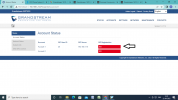
- Check what IP the phone is using now and make note of it
- Delete the extension that has this phone, to clear everything out of 3CX
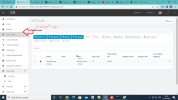
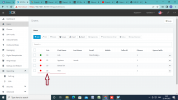
- Look at the blacklist, and see if the IP exists there. Remove it from the list now
- Upgrade the firmware from here https://www.3cx.com/support/phone-firmwares/
- You must now confirm that the phone has version 1.0.7.13, do not proceed further unless the upgrade is complete!
- Create a brand new extension, but do not change anything, just type a First Name ie. TEST
- Go to the provisioning tab of TEST, and add a phone, select the GXP1610 model
- enter the MAC address, then read it again to confirm it is correct, and press OK to save.
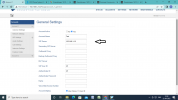
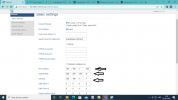
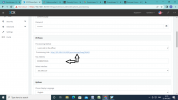
- Go to your phone, and enter the provisioning address in manually (like I explained here)
- Save the settings, and restart the phone so that it will ask for provisioning from 3CX
If everything went OK, the GXP1610 screen should show your extension number and name TEST on the screen, and then it will register and start working. This might take 5 minutes or so, because this model is very slow at startup.
So far you haven't told us whether you performed a factory reset, or whether you upgraded the firmware. This is important information to provide when troubleshooting, so this is why I am explaining the whole procedure in detail so that you do not miss any steps.
Let us know if you get stuck at any of the steps, and what happened exact