• We do not provide troubleshooting help for unsupported phones. Please try with a supported phone.
  • V20 Update 10 Alpha 2 Learn more

Grandstream 1610

Status
Not open for further replies.

Hitdoon

Free User
Joined
Feb 11, 2022
Messages
21
Reaction score
0
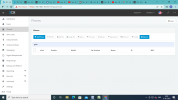
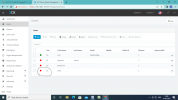
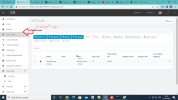
In 3cx in Phone option extention is not working , i am unable to add ip phone
In 3cx my grandstream 1610 ip phone is not support
Please help
 

Attachments

  • Extention.png
    Extention.png
    83 KB · Views: 10
  • gate20.png
    gate20.png
    87.3 KB · Views: 10
  • Like
Reactions: JohnS_3CX
Please follow the link above by Saqqara, and check very carefully that you have not missed any steps.

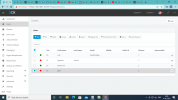
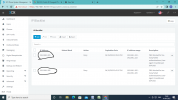
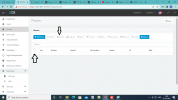
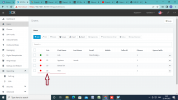
If all is done correctly, then you should see a GXP-1610 appear as "New" in the Phones page (don't search for gate - it will not appear like that)

This can be assigned to your extension, but it is a little slow so allow it 2-3 minutes to configure itself once you assign it.
 
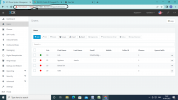
this is i am running
 

Attachments

  • 3cx.png
    3cx.png
    111.7 KB · Views: 12
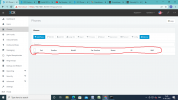
my highlighted area with red colour is not working tell me to enable it .
 

Attachments

  • ext.png
    ext.png
    84.4 KB · Views: 9
Ok, follow the guide mentioned above, and perform Factory Reset on the Grandstream
 
i have done then also it not working
 
Ok, if you have reset the Grandstream, but it did not appear on the "Phones" page, then you will have to check some things:

1. Is the phone on the same LAN as the 3CX machine?

2. Is the Raspberry connected with LAN cable or WiFi?
 
1 is the phone on same lan as the 3cx machine ..yes
2 is the raspberry connected with lan cable ..yes
 
  • Like
Reactions: Evolute IT
Still my ip phone grandstream 1610 does not configure please help. it show ip blacklist which is my ip phone ip address .
 

Attachments

  • Gate.png
    Gate.png
    84.1 KB · Views: 8
  • ipBlacklist.png
    ipBlacklist.png
    90 KB · Views: 7
  • ipaddress.png
    ipaddress.png
    85.2 KB · Views: 7
Delete the blacklist and see if the phones register.

If it does not , delete the phone from the provisioning tab of the extension, factory default the phone and assign it to the extension again.
 
  • Like
Reactions: JohnS_3CX
Still my ip phone grandstream 1610 does not configure please help. it show ip blacklist which is my ip phone ip address .

Ok, read these steps and do them all slowly, one by one. Confirm that each step is complete before moving to the next one.

  1. Factory reset the phone
  2. Confirm that after the phone restarted, it does not contain any accounts (should be empty)
  3. Check what IP the phone is using now and make note of it
  4. Delete the extension that has this phone, to clear everything out of 3CX
  5. Look at the blacklist, and see if the IP exists there. Remove it from the list now
  6. Upgrade the firmware from here https://www.3cx.com/support/phone-firmwares/
  7. You must now confirm that the phone has version 1.0.7.13, do not proceed further unless the upgrade is complete!
  8. Create a brand new extension, but do not change anything, just type a First Name ie. TEST
  9. Go to the provisioning tab of TEST, and add a phone, select the GXP1610 model
  10. enter the MAC address, then read it again to confirm it is correct, and press OK to save.
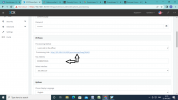
  11. Go to your phone, and enter the provisioning address in manually (like I explained here)
  12. Save the settings, and restart the phone so that it will ask for provisioning from 3CX
If everything went OK, the GXP1610 screen should show your extension number and name TEST on the screen, and then it will register and start working. This might take 5 minutes or so, because this model is very slow at startup.

So far you haven't told us whether you performed a factory reset, or whether you upgraded the firmware. This is important information to provide when troubleshooting, so this is why I am explaining the whole procedure in detail so that you do not miss any steps.

Let us know if you get stuck at any of the steps, and what happened exactly.
 
Ok, read these steps and do them all slowly, one by one. Confirm that each step is complete before moving to the next one.

  1. Factory reset the phone
  2. Confirm that after the phone restarted, it does not contain any accounts (should be empty)
  3. Check what IP the phone is using now and make note of it
  4. Delete the extension that has this phone, to clear everything out of 3CX
  5. Look at the blacklist, and see if the IP exists there. Remove it from the list now
  6. Upgrade the firmware from here https://www.3cx.com/support/phone-firmwares/
  7. You must now confirm that the phone has version 1.0.7.13, do not proceed further unless the upgrade is complete!
  8. Create a brand new extension, but do not change anything, just type a First Name ie. TEST
  9. Go to the provisioning tab of TEST, and add a phone, select the GXP1610 model
  10. enter the MAC address, then read it again to confirm it is correct, and press OK to save.
  11. Go to your phone, and enter the provisioning address in manually (like I explained here)
  12. Save the settings, and restart the phone so that it will ask for provisioning from 3CX
If everything went OK, the GXP1610 screen should show your extension number and name TEST on the screen, and then it will register and start working. This might take 5 minutes or so, because this model is very slow at startup.

So far you haven't told us whether you performed a factory reset, or whether you upgraded the firmware. This is important information to provide when troubleshooting, so this is why I am explaining the whole procedure in detail so that you do not miss any steps.

Let us know if you get stuck at any of the steps, and what happened exact
 
profile_mask2.png

Dhruv gautam IT <[email protected]>​

13:08 (7 minutes ago)
to 3CX


Hello Sir, you told me that 1) Factory rest
2) update firmware
I have done both thing and follow your step, then also i am unable to do it .
In my Grandstream gxp1610 , Extension option is not visible. because of that i am not able to do can you help me to resolve
 

Attachments

  • ad.png
    ad.png
    86.7 KB · Views: 3
  • Extention.png
    Extention.png
    93.5 KB · Views: 3
  • Test.png
    Test.png
    90.2 KB · Views: 3
Can you confirm you have done steps 8 - 12 from JohnS_3CX post
 
My ticketno. [Ticket#64240240]
yes i follow all your step but unable to connect
 
My ticketno. [Ticket#64240240]

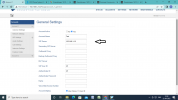
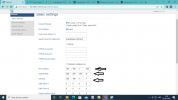
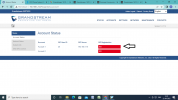
In my Grandstream GXP1610 this option i done the marking by an arrow , those are right or wrong because my SIP Registration is red in colour its not turning green.
 

Attachments

  • account.png
    account.png
    90.8 KB · Views: 7
  • ip add.png
    ip add.png
    87.6 KB · Views: 7
  • SIP Reg.png
    SIP Reg.png
    88 KB · Views: 7
Last edited:
Sir my 11 step is done right but i unable to connect can you please guide me online how to resolve it.
 

Attachments

  • 11 step.png
    11 step.png
    81.4 KB · Views: 7
Status
Not open for further replies.

Forum statistics

Threads
112,147
Messages
590,961
Members
165,167
Latest member
Finatra.us