


- Joined
- Nov 25, 2015
- Messages
- 244
- Reaction score
- 168
Hello all,
I already had this issue in v16 and still have it in v18.
It seems, there is something not quite right with the DND-function.
In general, there are two ways to activate it:
-With a dedicated DND-button on any provisioned phone (IP Phone or 3CX app)
-By dialling a code: *61 = DND on, *60 = DND off
The latter is used by many DECT-handsets, since they don't have a dedicated button.
Both work in regards to that in both cases, a phone in DND does not receive phone calls from groups, queues or direct calls.
But something strange goes on with the appearance to others and the ability to (de-)activate it.
I can best show it with a screenshot, of both the new Windows client and the old Windows client:
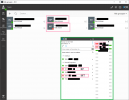
In this screenshot, user 100 RP has activated DND mode by dialling *61
He cannot be called, so it works.
However, as you can see in the screenshot, in the new client he still shows up as 'available' (beschikbaar in Dutch).
In the old client, he shows up with a 'one way street'-sign before his name.
On his IP Phone (Yealink), the DND-icon does not show up and the DND-button cannot be used to disable DND. In fact, if you use it, you get some kind of double DND
User 106 MT in the screenshot has used the dedicated button on the phone to activate DND.
He shows up with 'niet storen' (do not disturb) in the client and with a red icon in the old client.
He cannot dial *60 however to disable DND.
So it seems there a two different kinds of DND: one with the button, the other one with the dial codes.
Both work fine (eg. you get no calls), but they are not both displayed properly in the client.
And, it is possible to accidentally activate both DND modes at the same time.
And you cannot deactivate mode 1 with the method of mode 2.
I would be great if there was one DND mode 'to rule them all'.
I'd say the real DND-button works best and it would be useful if the dial codes could simply trigger that DND-mode/setting as well.
Thanks!
I already had this issue in v16 and still have it in v18.
It seems, there is something not quite right with the DND-function.
In general, there are two ways to activate it:
-With a dedicated DND-button on any provisioned phone (IP Phone or 3CX app)
-By dialling a code: *61 = DND on, *60 = DND off
The latter is used by many DECT-handsets, since they don't have a dedicated button.
Both work in regards to that in both cases, a phone in DND does not receive phone calls from groups, queues or direct calls.
But something strange goes on with the appearance to others and the ability to (de-)activate it.
I can best show it with a screenshot, of both the new Windows client and the old Windows client:
In this screenshot, user 100 RP has activated DND mode by dialling *61
He cannot be called, so it works.
However, as you can see in the screenshot, in the new client he still shows up as 'available' (beschikbaar in Dutch).
In the old client, he shows up with a 'one way street'-sign before his name.
On his IP Phone (Yealink), the DND-icon does not show up and the DND-button cannot be used to disable DND. In fact, if you use it, you get some kind of double DND
User 106 MT in the screenshot has used the dedicated button on the phone to activate DND.
He shows up with 'niet storen' (do not disturb) in the client and with a red icon in the old client.
He cannot dial *60 however to disable DND.
So it seems there a two different kinds of DND: one with the button, the other one with the dial codes.
Both work fine (eg. you get no calls), but they are not both displayed properly in the client.
And, it is possible to accidentally activate both DND modes at the same time.
And you cannot deactivate mode 1 with the method of mode 2.
I would be great if there was one DND mode 'to rule them all'.
I'd say the real DND-button works best and it would be useful if the dial codes could simply trigger that DND-mode/setting as well.
Thanks!




