Sorry, but this is not correct.
I changed my PC settings and web gui time is not affected in this case.
Maybe you missed something? Let's check all the basics first:
Server
- In the 3CX management console, under Settings > Language & Office Hours Settings change your timezone to the one you want
- It's a Linux based system so it will ask you to restart the services (this is necessary because we adjust Linux locales for you)
- When the services restart, you can log in again. Click Terminal in the management console and type
date so you can see the server time.
Confirm the server time is correct!
-
Important Note: If you previously made any manual Linux changes on your own, I don't know what will happen - something may have broken and you might have to redeploy a fresh machine and restore your 3CX backup. If you didn't make manual changes via ssh terminal then please ignore this note.
Your PC
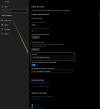
- Set the correct timezone in Windows like my screenshot example from earlier.
- Confirm your time on Windows is showing the correct time now
- If Windows asked for restart, do it
- Try to login to 3CX using Chrome, and empty the cache (or use Ctrl+Shift+R)
- If the website is not reloaded you will not see the time changing.
-
As a test, you can change the windows timezone again and refresh the page - you will see the log time changing (even if the time is not the one you want)
If the server time was not correct to begin with, then the logs will have been written in the wrong time. This is not something you can fix. But the new logs written from now on will be correct.
I hope this information is helpful!