No camera? Dial-in to your next 3CX WebMeeting

Status
Not open for further replies.
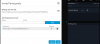
In the screenshot and settings page, it says Example "US: +1 (217) 123-1234, DE: +49 (30) 20179101".

Did anyone get this working? How should the inbound DID rule be configured?
 
In the screenshot and settings page, it says Example "US: +1 (217) 123-1234, DE: +49 (30) 20179101".

Did anyone get this working? How should the inbound DID rule be configured?

I got it working!

I figured out the inbound DID rule, go to inbound rules > Add DID rule > Give it a name, select a spare DID from the drop down, set the during/outside business hour option to extension and select the conference extension. You can find the conference ext in Settings > Conferencing > Audio tab. It should already be set to something and then add the DID number to Conference External Numbers in the above format.

It says you can enter multiple numbers in Conference External Numbers, anyone know if there is a benefit to add more like load balancing for simultaneous conferences?

I notice the the dial in number does not appear for the quick meet now. It only works for scheduled meetings. Can someone confirm this is correct?

If I have Number of Simultaneous Calls: 64 and Number of Simultaneous Meeting Participants: 250, would a single 3CX webmeeting be limited to 250 participants? And can all 250 participants dial in or only 64?
 
What format does this field take? (I am referring to your screenshot) Is it important? I can't seem to get audio in/out for those dialled in via this method.

This fields accepts mostly anything. Don't forget that dial-in is not available for your instant/quick meeting and the fact that your PBX must be able to talk to webmeeting.3cx.net
 
Edit - Sorry just read that it is not available in quick meetings.

I am not seeing the dial in number on quick meet meetings, only on scheduled meetings. Is there a way to get this to work for quick meetings?
 
  • Like
Reactions: accentlogic
I got it working!

I figured out the inbound DID rule, go to inbound rules > Add DID rule > Give it a name, select a spare DID from the drop down, set the during/outside business hour option to extension and select the conference extension. You can find the conference ext in Settings > Conferencing > Audio tab. It should already be set to something and then add the DID number to Conference External Numbers in the above format.

It says you can enter multiple numbers in Conference External Numbers, anyone know if there is a benefit to add more like load balancing for simultaneous conferences?

I notice the the dial in number does not appear for the quick meet now. It only works for scheduled meetings. Can someone confirm this is correct?

If I have Number of Simultaneous Calls: 64 and Number of Simultaneous Meeting Participants: 250, would a single 3CX webmeeting be limited to 250 participants? And can all 250 participants dial in or only 64?
is there a specific reason for chosing a separate DID from the default which seems to be the 70 or 700 for conferencing?
 
is there a specific reason for chosing a separate DID from the default which seems to be the 70 or 700 for conferencing?

70 or 700 can be the conference extension and a DID is an actual phone number for people to call. I believe this dial in feature needs an actual phone number? The steps I listed is to route the spare DID to the conference extension when people call in. The conference ext is convenient to use because it already has a simple voice menu for meetings when someone calls it.
 
70 or 700 can be the conference extension and a DID is an actual phone number for people to call. I believe this dial in feature needs an actual phone number? The steps I listed is to route the spare DID to the conference extension when people call in. The conference ext is convenient to use because it already has a simple voice menu for meetings when someone calls it.
You#re right, I mixed things up. What I meant to say is that my conference extension already has a DID assigned for audio conferences to work and there is an existing inbound/outbound rule for the conference DID to make outgoing calls so I simply used that very same conference number here for the dial-in webvonference settings and I am still having problems but I am currently double checking my firewall settings (the most likely culprit)
 
What format does this field take? (I am referring to your screenshot) Is it important? I can't seem to get audio in/out for those dialled in via this method.

Hi Ovidiu

That's just a text field, anything you type there will appear on the email so the format is not important.

If you are facing an issue with this start a new thread in general and give a good description of the issue and what actions you tried so far and we can help troubleshoot it
 
Hi All, I would like to know if this feature is available in South Africa, I have been trying it out but the dial in feature does not populate on my web-meeting
 

Attachments

  • 2019-06-27_10-19-03.png
    2019-06-27_10-19-03.png
    39.1 KB · Views: 9
Hi All, I would like to know if this feature is available in South Africa, I have been trying it out but the dial in feature does not populate on my web-meeting


yes, it is independent from your location. The PBX will convert the stream and send it to your web meeting you have with others.
 
When can we expect the ability for users to call into a quick meeting?
 
Hi All, I would like to know if this feature is available in South Africa, I have been trying it out but the dial in feature does not populate on my web-meeting
For the dial-in to work, you must first go to your Settings > Conferencing > Audio and fill in the external conference number.

Then, you must schedule a meeting (not Quick Meeting) and this should become populated.
 
When can we expect the ability for users to call into a quick meeting?
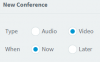
This may come at a later stage, for now kindly schedule a meeting first with the "Now" option and you will be able to use dial in
14217
 
Is it possible to disable dial-in on webmeetings (other than removing the external number from the audio only tab)?

We have a situation where a customer uses audio only for small groups and webmeetings for large groups. However, the dial-in option and number are always sent out in the email invitation for webmeetings. This creates an issue where a lot of the webmeeting users default to the dial-in options and the customer quickly hits their license limit.
 
You can edit the email templates from the Settings page, and remove any information you do not want appearing.

Create a test meeting to check the email is received and appears as you desire.
 
Status
Not open for further replies.

Latest Posts

Forum statistics

Threads
111,991
Messages
590,166
Members
164,929
Latest member
Cloudstar