





Did you have SMS configured before Update 4 using Telnyx, Flowroute, Bandwidth or Twilio?
SMS not working? Update 6? The past few days we’ve been receiving a lot of feedback in the Forums regarding the SMS configuration. We’re listening! More clarification was required.
We gathered together the main gotchas and points that you need to follow to have your SMS provider working in no time!
Why We Changed SMS Implementation
The old SMS worked using a messaging proxy in between the PBX and the actual service. It was difficult to scale and it didn't allow us to easily support more SMS providers. The new way resolves the following issues:
- Much easier to configure SMS, it's just an extra step when you set up your SIP Trunk.
- Any DIDs configured on the trunk are now automatically SMS enabled.
- No need to input them again and configure routing for each one.
- The messaging proxy was a single point of failure.
- Messages are routed directly to your PBX which from a data privacy perspective is much better.
- At the same time we standardized the number format to +E164 (e.g. +18135910133) to avoid send and receive issues at a later stage or depending on the provider.
Installations Using the Old Way (Pre-Update 4) - What You Need to Do?
If you configured your SMS pre Update 4 and didn’t update it in Update 5, then you need to update your configuration to the new method. With Update 6 the old messaging method no longer exists so migrating to the new messaging method is now required. If you have not re-created your SMS configurations BEFORE updating to Update 6 then:
- Your SMS configuration will not work
- The SMS tab in your “SIP Trunk” section will not be visible
The steps you need to follow will only take a few minutes. You’ll be back up and running in no time!
Just for the record: We’ve sent numerous emails to license owners and partners about this. We also posted it in the Update 5 and other blog posts. If you did not see these emails, ensure that your license is registered to your email address and that you are able to receive our news updates.
Step 1 - Delete your current SMS and SIP Trunk configuration
The first step is to remove your current SIP Trunk configuration to avoid any conflicts.
- Login to the Management Console.
- Navigate to “Messaging > Facebook & SMS” and delete your SMS configuration.
- Now go to the “SIP Trunks” section to remove your SIP Trunk configuration.
Make sure to take note of all the details such as Main trunk number, Authentication ID, API Keys etc. since you are going to need them for the next steps.
Step 2 - Recreate your SIP Trunk
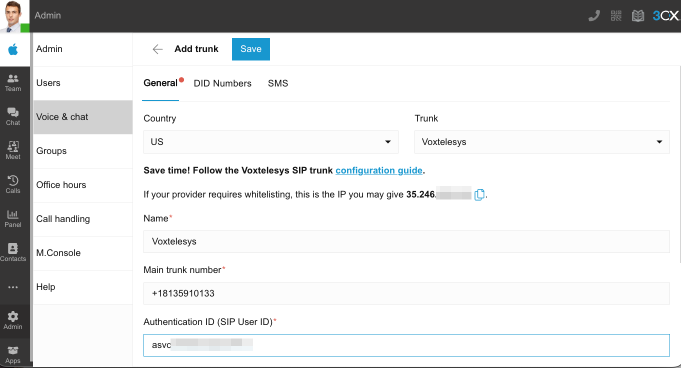
Flowroute Users
Flowroute is fully supported. To recreate your SIP Trunk configuration:
- Login to the 3CX Web Client and access the “Admin” section.
- Go to the “Voice & Chat” and “+Add trunk”.
- Fill in the Main trunk Number, Authentication ID and Password.
- Navigate to the “SMS” tab to enable it and copy the unique 3CX Webhook.
There are some additional configuration steps that need to be followed. Read the Flowroute guide for more.
Bandwidth, Telnyx and Twilio Users
Bandwidth, Telnyx and Twilio can only be provisioned from within the Management Console. Note: Telnyx is not supported by 3CX and you must get support from the vendor. However, to ease upgrading to Update 6 and to allow for gradual moving away from 3rd-party vendors you can still use these SIP trunks with the “new” SMS configuration.
- From the 3CX Management Console, select “SIP Trunks” > “Add SIP Trunk”.
- Select your provider and enter the main trunk number.
- Enter the “Authentication” details as given to you by the vendor. Follow these guides for some additional configuration steps needed from the provider’s end.
- Navigate to the “SMS” tab to enable it and copy the unique 3CX Webhook.
Step 3 - Update the SIP Trunk portal with new Webhook
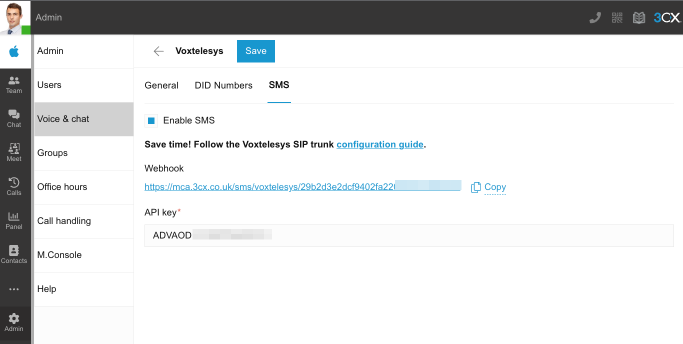
Important: Take note that when you delete your SIP Trunk, all previous chat logs will still be available but the Webhook will change. You will need to update your SIP Trunk portal with the new 3CX Webhook.
Ensure that your SMS is configured correctly on your SIP provider end. Go to your provider's portal and paste the webhook retrieved on the previous step as explained in the guides.
- Preferred: Voxtelesys
- Supported: Flowroute, Skyetel, Wavix
- Supported Dedicated: Bandwidth, Twilio
- 3rd-party supported: Telnyx
Step 4 - Input all your DIDs in +E164 format!
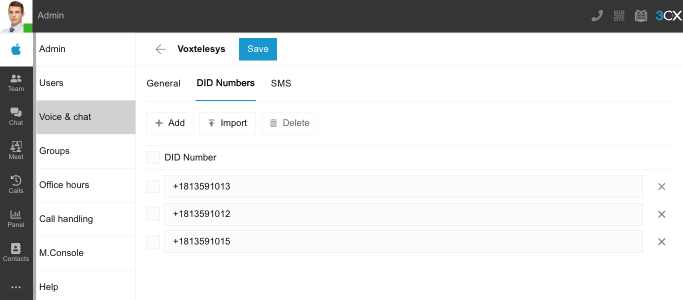
All SMS providers MUST have their DIDs configured in the +E164 number format. This was done to align voice and SMS using the same number format as all communication for SMS is done using the +E164 number format.
Make sure that your new and existing configurations are using the +E164 number format! For example a US number 5910133 cannot be used in its national 8135910133 or international 0118135910133 format. It must be entered with the + sign +18135910133.
Step 5 - Ensure DIDs are set correctly in your extensions, queues, IVR or ring groups
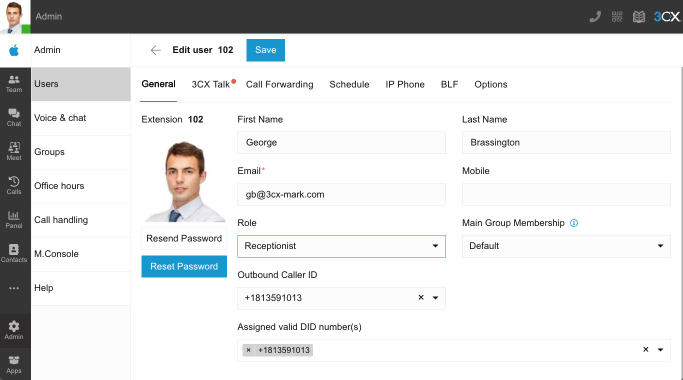
Now ensure that each DID has been configured correctly and assigned to users, queues or ring groups. All the DIDs follow the “Default” Group routing. So make sure to assign your DIDs to your desired destination.
Step 6 - Do you have a main number that routes to an IVR?
…and you want to use this for SMS? Then you must go to the options tab and specify where SMS for this main number should go.

- Navigate to “Call handling” and select your IVR. If you are planning on creating one follow our guide on how to set up your Digital Receptionist.
- Go to the “Options” tab.
- Enable the “Forward SMS” option to route SMS to a different destination like extensions, Ring Groups or Queues.
- This option is only available via the Web Client or Desktop App and for users with the assigned roles:
- Group Administrator
- System wide changes require “System Administrator” or “Group owner” rights
Important Points to Note
- If you are a “System Owner” or a “System Admin” you can select to use the Groups routing options from the “SIP Trunks” configuration settings
- “System wide” which means the Default group members will be available to send SMS, or
- “Limited to a group”, the trunk will be available only for the specific group and its members
- SMS routing is handled the same way voice routing is. This means that SMS is now enabled by default for all users; you no longer need to enable it per individual user/extension
- If a Ring Group or Queue uses an SMS-enabled DID, then all extensions that are part of that Ring Group or Queue can send outbound SMS
- If a Queue, Ring Group or extension has multiple DIDs configured, from the same or different trunk, then the user can choose which DID to use
Use a Supported SIP Trunk Provider!
For further issues regarding these providers, contact their support. We strongly recommend moving to a preferred provider such as Voxtelesys.









 Copyright © 2026