





Hands-free automated installation for Windows Desktops.
Attention System Administrators! Deploying the 3CX Softphone via Microsoft Intune allows IT admins to install the application on many devices simultaneously without manual intervention. We've prepared a document to guide you through the steps.
From Manual to Automated Installation
Deploying the 3CX Softphone via Microsoft Intune offers significant advantages for IT administration, allowing you to shift from manual, machine-by-machine setup to an automated, centralized and scalable process. It also allows for the rapid rollout of the 3CX app across large organizations without requiring IT to touch individual devices. Key benefits include:
- Automation & Scalability: IT admins can deploy the 3CX Windows desktop app to hundreds or thousands of domain-joined PCs simultaneously, reducing manual labor and deployment time to days or hours.
- Enhanced Security: By using Microsoft Intune (specifically for Windows Store app deployment), the 3CX app is security-checked by Microsoft prior to publishing, providing a more secure deployment method.
Simplified Distribution
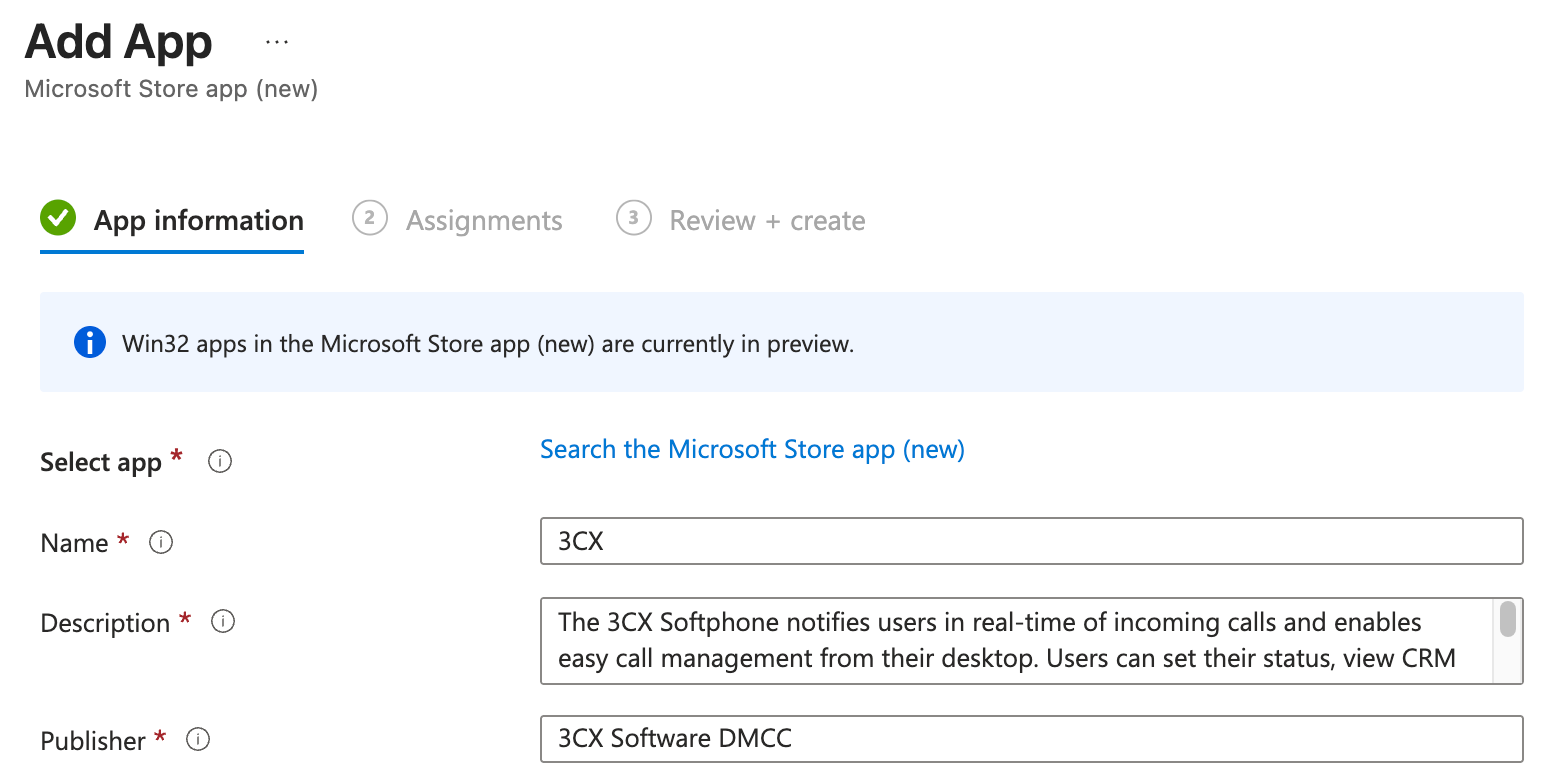
We’ve gone through the process, step-by-step, of setting up the 3CX Windows Softphone in the Intune Portal to pull it from the Microsoft Store to your Windows Desktops.
Three simple steps:
- Create the App
- Select the 3CX App from the Store
- Assign Groups of Users
…and you're done!
You can see the full guide here: 3CX Softphone AutoDeployment Using Intune.
Join the Discussion
Join the discussion in our Forum. Follow us on X and LinkedIn to stay-up-to date on latest news and feature releases.
Special thanks to Emmanuel Usclade of La Montagne for his valuable insights and support in creating this blog.









 Copyright © 2026