





The Digital Receptionist function includes a little functionality gem to help you add basic automation and integration capabilities to your 3CX PBX. Provided that you have some script coding skills, you can use the "Launch Script" option for your IVR to process customer input and deliver the result back to 3CX for further action.
The "Launch Script" IVR type can be used in both Linux and Windows, as long as you have set up the proper environment and libraries to enable scripting on the 3CX host machine. On Linux you can use scripts written for the built-in shell usually, bash, or for even more advanced languages such as Python or Perl. On Windows you can create scripts for the built-in batch or PowerShell interpreter, or again create code in any advanced language you have installed and are familiar with, e.g. Microsoft C# .NET.
So, let's wear our coding wizard hats to create a basic script-based IVR.
An Example with a Script-based IVR on Linux
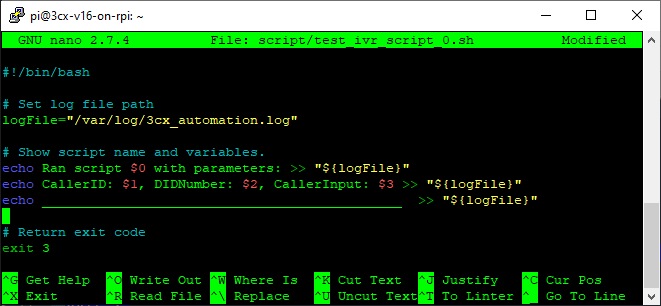
This example demonstrates the basic functionality and parameters for a script-based IVR on Linux. The usage scenario for receiving a call is to play a welcome prompt, get the caller's input and after confirming the input, run the script that records the parameters passed by the IVR in a log file. After processing, the script returns an exit code to the IVR, to signal for the next action to take, e.g. play another prompt. So let’s see how to create and use this very basic automation script, with the below example:
- Create the example shell script on the Linux host running 3CX, using the nano editor:
nano /home/pi/script/test_ivr_script_0.sh
- Enter the following code in the file and press Ctrl+O to save. Note the parameters $0 to $3 passed to the script by position.
#!/bin/bash # Set log file path logFile="/var/log/3cx_automation.log" # Show script name and variables echo Ran script $0 with parameters: >> "${logFile}" echo CallerID: $1, DIDNumber: $2, CallerInput: $3 >> "${logFile}" echo _____________________________________________ >> "${logFile}" # Return exit code exit 3 - Assign ownership of the script to the “phonesystem” user:
sudo chown phonesystem:phonesystem /home/pi/script/test_ivr_script_0.sh
- Create the example log file and assign ownership to the phonesystem user:
sudo touch /var/log/3cx_automation.log
sudo chown phonesystem:phonesystem /var/log/3cx_automation.log
- Go to Digital Receptionist to create the IVR:
a. Enter a name for the IVR, e.g. "Script Input to Log IVR #1".
b. Set type to "Launch Script".
c. Select or upload a suitable audio prompt.
d. In "Script Options", enable "Collect user input and pass it to the script", disable "Expect digit length" and enable "Playback user input and request confirmation".
e. Add a new Exit Code with the value "3", as specified in our example shell script.
f. Set action to "Play Prompt and Exit", select an audio prompt to play when the script returns the suitable exit code and click on "OK" to save. - Open a command shell window to monitor the log file specified in the example script with the command:
sudo tail -f /var/log/3cx_automation.log
- Now, call the virtual extension assigned to the new script-based IVR. After the initial prompt, enter some digits as input and confirm your input by pressing "#".
- The IVR now executes the script. If the script ran OK, you should now hear the audio prompt you specified to be played back, triggered by the exit code returned by the script. Otherwise, you will hear the “Internal Error Occurred. Sorry.” prompt before ending the call, meaning we need to return to our drawing board and troubleshoot.
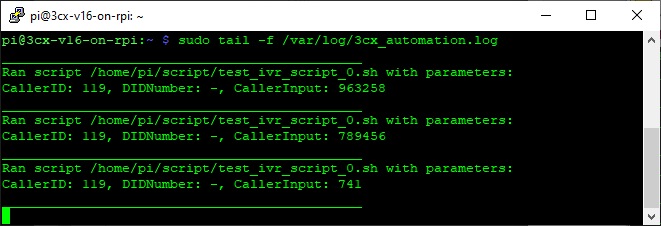
After the script’s successful execution, the monitored log should display this example log output.
In Conclusion
This was a basic example, recording the parameters passed by the IVR to the script in the log output. As script-based IVRs have a limit of up to 101 exit codes and can call another IVR menu, script-based or not, possibilities are endless if you have the coding skills to put your imagination to code. 3CX has provided you the tools, you do the magic.









 Copyright © 2026