


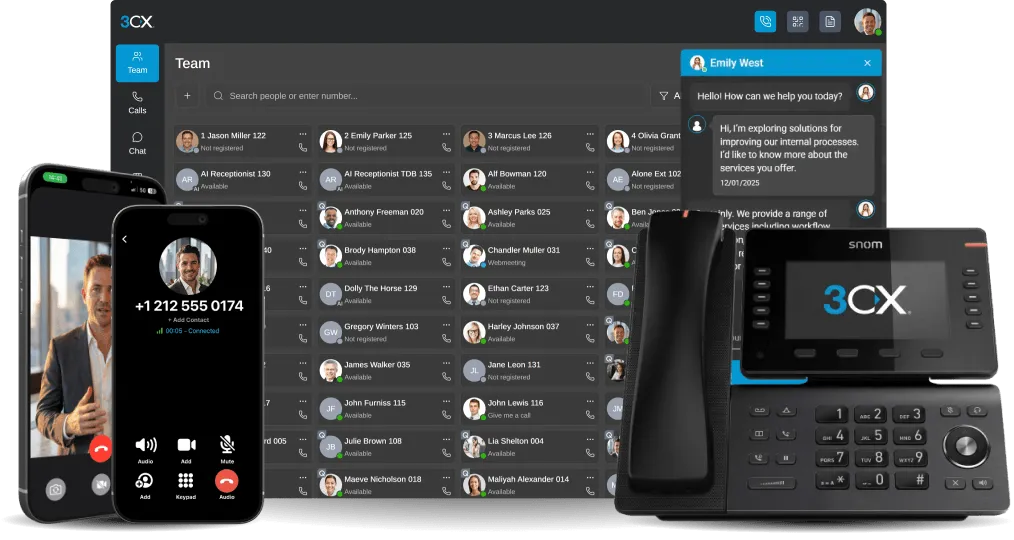


Update 10 brings a major upgrade to the 3CX AI Server and requires reinstalling the AI software.
V20 Update 10 introduces the next generation of the 3CX AI Server, bringing a simpler installation process, easier PBX connectivity and support for more hardware, including Apple Silicon Macs. The redesigned architecture removes several configuration requirements, making the AI Server easier to deploy and manage.
For those already running the 3CX AI Server, upgrading to Update 10 requires a fresh installation of the AI Server software. Here's what's changing, what you need to know before upgrading and how to keep call transcription running during the transition.
What Changes in V20 Update 10
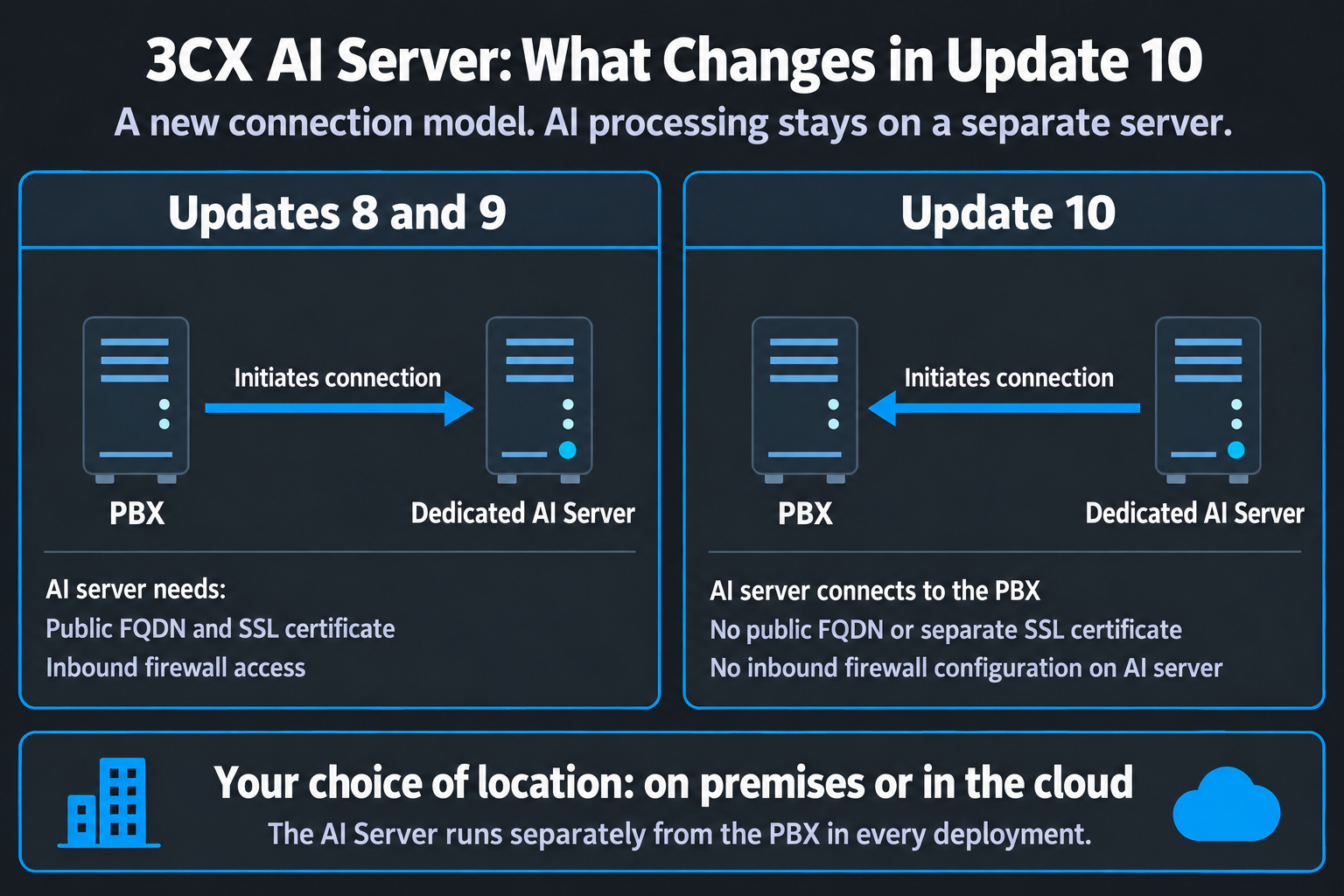
The main architectural change is the connection model. In the new generation, the AI Server acts as a client and connects to the PBX. This removes the need for a public FQDN, a separate SSL certificate and inbound firewall configuration for the AI Server, while simplifying installation.
The new 3CX AI Server adds support for Apple Silicon Macs, such as a Mac mini, alongside Debian Linux with a supported NVIDIA GPU. RAM recommendation for Apple Silicon Macs is at least 24 GB of unified memory. Recommended Debian systems should have at least 16 GB RAM and an NVIDIA GPU with 24 GB VRAM; see the installation guide for recommended specifications.
The new AI Server also simplifies setup and monitoring, with installation initiated from the Admin Console. It can serve multiple PBXs, and one PBX can use multiple AI Servers, giving you more flexibility as workloads grow.
Keep Transcription Running During the Switch
Existing installations must be reinstalled or migrated when the PBX moves to Update 10.
To keep new recordings being transcribed while the AI Server is unavailable, configure and test a temporary cloud provider before taking it offline. Use a provider that supports call recordings, such as OpenAI, Google or Grok, with the required credentials, billing and capacity.
Schedule the switch for a quiet period and let pending first-generation jobs finish where possible. Under Admin > Integrations > Transcription, select the temporary provider, save and make a recorded test call. Confirm that its transcript and analysis arrive before proceeding. Check that recording and transcription remain enabled for the relevant departments, users, queues and ring groups.
While working on the transition, ensure your system is configured to retain original recordings; check your PBX backups and note the switch time before starting the upgrade.
Reusing an Existing NVIDIA AI Server
After upgrading the PBX to Update 10, remove its old AI Server link and uninstall the AI Server software from the NVIDIA host. You can reuse that machine if it meets the current requirements, but it needs a fresh installation and PBX connection.
You are strongly recommended to perform a clean install of the Debian OS before reinstalling the 3CX AI Server.
Keep the temporary cloud provider in use while preparing the host. Follow the AI Server installation guide for the supported NVIDIA setup and installation, then switch back and validate transcription as described below.
Validate the Cutover and Check for Gaps
When the new AI Server is ready, switch back from the temporary cloud provider and make a recorded test call. Confirm that transcription and summary are delivered. If testing fails, return to the tested cloud provider while resolving the issue. Note both switch times so you can check for gaps.
In the list of recordings, review calls from both provider-switch periods and the migration window. For an untranscribed recording, click Transcribe where available and confirm completion; you may need to do this individually for any recording which missed transcription.
If a recording still has no transcript and Transcribe is unavailable or fails, investigate the logs or contact support rather than assuming it will catch up.
Keep the cloud configuration available until you have checked recordings from the switch window and confirmed that new calls are transcribed successfully. Then retire the previous AI setup (if still running) and remove obsolete certificates and firewall rules after checking that nothing else uses them.
Join the Discussion
Join the 3CX discussion in our dedicated Partner or Customer Forums. Follow us on X and LinkedIn to stay-up-to date on latest news and feature releases.









 Copyright © 2026