




Use a controlled API-key test to confirm your AI-unavailable backup route works, separately from Human Handoff.
Test your AI-unavailable route on its own before callers depend on it. In V20 Update 10, the AI unavailable setting sends calls to a backup destination when 3CX detects that the AI service cannot respond. This blog shows you how to trigger that condition safely on a test PBX and confirm exactly where those calls go.
Why Human Handoff Does Not Prove Your Backup Route
A successful Human Handoff only proves that the AI can transfer a call while it is working. It does not confirm the route 3CX uses when the AI service cannot respond at all, because the two settings react to different conditions and are configured in different places.
Human Handoff handles a conversation the AI cannot resolve, or a general request to speak to a person without enough detail for more specific routing. The AI is working and can transfer the call. Set this destination in the Customer Service Agent’s Call Routing tab.
AI unavailable handles failures that prevent the AI service from responding, including network connectivity problems and authentication/authorization failures. Set this backup destination in the agent’s Options tab. You can choose Transfer to a configured destination or End Call; this blog uses the transfer option
Because each route has its own trigger, each one needs its own test.
Example: Test Both Routes with Two Different Destinations
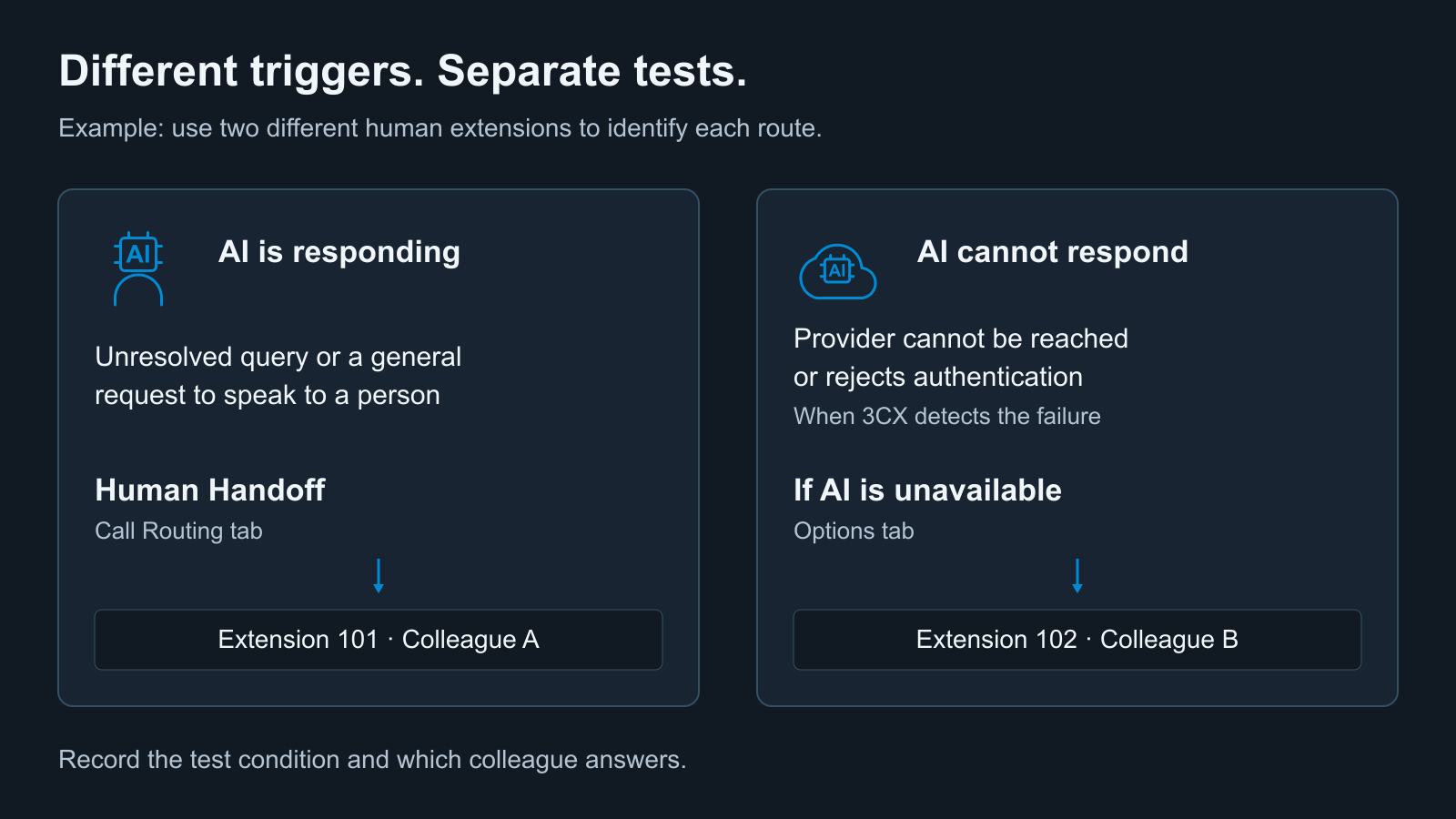
Giving each route a different destination makes the result easy to read: whoever answers the call tells you which route it took.
This example uses a Customer Service AI Agent and two human Support colleagues on separate extensions in an isolated test PBX. It compares a normal conversation, Human Handoff and a temporary API-key failure, then checks that normal service returns.
Set Human Handoff to Support colleague A on extension 101 and AI unavailable to Support colleague B on extension 102. These numbers are illustrative; use two different direct human extensions on your test PBX. For technical details, see the AI Customer Service Agent and AI Agent configuration guides.
Prepare the Test
Use an AI Edition test PBX running V20 Update 10 with a separate AI provider configuration. Changing a shared API key can affect other agents that use it, so do not run this test against production credentials. Make sure you can restore the working key securely before you change anything.
Prepare one question with a known answer in the agent’s knowledge sources and one it cannot resolve. Keep specialist Escalation Topics out of these requests. Then call extensions 101 and 102 directly to confirm that both colleagues are available to answer.
Run the Calls
Run the healthy cases first. Then temporarily replace the working provider API key with an invalid key on the test PBX and save it. The key is checked when the provider is used, not when it is saved. Call the AI agent through the same incoming route you used for the healthy calls and check that the detected failure sends the call to colleague B on extension 102. Restore the working key immediately after this case, even if the call fails unexpectedly.
Use these expected outcomes as your test sheet. They are illustrative checks.
| Test | Expected Outcome | What to Check |
|---|---|---|
| Known-answer question | AI answers from its knowledge sources. | The normal AI conversation works. |
| Unresolved query | Human Handoff reaches colleague A. | AI responds but cannot resolve the request; colleague A answers. |
| "I want to speak to a person." | Human Handoff reaches colleague A. | Colleague A answers. |
| Saved invalid API key | AI unavailable reaches colleague B when 3CX detects the failure. | Colleague B answers the invalid-key call. |
| Working key restored | AI answers; the human request reaches A. | AI answers again; Human Handoff reaches A. |
For each call, record the time, calling number, test condition, expected extension, actual extension and who answered. Keep the PBX build and AI component versions with your notes. Use call records and available AI error logs to investigate unexpected results, and leave API keys out of the evidence.
Read the Result
Compare the receiving extension with your test sheet. With separate destinations, the person who answers identifies the route: colleague A on 101 for Human Handoff, colleague B on 102 for AI unavailable.
If a call ends or reaches the wrong extension, check the relevant Human Handoff or AI unavailable destination and the call records. For the invalid-key case, use the available AI error logs to investigate the failure.
After restoring the working key, repeat the original known-answer call and the request for a person. Keep any failed case open for follow-up, with its expected and actual outcome.
Confirm Your Backup Route Before Callers Need It
Testing the AI unavailable route separately confirms where callers go when your AI agent cannot respond. Once these checks pass, you have confirmed that Human Handoff and the tested AI unavailable condition each reach their intended destination, and that normal AI service returns after you restore the key. Repeat the test whenever you change the provider configuration or either routing destination.
Join the Discussion
Join the 3CX discussion in our dedicated Partner or Customer Forums. Follow us on X and LinkedIn to stay up to date on the latest news and feature releases.









 Copyright © 2026