





Restoring encrypted connectivity after an auto-renewal failure.
For all 3CX-provided FQDNs, SSL certificates are configured to be automatically updated. This ensures that your 3CX remains secure, auto-renewing well before expiry.
However, if for some reason your 3CX system is unable to reach out to trigger and complete the auto-renewal, you will have to force the renewal. Following our previous blog on SSL certificates and certificate chains, this blog covers what to do if an auto-renewal fails.
Why does auto-renewal sometimes fail?
The typical root causes for this are one of the following:
- Firewall restrictions that stop the 3CX server from reaching for auto-renewal
- Internet connectivity issues during the auto-renewal attempt
Confirm that your certificate has expired
Run the following command from Windows PowerShell:
PS C:\Users\user> $uri = "https://examplepbx.3cx.com.cy"

PS C:\Users\user> $req = [Net.HttpWebRequest]::Create($uri)

PS C:\Users\user> try { $req.GetResponse() | Out-Null } catch {}

PS C:\Users\user> $req.ServicePoint.Certificate.GetExpirationDateString()

2/10/2026 1:30:00 PM

PS C:\Users\user>
…or from a Linux command line:
[email protected] ~ % URI="https://examplepbx.3cx.com.cy"

[email protected] ~ % curl -Ikv $URI 2>&1 | grep "expire"

* expire date: Feb 10 13:30:00 2026 GMT

[email protected] ~ %
…which will confirm that the certificate is indeed expired.
How can you resolve this?
You can manually trigger the certificate renewal process by performing the following procedure:
- In the 3CX Admin Console, navigate to "Admin → Advanced → Parameters"
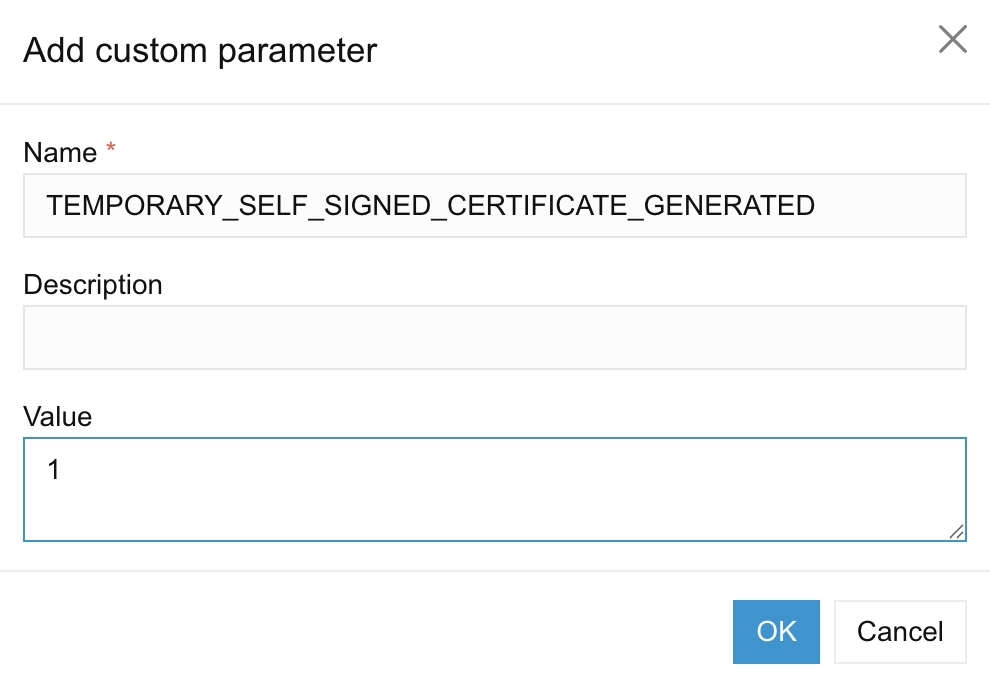
- Search for the Custom Parameter "TEMPORARY_SELF_SIGNED_CERTIFICATE_GENERATED" and set the value to 1
-
- If the parameter is not found, click the Add button to create it
- Trigger the renewal procedure manually:
- For Windows, run the following from CMD (Running as Administrator)
"C:\Program Files\3CX Phone System\Bin\PbxConfigTool.exe" -renew-certificates
-
- For Linux, run the following from the command line
sudo -u phonesystem /usr/lib/3cxpbx/PbxConfigTool -renew-certificates
- Wait for the process to complete; 5 minutes should be a safe delay
- Restart the nginx service:
- On Windows (from CMD running as Administrator):
sc stop "3CX PhoneSystem Nginx Server" && timeout /nobreak /t 5

sc start "3CX PhoneSystem Nginx Server"
-
- On Linux:
sudo service nginx reload
…and your SSL certificate should now be renewed. You can confirm that the certificate is updated by running the confirmation commands described above again.
Join the discussion
Join the discussion in our Forum. Follow us on X and LinkedIn to stay up-to-date on latest news and feature releases.









 Copyright © 2026