





A lot of you already took version 15.5 with its new web client for a test run. For those of you who haven't you're missing out! And those who did? Well, I hope you like it as much as I do. The web client has replaced my 3CX client especially when it comes to presence information and controlling my IP phones.
However, since I am terrible at closing tabs throughout my workday and I often end up with 30 (or more) tabs open at the same time, I wanted to place the web client in the taskbar with its own icon and no “clutter” around it. If you are a Google Chrome user, on Windows, there is an easy way to do this. And here it is!

Right Click on your Windows desktop → New → Shortcut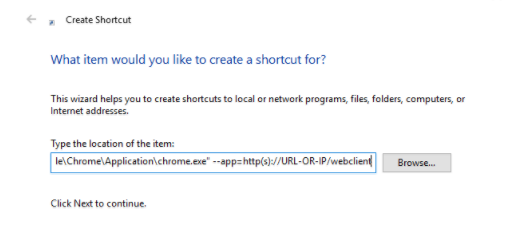 For the item location just paste the below and press next. Replace the bold marked value accordingly to match your web client URL.
C:\Program Files (x86)\Google\Chrome\Application\chrome.exe" --app=http(s)://FQDN-IP-3CX/webclient
Give it a name, such as 3CX web client and launch it by double clicking on the icon on you desktop. And that's it!









 Copyright © 2026