 Update 3 will soon be released and as always, it comes with new features and changes, which in return will have corresponding demands in the 3CX Android and iOS apps. As a result of this, the existing Android and iOS apps will be updated to new versions to ensure ongoing compatibility with the PBX. In exchange for stability, UX and technological gains we are setting the current set of apps as obsolete and replacing them with a new regime of apps which will be designed to work with 3CX V16 update 3 and higher. Older versions of our apps will become obsolete in a month or so.
New Entrants - 3CX Apps
The new Android and iOS apps, currently in Beta, will be fully compatible with the upcoming Update 3 of V16. Current installed apps will not work with Update 3. Here you need to make a choice. Update your server and then go ahead with the apps hassle free OR ignore the server update, and make sure your devices do not update. Pay special attention here because most default settings have auto-update enabled.
Update Your 3CX Install
Update your 3CX install on Windows or Linux:
- Linux: Simply go to the updates section in the Management Console and update from there.
- Windows: You need to take a backup, uninstall 3CX, download and install the latest 3CX version. Post install, the Configuration Wizard will prompt you to restore the backup.
Maintenance Expiration
3CX updates depend on a valid license and maintenance plan. If your maintenance has expired, you need to renew it or exchange your perpetual license for an annual one. Contact your partner or reseller to be informed of your options.
Keeping your Legacy Apps
Android
If you decide that you are not ready to upgrade your PBX to Update 3, you need to make sure that you disable auto-update for the 3CX app on your Android smartphone:
- Open Google Play Store on your device.
- Tap on the left-side burger menu and then on "Tap on My Apps and Games".
- Under the "Installed" tab, tap on "3CX".
- Tap on the top-right "More" menu and uncheck the "Enable auto update" option.
The new app is compatible with Android OS 7 and above, so smartphones running a lower Android OS version will be incompatible and will not be prompted for an update. Google Play Store will not push updates for the 3CX app to smartphones that are not supported. Play Store mirroring is also disabled for the new Android app, to avoid security issues.
iOS
Legacy iOS app users need to keep their currently installed version and not update after the new iOS app is released. On iOS the solution is not ideal; you will need to turn off updates for all apps not just for 3CX.
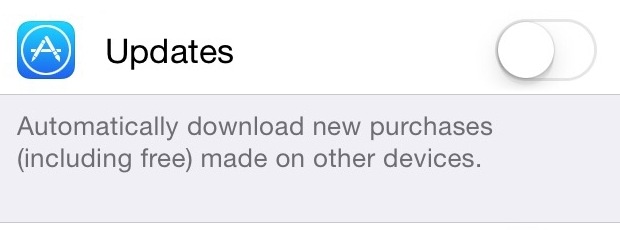
Go to Settings > iTunes & App Store.
To disable all automatic app updates, turn off the green switch next to Updates.
This means that the lack of maintenance will put a strain on all your iOS users because if you do not update, iOS users will need to stop all app updates. This will not be well received.
Join our Beta Testing Program
You can preview the new Android and iOS apps by joining our Beta Testing Program on:
- Android: Open the 3CX Android Beta link and register with your Google account. After registering, search for "3CX" and install the available beta update to try out.
- iOS: Install TestFlight via the iOS App Store and open the 3CX iOS Beta link to join. Then open TestFlight and tap "Install" or "Update" to test-drive the new app.
Stay tuned for more updates from us, informing you on the status of the new apps.