


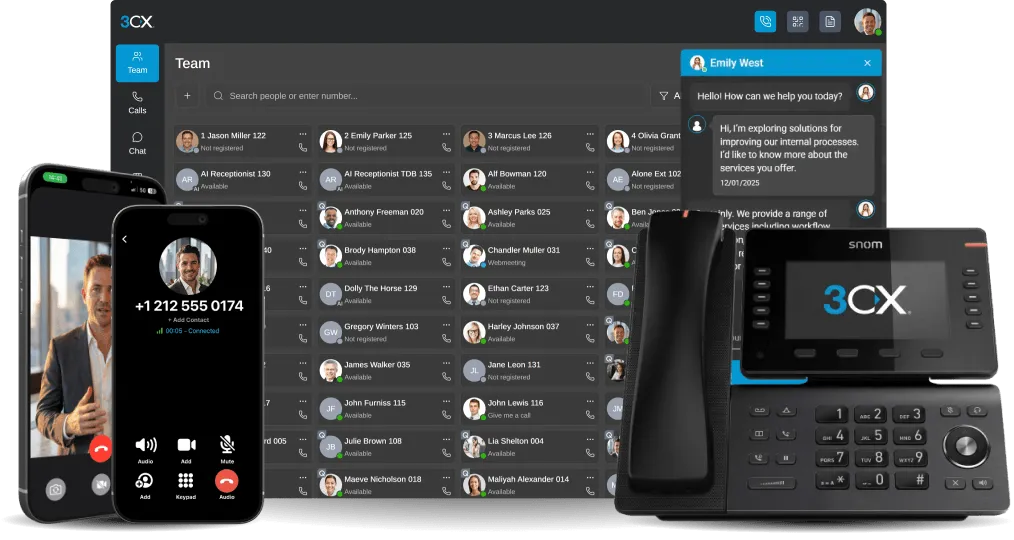


Keep customer records open and call controls on screen whilst working in other applications.
Most calls happen while you’re doing something else, like looking up an order, updating a ticket or checking a spreadsheet. Until now, that meant going back to the Web Client tab every time you needed to hold, mute or transfer.
Picture a customer calling about a delayed delivery. Their order is open in your CRM, they ask to speak to accounts, and the transfer button is three tabs away.
With 3CX V20 Update 10, that’s no longer a problem. The new floating dialer pops out of the Web Client into a small, always-on-top window in Chrome or Edge, so your call stays in view whatever you’re working on.
Pop It Out, Keep It in Sight
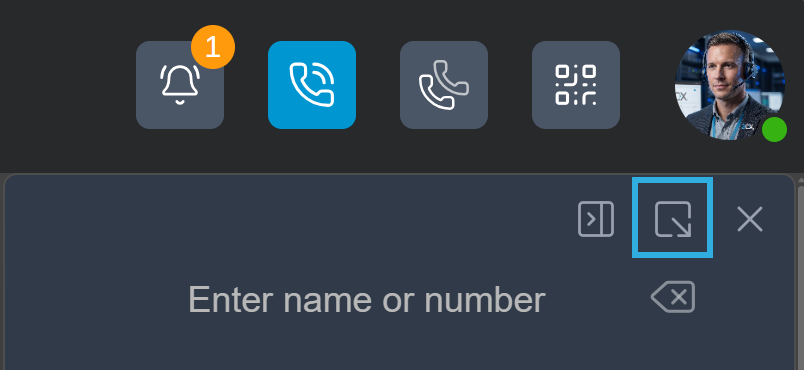
One click puts your dialer on top of everything else. It uses Picture-in-Picture, so it stays visible when you switch browser tabs or move into a desktop application. Getting started is simple:
- Open the dialer in the 3CX Web Client.
- Click the undock control to open it in a floating window.
- Move the dialer wherever you need it, including across multiple monitors.
Answer and Make Calls Without Switching Tabs
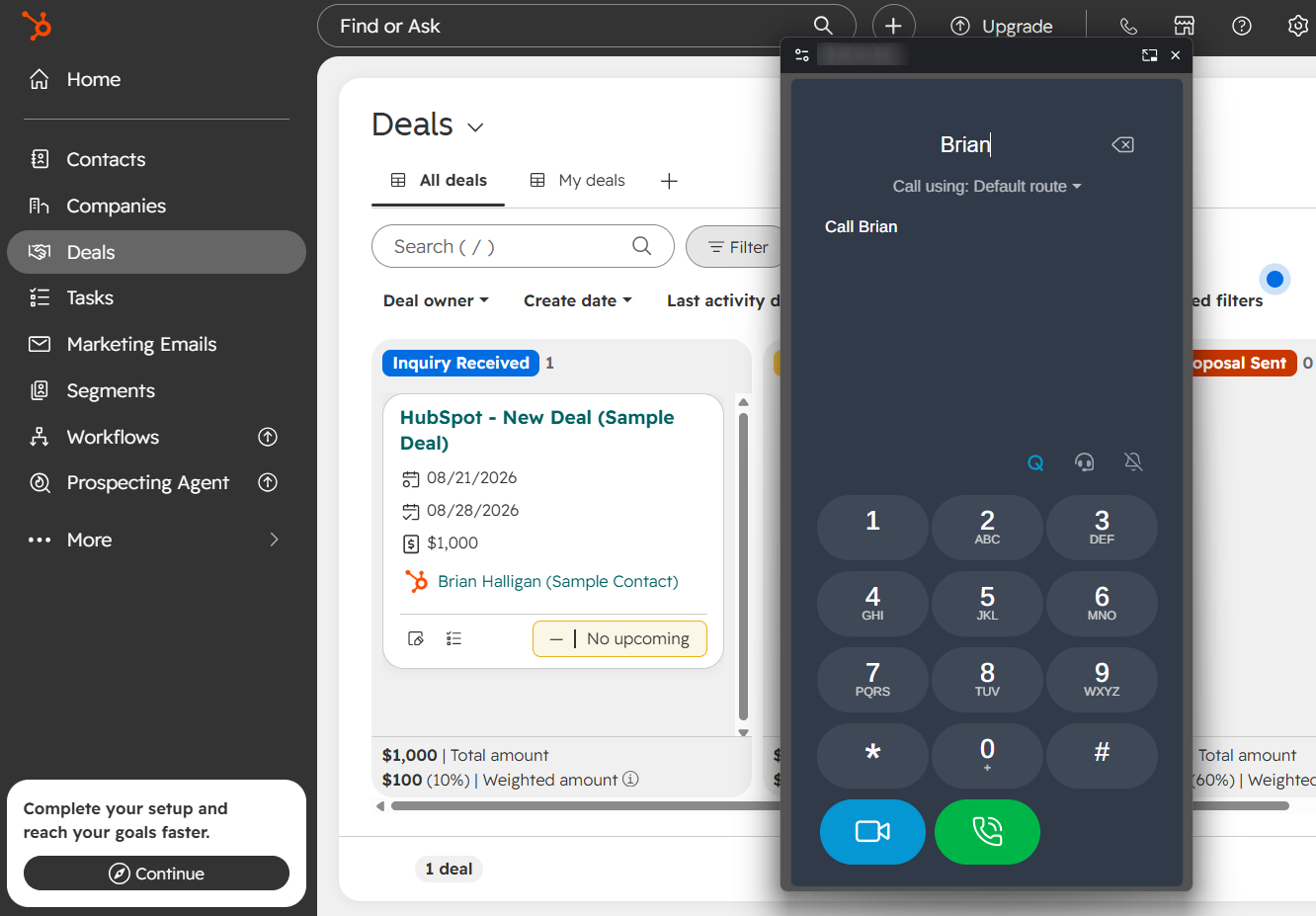
The pop-out dialer isn't limited to managing active calls. You can also answer incoming calls and make outgoing calls directly from the window. When a customer calls, you can answer from the floating dialer while keeping your current application open.
Need to call a customer back? Find their details in your CRM and place the call using the floating dialer, without having to switch back to the main Web Client. This is particularly useful for sales and support teams who regularly work across multiple applications while handling calls.
Take a sales rep reviewing a deal in the CRM when the customer calls. The floating dialer sits over the CRM window, so they can check the deal details and log notes without the call controls ever leaving the screen.
The call comes to your work, instead of you chasing it across tabs.
Hold, Mute and Transfer From Anywhere
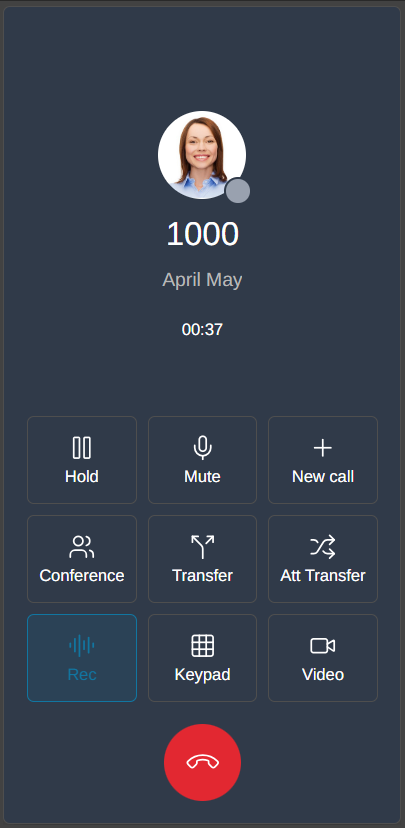
Everything you need mid-call is right there in the floating window. This matters because hunting for the right tab is where calls turn awkward, leaving the customer waiting in silence while you click around.
Say the customer asks something you need to check. Hit Hold, look it up, and pick the call back up. If it turns into a billing question, transfer it to a colleague from the same window, with the customer’s record still open in front of you.
When the call ends, the dialer stays put, ready for the next one. Dock it whenever you want the full Web Client back.
Set Up Your BLF Before You Float
Choose your Busy Lamp Field (BLF) layout before you undock. While the dialer is floating, the BLF panel can’t be expanded or collapsed.
If you transfer to the same handful of colleagues all day, show the BLF panel first, then undock, and your shortcuts float with you. To change the layout later, dock the dialer, show or hide the panel, and undock again. Docking also brings the Web Client window back into focus.
Spend a few seconds on setup, and the floating dialer works the way you do.
Good to know: keep the Web Client tab open while you use the floating dialer. The floating window belongs to that tab and closes when the tab does.
Join the Discussion
Join the 3CX discussion in our dedicated Partner or Customer Forums. Follow us on X and LinkedIn to stay-up-to date on latest news and feature releases.









 Copyright © 2026