- Joined
- Feb 4, 2021
- Messages
- 10
- Reaction score
- 4
By default 3cx set Polycom VVX BLF to automata, which when pressing the BLF line key immediately transfers active calls to that resource, and if you repeatedly press the BLF key, it will barge you into the call, Which is not a user friendly feature and should not be a default setting for any VoIP Phone.
Official Polycom description of Automa is below:
"Automata, the default action when is to perform a park/blind transfer of any currently active call. If there is no active call and the monitored user is ringing/busy, an attempt to perform a directed call pickup/park retrieval is made,"
Where as the correct setting, normal, By pressing the BLF line key, It places an active call on hold before dialling the selected BLF phone. i.e the same BLF action as per Yealink and Fanvil Phones
Please 3CX Dev Team, Allow us via the 3cx Management Console to select the type of BLF mode, Or change the Default Template so Normal is the default BLF Setting. Automa is not a user friednly mode and behaviour in a way that the user doesn't expect blf to work
Below is the Manual Fix for Hosted Versions,
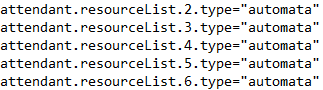
Original:
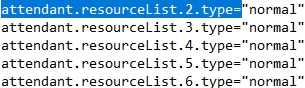
Edited/Fixed version
Official Polycom description of Automa is below:
"Automata, the default action when is to perform a park/blind transfer of any currently active call. If there is no active call and the monitored user is ringing/busy, an attempt to perform a directed call pickup/park retrieval is made,"
Where as the correct setting, normal, By pressing the BLF line key, It places an active call on hold before dialling the selected BLF phone. i.e the same BLF action as per Yealink and Fanvil Phones
Please 3CX Dev Team, Allow us via the 3cx Management Console to select the type of BLF mode, Or change the Default Template so Normal is the default BLF Setting. Automa is not a user friednly mode and behaviour in a way that the user doesn't expect blf to work
Below is the Manual Fix for Hosted Versions,
- Provision the phone as normal on 3cx
- Once provisioned, log into the phone using the Web GUI
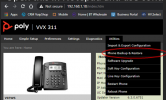
- Hover over the “utilities” tab and click on “Phone Backup and Restore”
- Click on the “Phone Backup” Tab and you will see the Phone configuration file download.
- Open this in Notepad and use control + f and paste the following “attendant.resourceList.2.type=”
- Now where on the file you see "automata", Replace it for "normal"
Original:
Edited/Fixed version
- Save the file, Make sure you just click save as in notepad, it needs to stay as a .pdu file, Make sure u name this different to the original, e.g called it ext302_edited.pdu
- Go back to the Web GUI and now under “Phone Backup” click on “Restore Phone”, Upload the edited file and then click on “Restore” tab underneath.
- The phone will reboot, once done, make a call and test Busy lamp field, it should put your current call on hold and ring the BLF extension.