





Connection quality monitoring, conference management & M365 syncing.
Easily add contacts to Personal, Company, CRM and M365 phonebooks during an ongoing call with the latest Android App Beta.
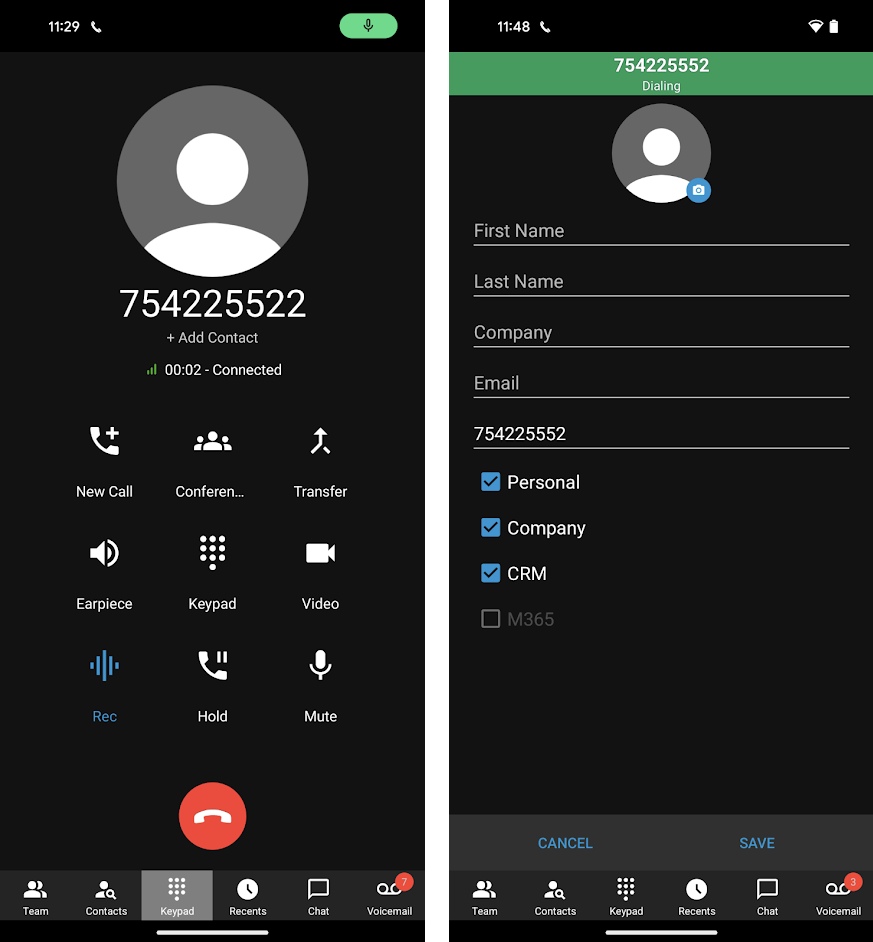
Adding a Contact
Whilst on a call to an unsaved number:
- On the dialer, tap on the ‘Add Contact’ label
- A form opens, displaying the pre-populated number
- Give the contact a name, last name and any additional information
- Select the contact type [Personal, Company, CRM, M365 or all]
- Tap on save. Voila!
Adding to M365 and CRM is also possible via the contact creation form.
Note: CRM and M365 checkboxes are only available if they are set up with the PBX. The ‘Company’ option is only available if the user has the right to create company contacts.
New: Call Quality Monitor Tool
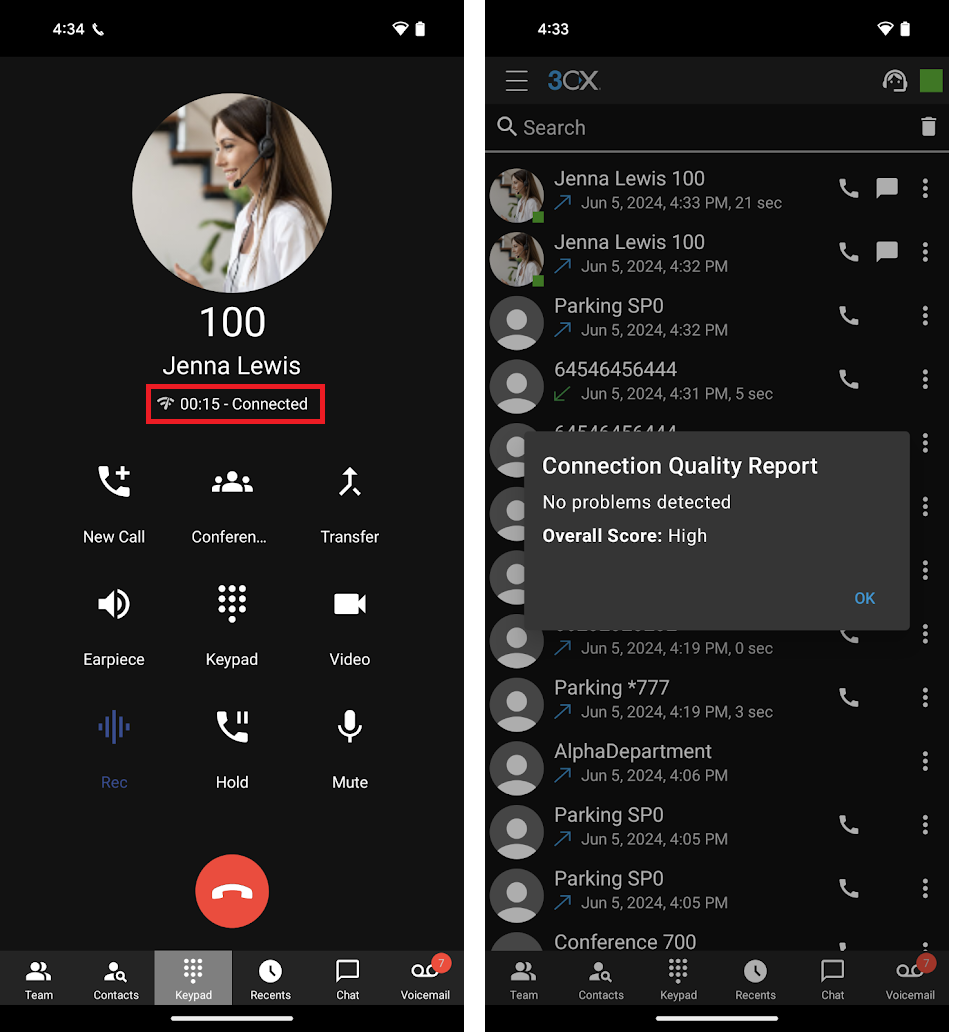
The connection quality monitoring tool enables users to monitor their connection quality during an ongoing call by simply tapping on the quality indicator label on their dialer. The user becomes aware the call is being monitored via a metering icon next to the call duration. Once the call has ended, navigate to the ‘Recents’ tab. Tap on the menu button next to the recent monitored call and tap on ‘Quality Report’.
Using the Call Quality Monitoring Tool
During a call:
- Tap on the call duration label within your dialer
- A dialog will appear prompting you to start monitoring. Tap on ‘OK’
- Once the call has ended, go to your ‘Recents’ tab
- Tap on the menu button next to the recent call and tap on ‘Quality Report’ to review
A more extensive report can be found in the Web Client. Login to your Web Client and go to ‘Calls’ in the navigation bar. Click on the ‘Show call quality report’ button next to your call.
Additional Conference Management Features
The ad-hoc conferences function in this Beta has been revamped to allow users to better manage their audio conferences. You can now add more users to the conference, better manage the audio conference, and allow the conference creator to have more control over their participants.
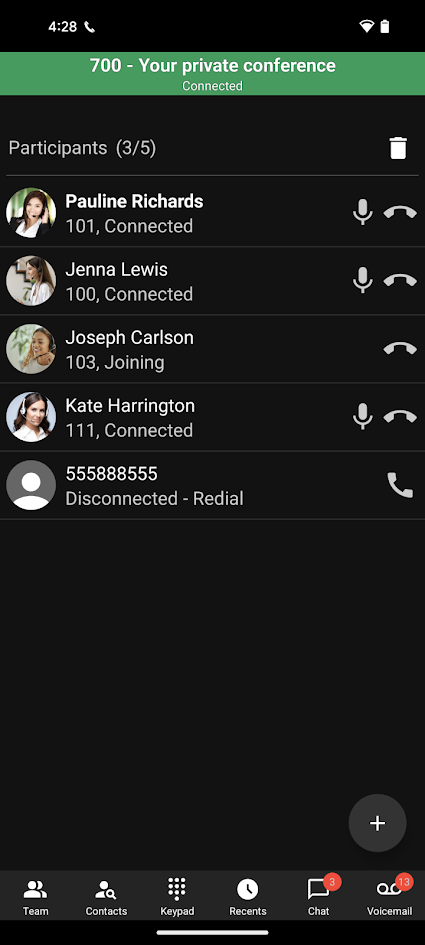
Using the Conference Management Features
During a call with one person:
- Tap on the ‘Conference’ button in the dialer
- Select as many participants as you like
- Hit the green arrow button, and the selected participants are dialed into your conference call
Only the conference creator is able to manage the conference. The conference button is disabled for participants.
Try the Beta
Join our Beta testing program and try out the latest Android Beta update! Download the app from the Google Play Store.
View the complete change log.









 Copyright © 2026