





Following this week’s release of Version 18 Update 1 Beta 2, there is a new release of the Windows desktop app. We’ve added customizable hotkey shortcuts to the app to make it even easier and quicker for users.
Hotkeys Simplify Call Management
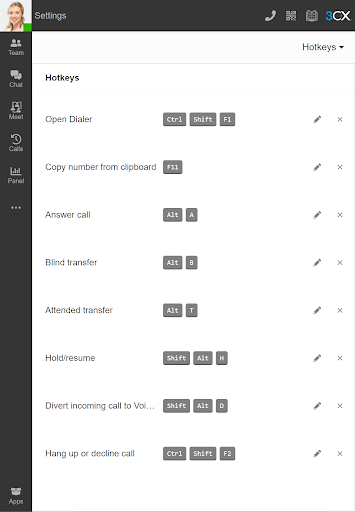
Users that work in parallel on a number of business applications need an easy way to interact with the desktop app. Hotkeys enable users to set up a bespoke combination of keystrokes to execute a number of supported operations on calls. These include:
- Opening the dialler
- Copy number from clipboard
- Answering an incoming call
- Initiating a blind transfer
- Initiating an attended-transfer
- Placing a call on hold and resuming the call again
- Diverting an incoming call to voicemail
- Hanging up or declining a call
To set up these hotkeys:
- Open the 3CX Desktop Application.
- Click “More”
 on the left side navigation panel and select “Settings”
 - From the dropdown menu in the top right of the screen, select “Hotkeys”
- On each line, click the pencil icon which then allows you to simply press the key combination desired.
 on the left side navigation panel and select “Settings”
Supporting Low-cost Yealink Headsets
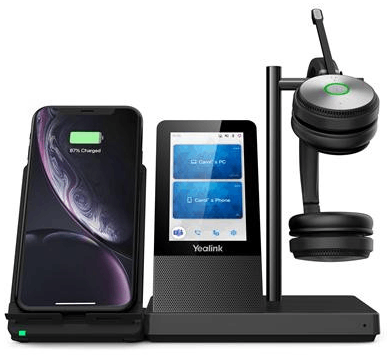
As outlined in the blog post about Version 18 Update 1 Beta 2, Yealink headset integration is now also available on the Desktop App. This integration brings further efficiency to the end-user with supported operations including call answering, rejecting, muting, placing the caller on hold and switching between lines.
Known issue: If you use Microsoft Teams, in some cases there may be an issue when the "Headset Integration" is enabled. Mainly, on incoming calls, responding to a call with headset key press, gives priority to Microsoft Teams. Yealink is working on a solution which will be provided in the next updates.
Other Improvements
- Added automatic image compression to less than 1Mb when sending images to SMS providers.
- In the dialer, contacts with multiple numbers now includes additional information for phone number label e.g. Mobile/2, Home/2,etc.
- Updated and improved all other headset integrations.
How to update Windows Desktop App
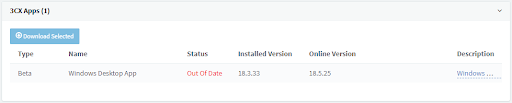
To obtain the Beta release for the Windows Desktop App, follow these steps:
- Log in to the 3CX Management Console as an Administrator
- Navigate to “Updates”
- Expand the 3CX Apps section and select Windows Desktop App
Once completed, all clients connected to the PBX will automatically be updated in the background. Users will then receive a notification to restart their application for the update to take place.
View the changelog to find out more about this version and join us in the 3CX Community Forum to tell us what you think!









 Copyright © 2026