




Choose what your summaries include, how they're structured and how much detail they provide.
Every minute an agent spends tidying up call notes is a minute not spent on the next customer. Some teams want a two-line recap; others need customer requests, decisions and next steps laid out, ready for the CRM.
With 3CX V20 Update 10, Admins can customise the AI Summary Prompt so every call summary arrives in the length, format and focus your team needs, with no rewriting required. This builds on the improved AI call summaries, which now include Notes and Action Items alongside the recap.
Read on to see how a simple prompt change can make your call summaries more useful.
Make Call Summaries Fit Your Business
The default 3CX prompt provides a short summary of the conversation, followed by Notes and Action Items. This helps users quickly understand what happened during a call and what needs to happen next. But you may prefer a different approach. By editing the Summary Prompt, you can:
- Keep summaries short. Ask for a few sentences or a preferred word count.
- Change the format. Use one paragraph, bullet points or your own headings.
- Focus on what matters. Highlight customer requests, decisions, agreed actions or follow-up tasks.
For example, a business handling sales enquiries may want summaries focused on customer requirements and agreed follow-ups, without unnecessary conversation details.
Why does this matter? When summaries arrive in the format your team already works with, agents spend less time on after-call work and managers can review call outcomes without listening back to recordings. For example, if a tailored summary saves an agent just one minute of wrap-up on each of 40 calls a day, that adds up to around 40 minutes a day, or roughly 145 hours a year per agent, back for customer conversations.
Important: The Summary Prompt applies across the PBX for the selected transcription provider. It cannot be configured separately for individual users or departments. The upside: every summary across your organisation follows the same structure, so calls are easier to compare and review.
See the Difference: Default vs Custom Summary
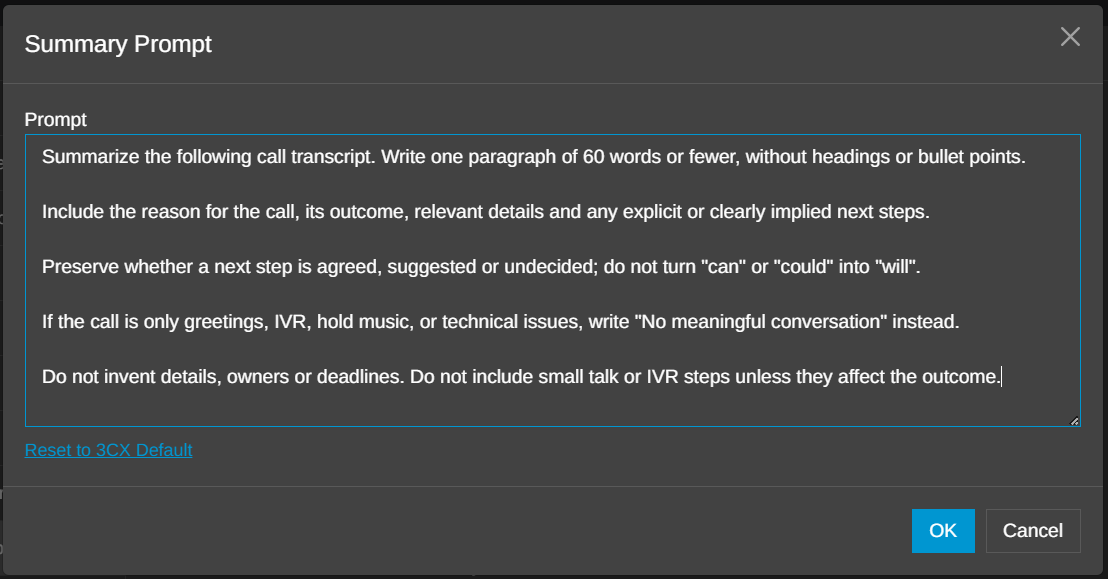
Let's take a simple example. A customer calls requesting a quote for ten desk phones, including delivery to Leeds. The employee agrees to email the pricing, but no delivery date is confirmed. With the default 3CX prompt, the summary might look like this:
The customer requested a quote for ten desk phones, including delivery to Leeds. The employee agreed to send pricing by email. The delivery date will be discussed later.
Notes:
- The quote includes delivery charges.
- No delivery date has been agreed.
Action Items:
- Employee to prepare and email the quote.
- Discuss the delivery schedule after the customer reviews the quote.
Now, suppose you want a shorter summary without separate headings. You can change the prompt to request:
Summarize the following call transcript.

Write one paragraph of 60 words or fewer, without headings or bullet points.

Include the reason for the call, its outcome, relevant details and any explicit or clearly implied next steps.

Preserve whether a next step is agreed, suggested or undecided; do not turn "can" or "could" into "will".

If the call is only greetings, IVR, hold music, or technical issues, write "No meaningful conversation" instead.

Do not invent details, owners or deadlines. Do not include small talk or IVR steps unless they affect the outcome.
The customised summary might look like this: The customer requested a quote for ten desk phones, including delivery to Leeds. The employee agreed to email pricing with delivery charges. No delivery date was agreed, but the schedule can be discussed after the customer reviews the quote.
The key details remain, presented in a shorter format that better suits your needs. You can change the focus in the same way. A sales team, for instance, could ask for "Customer need", "Quote status" and "Next step" headings, ready to paste straight into the CRM.
How to Customise Your Summary Prompt
Editing the prompt takes just a few steps:
- Open the 3CX Web Client > Admin > Integrations > Transcription.
- Find Summary Prompt and click Edit.
- Update the instructions to your preferred format.
- Click OK, then Save to apply your changes.
You can also restore the original instructions using Reset to 3CX Default. Custom prompts are supported with 3CX AI Server, OpenAI, Google and xAI Grok. A 3CX AI Edition licence is required.
Upgrading from Update 9? Copy your existing custom Summary Prompt before upgrading. Update 10 Final restores the new default prompt, so you'll need to reapply your changes afterwards. For full instructions, see our Customise the AI Call Summary Prompt guide.
With editable summary prompts, your call summaries do the admin for you. Whether you need shorter recaps, CRM-ready notes or clearer action items, 3CX delivers them in your format, cutting post-call work for your team without changing how calls are recorded or transcribed.
Join the Discussion
Join the 3CX discussion in our dedicated Partner or Customer Forums. Follow us on X and LinkedIn to stay up to date on the latest news and feature releases.









 Copyright © 2026