





Sign in with Google or Microsoft 365, pick the number you call from and navigate a cleaner interface.
3CX Softphone V5.8 BETA makes it easier to sign in and gives users more control when placing outbound calls. The update also reorganises the Settings so labels are easier to read. Admins can control whether users may select an outbound number.
Read on to learn more.
Sign In with Google or Microsoft 365

Provisioning the Softphone with Google or Microsoft 365 now takes fewer manual steps. Enter the 3CX server address and select Next. The Softphone presents three sign-in options:
- Microsoft 365
- Sign in with Email
The email option expands to display the email and password fields. When Google or Microsoft 365 is selected, a browser window opens for authentication.
If the user is already signed in, the authorisation screen is shown immediately. Otherwise, the user signs in first. Select Allow and the required account information is returned to the Softphone for automatic provisioning.
This SSO flow requires 3CX V20 Update 10.
Select the Number Used for Outbound Calls
Admins can now allow users to select the number used when placing an outbound call. This is useful for users who have more than one number assigned and need to choose the appropriate identity before calling. To enable it, you need to have Version 20 Update 10 and go to:
Admin Console > System > Options > Apps > Permissions & Restrictions
Turn on Allow Users to Select Outbound Route & Caller ID. This option is disabled by default. Once enabled, the Softphone displays a Call using the selector.
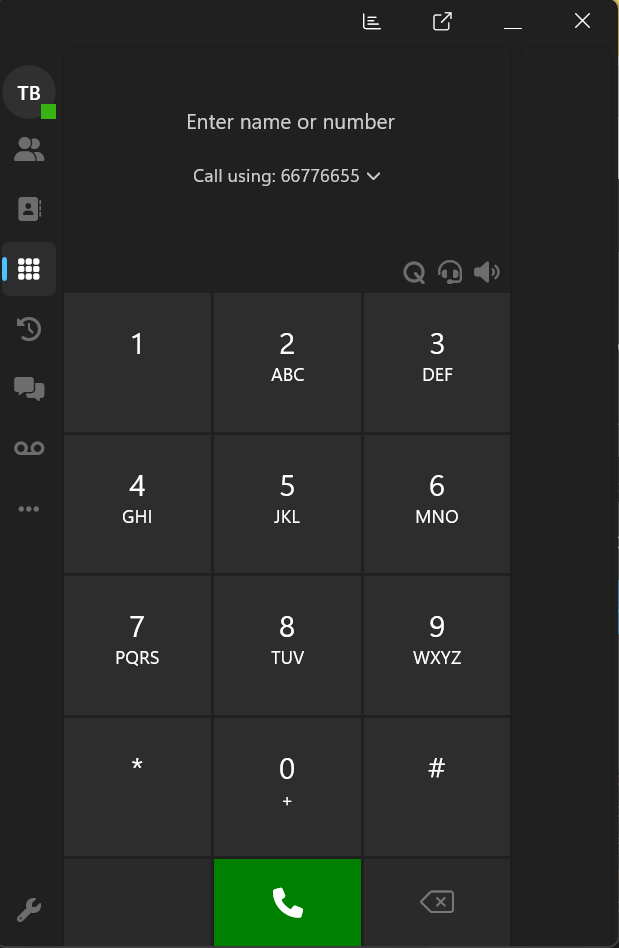
Users can choose:
- Default route - follows your configured system outbound rules.
- One of the available numbers assigned to them
The selector shows the number only; friendly names aren’t displayed. If the Admin leaves the permission disabled, the selector does not appear.
Clearer Settings
V5.8 BETA also tidies up the Softphone layout. The settings screen has been reorganized to make options easier to find and review.
- More spacing between settings
- Clearer titles positioned above each option
- Better grouping of related controls
These layout changes make the Softphone easier to scan and give users more space to view their contacts and settings.
How to Get 3CX Softphone V5.8 BETA
Search for 3CX BETA 5.8 in the Microsoft Store and install or update the app. Don’t run the production and BETA versions of 3CX Softphone at the same time, as this may cause conflicts.
For installation and provisioning instructions, see the Softphone User Manual. This is a BETA release intended for evaluation and testing. It’s not recommended for production use.
View the complete changelog for the full list of changes.
Join the Discussion
Let us know what you think in the 3CX Partner Forum or Customer Forum.
Follow 3CX on X and LinkedIn to stay up to date on the latest news and feature releases.









 Copyright © 2026