





Now available in Beta with BLF and TAPI Support.
If you’ve been following our V20 journey, you will recall that we’ve been working on a new native 3CX Windows softphone. The new softphone is similar to the iOS and Android apps in terms of functionality, and runs in conjunction with the web client. It also comes equipped with BLF (Busy Lamp Field) and TAPI support to maximize efficiency.
Additionally, this softphone provides a number of benefits:
- a proper answer dialog instead of a simple call notification;
- browser-independent audio control;
- a more secure deployment via the Windows store;
- better manageability by updating your softphone separately from the main 3CX build.
BLF (Busy Lamp Field) Support

With BLF, you can see your colleagues’ real-time status at a glance. Users can set specific status messages to their extensions, such as available, on a call, away, or busy, thus reducing interruptions and optimizing workflow.
If BLF is already being used in the web client, it’s automatically enabled in the Windows softphone app. If not, follow these simple steps to set it up:
- Login to your Web Client
- Tap on the 3 horizontal dots in the navigation bar
- Click on ‘Settings’, and then click on ‘BLF’
- Set your own BLF types: Line, BLF, Speed dial, custom speed dial, Shared Parking, change status for presence, and Queue login/logout.
TAPI Support
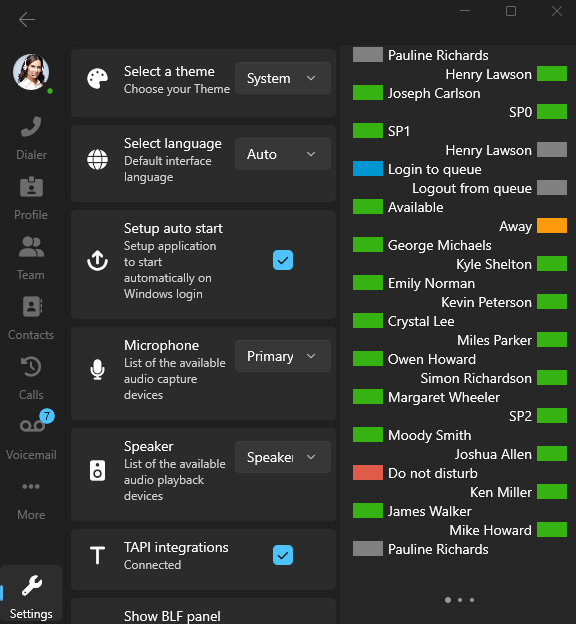
The 3CX Softphone now includes TAPI support, allowing integration with Datev and others to connect with 3CX, thus enabling users to initiate and accept telephone calls from different applications, as well as record and save call data.
To install the plugin, you need to download and run the installer. Installation and configuration instructions can be found here.
Other features / fixes
We’ve also fine-tuned voicemail and recordings, along with some enhancements made to call notification handling, contact resolution for incoming and outgoing calls, some UI specific improvements to contact lists and cards.
Try it out today
Download the softphone app from the Microsoft Store and head over to the Forum to let us know what you think.
For instructions on how to install and provision the new 3CX Windows softphone app you can also refer to our User Manual.









 Copyright © 2026