





Access chats & call recordings from your Windows Softphone.
This Windows Softphone BETA release adds native chats and recordings to your app. Start SMS chats, respond to Facebook, WhatsApp, Live Chat, & Queue chats, and manage call recordings, all without leaving the softphone. Contact centers in particular will find this increases their agents’ productivity by having all functions centralized into one app.
Start & Respond to Chats Directly from Softphone
Prior to this BETA release, chat was an external function linked from the Softphone to the Web Client. Now, chat has been integrated directly into the 3CX Softphone. Users can start single, group and SMS chats, as well as respond to chats of all types including those of WhatsApp, Facebook, Live Chat and Queues.
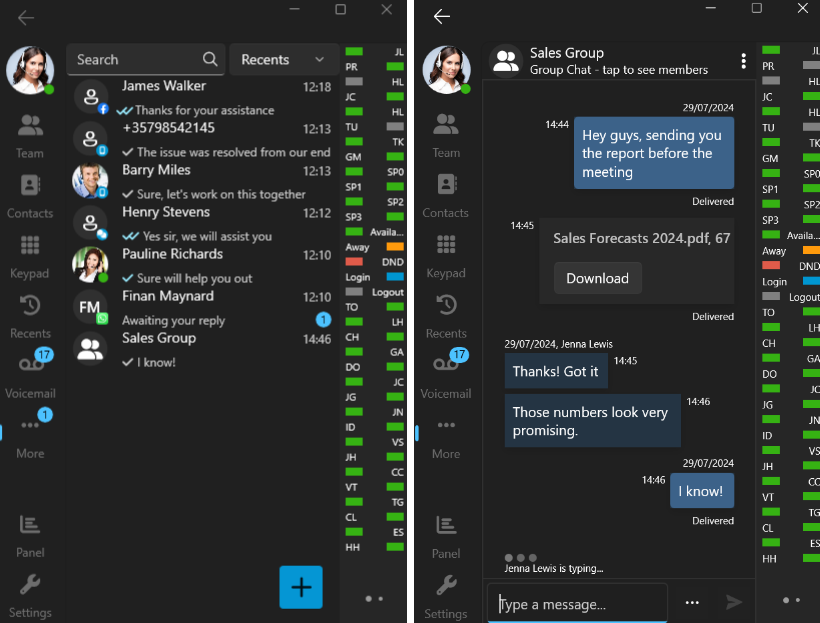
Key highlights include:
- Ability to add or remove participants and escalate one-on-one chats to group conversations
- All queue operations for external chats are included, i.e. take ownership, mark as dealt with or done
- Initiate chats from the contact card and any other list
How to Use
- The “Allow chat” option needs to be enabled from the PBX
- Set up SMS trunks, queues and external chats in the admin console
- From the Softphone, click on the “More” button and then “Chats”
- All your existing chats will be listed in the “Chat” list
- Click on the “+” button to create a new single, group or SMS chat
Native Call Recordings
Integrated call recordings were included within the Windows Softphone since its release, but their viewing/downloading was outsourced to the Web Client. This BETA release enables the softphone to listen to, view transcriptions, and download your chosen recordings.
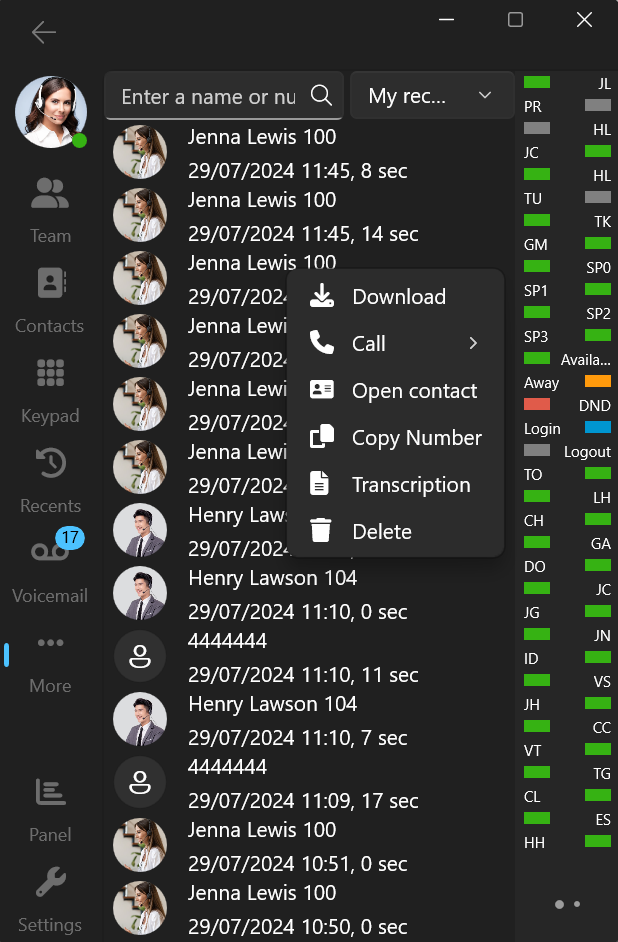
- With the necessary permissions, managers can see all recordings from constituent softphones
- Each item has a context menu for quick downloading, calling, number copying, and deletion
How to Use
- The “Show Call Recording” option needs to be enabled from the PBX
- From the Softphone, click on the “More” button and then “Recordings”
- Filter out the recordings by “My Recordings” and “All recordings” - this also depends on your department role
Coming Soon: Chat Transfer
In the coming months we’ll be adding chat transfer and forwarding to other agents and team members.
Join the BETA Program
Future Softphone Beta releases will be available via the Microsoft Store. Search for '3CX BETA” to find future Softphone BETA releases. No form submission or account creation is required.
Do not run the production version of the 3CX Softphone alongside the BETA app, as this may cause conflicts.
For instructions on how to install and provision the 3CX Windows Softphone app refer to our User Manual.
View the complete Change Log.
Head over to the dedicated Windows Softphone Forum to let us know what you think.









 Copyright © 2026