





Use manufacturer firmware per model or individual phone while keeping 3CX-tested firmware as the default.
V20 Update 10 gives Admins more control over IP phone firmware. Manufacturer firmware can now be uploaded to 3CX and deployed directly to supported phones, either as the preferred firmware for a model or as an exception for individual devices.
This means you can keep 3CX-tested firmware across your standard deployment while using a specific vendor release where required. You can also test a manufacturer release on selected phones before rolling it out more widely. Update 10 also brings phone and firmware management together on the new Phones page, improves custom-template workflows and lets Admins move provisioned phones between users while retaining their configuration and firmware assignment.
Read on to see how to deploy vendor firmware, set defaults per model and manage individual phones from the 3CX Admin Console.
Choose the Firmware for Each Model or IP Phone
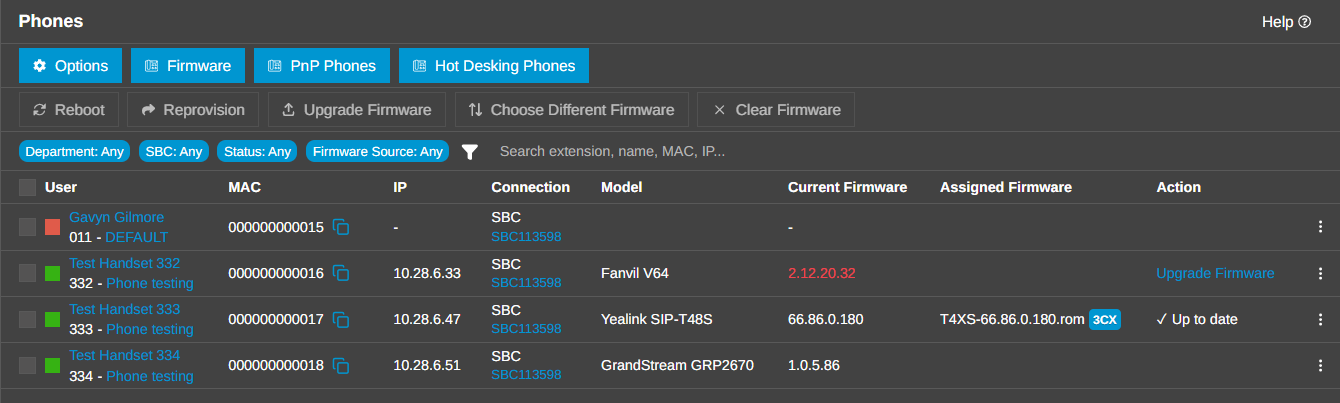
The Firmware library under Phones > Firmware brings 3CX Firmware and Admin-uploaded Vendor Firmware into one place. 3CX Firmware remains the validated option for each supported model, while Vendor Firmware lets admins use a specific manufacturer release when required.
Set the Preferred Firmware per Model
One firmware file is marked Preferred for each IP phone model. This becomes the default for first provisioning, scheduled updates and the Upgrade Firmware action.
Where 3CX validated firmware is available, it remains the default. Admins can upload a compatible manufacturer firmware file and make that the Preferred option for a particular model. This means different phone models can follow different firmware policies. One model can remain on 3CX-tested firmware while another uses a manufacturer release selected by the Admin.
Make Exceptions for Individual Phones
The Preferred firmware sets the model-level default, while individual phones can use a different firmware where required. Choose Different Firmware lets you assign another available package to a specific phone. This can include another 3CX package or uploaded Vendor Firmware. This is useful for:
- Testing a manufacturer firmware release on selected phones
- Staged firmware rollouts
- Applying a specific firmware version to one device
- Troubleshooting without changing the rest of the deployment
Clear Firmware removes the individual assignment while keeping the firmware file available in the library. Assigning firmware immediately reprovisions registered phones and may reboot them. Offline phones apply the assignment when they reconnect and provision.
For full configuration steps, see our IP Phone Firmware Management guide.
Manage Your IP Phones From One Place
Now IP phone management is centralised on the Phones page. Admins can review key device information and perform common actions from the same area, including firmware updates, reprovisioning and moving a provisioned phone to another user while retaining its configuration and firmware assignment.
Search and filters also make larger phone deployments easier to manage, while automatic firmware updates can be configured from: Phones > Options > IP Phone Firmware.
Automate Firmware Updates
Admins can update phones when they are first provisioned and schedule firmware updates for existing devices. Scheduled updates use the Preferred firmware selected for each model, whether that firmware comes from 3CX or the manufacturer.
This gives each phone model a clear default while still allowing individual exceptions where required. For more information on provisioning and managing phones, see the Configuring IP Phones guide.
Add More Phone Models With Custom Templates
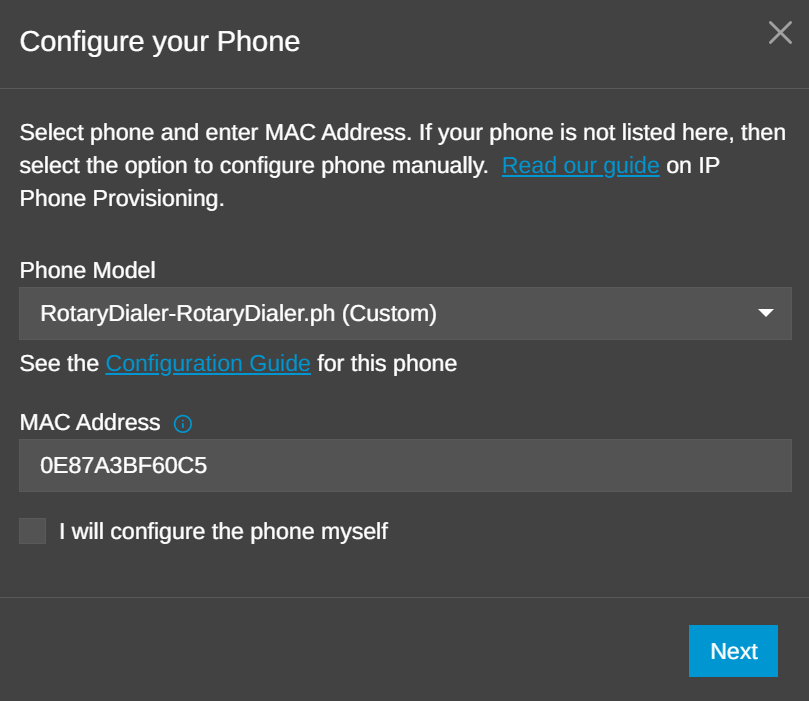
3CX now supports greater flexibility through custom phone templates. Custom templates allow Admins to adapt provisioning for phone models or configurations that require changes beyond the built-in 3CX templates.
Start from: Admin > Advanced > Templates > Phone Templates. Create a copy of the closest suitable template, give it a unique name and adapt it using the manufacturer's provisioning documentation. When working with custom templates:
- Use a dedicated test extension and handset
- Keep the stock 3CX template unchanged
- Validate the configuration before deployment
- Check the generated phone configuration
- Retest after PBX or firmware updates
Custom templates remain the responsibility of their author to maintain. Devices using modified templates also need to be restored to the stock template when 3CX support is required. See our guide on Creating Custom IP Phone Templates for the full procedure.
Together, Vendor Firmware, per-model defaults, individual firmware assignments and custom templates give Admins more control over how their IP phone fleet is deployed and maintained.
Keep 3CX-tested firmware as the standard where appropriate, deploy manufacturer firmware where required and test changes on selected devices before wider rollout.
Join the Discussion
Join the 3CX discussion in our dedicated Partner or Customer Forums. Follow us on X and LinkedIn to stay-up-to date on latest news and feature releases.









 Copyright © 2026