





New BETA adds media & message forwarding and chat transfer.
This BETA release of the Windows Softphone focuses on easier collaboration between 3CX users by adding the ability to transfer chats and forward media and content to other team members. Read on for more details.
Transfer Chats
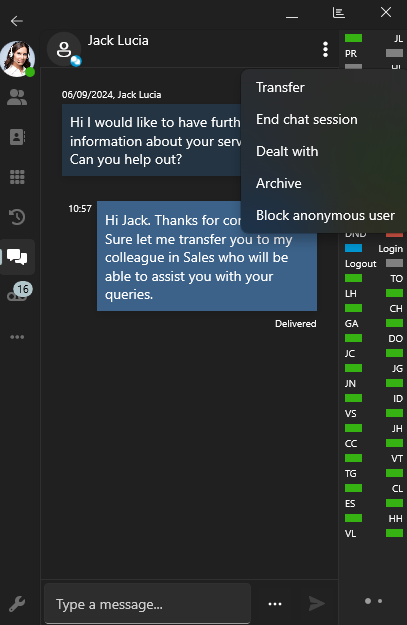
Transfer a chat to another team member who is better able to resolve the issue. Simply click on the ‘menu’ button in the chat conversation located next to the chat header, ‘transfer,’ and select the extension or agent.
This can also be done in your chat list without the need to open the chat conversation. Simply right click on the chat and click on ‘transfer’ then select the extension or agent.
Message & Media Forwarding
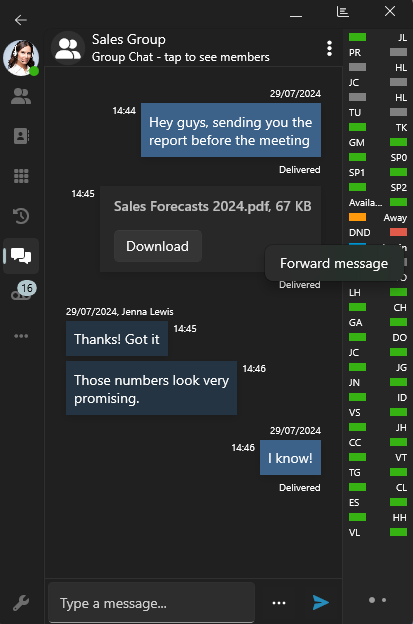
Forward messages, documents and images to other chats. Right-click on your content and click ‘Forward message’. Search for who you want to send the message to from your users’ list. You will see two sets of lists, your recent and existing chats, and a list of other contacts.
User Interface Changes
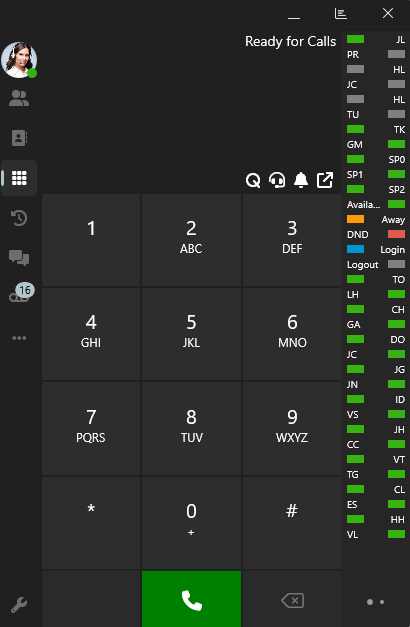
You will notice that the navigation bar in this BETA has been narrowed making the softphone more compact. The panel button has been moved from the left hand menu to the top of the softphone between the close and minimize buttons.
Other Changes
- Chat attachments, recordings and voicemail are now downloaded to the Downloads folder of your Windows machine in a folder named ‘3CX Softphone’.
- See your extensions in Recents, Voicemails and Recordings.
- Added ‘copy’ to clipboard functionality in voicemail and recordings transcription.
Join the BETA Program
Future Softphone Beta releases will be available via the Microsoft Store. Search for '3CX BETA” to find future Softphone BETA releases. No form submission or account creation is required.
Do not run the production version of the 3CX Softphone alongside the BETA app, as this may cause conflicts.
For instructions on how to install and provision the 3CX Windows Softphone app refer to our User Manual.
View the complete Change Log.
Head over to the dedicated Windows Softphone Forum to let us know what you think.









 Copyright © 2026