





Latest release adds chat transfer & forwarding.
The new Windows softphone release is hot on the heels of our BETA release last week. Users can now easily transfer chats and forward media, allowing optimized workflow.
Forward Messages and Media
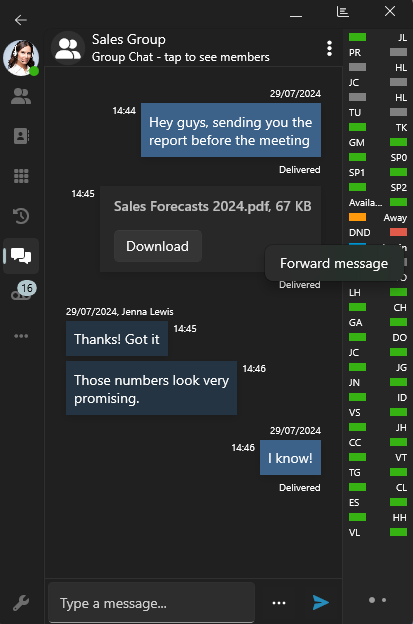
Share messages, documents, and images with other chats. Just right-click on what you want to forward and choose "Forward message." Then, look for the recipient in your contact lists - you'll see your recent chats and a full list of your contacts.
Chat Transfer
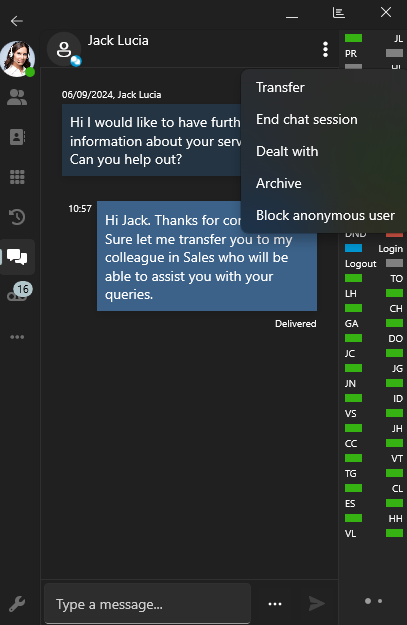
To transfer a chat to a colleague:
- In the open chat: Click the 'menu' button in the top panel, then choose 'transfer', and select the agent or extension.
- From your chat list: Right-click on the chat, select 'transfer', and then select your chosen contact.
User Interface Changes
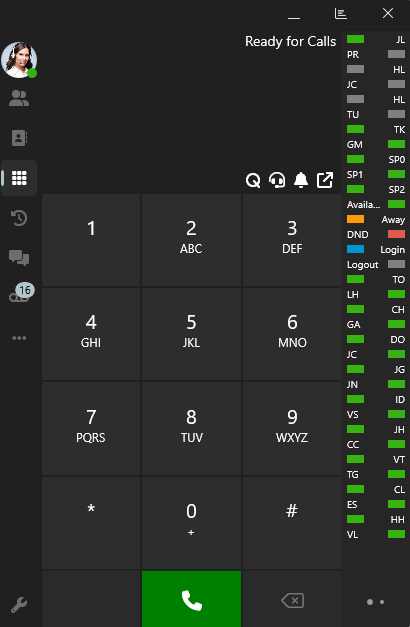
We’ve also made a few cosmetic changes to the interface. The ‘panel’ button has been moved from the left hand menu to the top of the softphone, in between the ‘minimize’ and ‘close’ buttons. We’ve also narrowed the navigation bar, allowing more space for dialing.
Other Changes
- Chat attachments, recordings and voicemail are now downloaded to the Downloads folder of your Windows machine in a folder named ‘3CX Softphone’.
- See status in Recents, Voicemails and Recordings.
- Added ‘copy’ to clipboard functionality in voicemail and recordings transcription.
Get the Latest Softphone
- Download the softphone from the Microsoft Store
- Follow the User Manual to provision the app
Existing users simply need to update their app from their Windows machine.
View the complete Change Log.
Let us know what you think in the Forum.









 Copyright © 2026