




Give team leads access to their department’s recordings and reports without an admin role, stop colleagues recording sensitive extensions and audit recording downloads.
Team leads can now review their department's call recordings and reports without a broader admin role, and sensitive extensions can be protected from being recorded by colleagues.
V20 Update 10 Final adds three recording controls: a department-scoped Recordings & Reports permission, an option to protect an extension from recording by other internal participants, and auditing for recording downloads. Each one answers a different question: who can review, who can record and who took a copy. Together, they work alongside your existing recording, storage and retention settings.
Why Recording Access Needs Finer Control
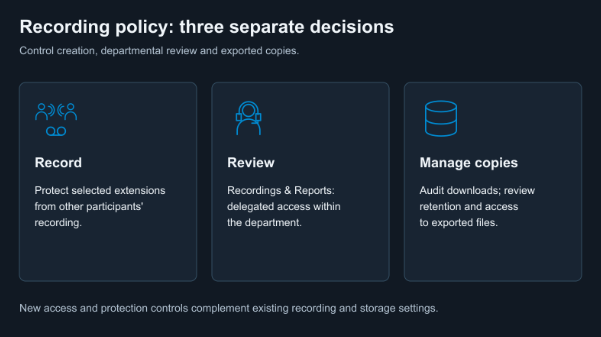
Team leads rely on call recordings and reports to spot coaching needs and recurring customer issues. Until now, giving them that access meant granting a broader admin role than the job required. The Recordings & Reports permission limits their access to the department they manage.
Some calls shouldn't be recorded by the other party at all, such as confidential HR discussions. Protecting an extension stops other internal participants from recording calls involving it, even if they normally record every call.
You also need to keep track of who downloads recordings to their PC. The Audit Log shows each export, giving you a record to review. It doesn't control what happens to the file afterwards.
Example: Delegate Sales Review and Protect HR Calls
Take a sales lead who needs customer-call recordings for coaching, and an HR colleague who handles confidential employee conversations. Here's how to set up each control and confirm it works.
Grant Departmental Review
Go to Admin > Users, select the sales lead and open the View tab. Grant Recordings & Reports for the sales department. The lead can now open Admin > Reports, including recordings linked to call-log entries for that department's members. A regular user with this permission sees Reports only, not the full configuration console.
To grant the permission, you need to be able to manage the target user and have recording and report access yourself. The permission only adds access; it can't remove access that a user's role already provides. When reviewing what someone can see, check both their role and their departmental scope.
Other recording rights stay separate. Show Call Recording only adds the Recordings icon to the user's side menu for their own calls. Deleting recordings and starting or stopping recording on a live call are separate rights again. The recording-rights guide explains each setting.
To check the result, sign in as the sales lead rather than relying on the admin view. Confirm the lead can open the sales department's recordings and reports, and nothing outside that scope.
Protect the HR Extension
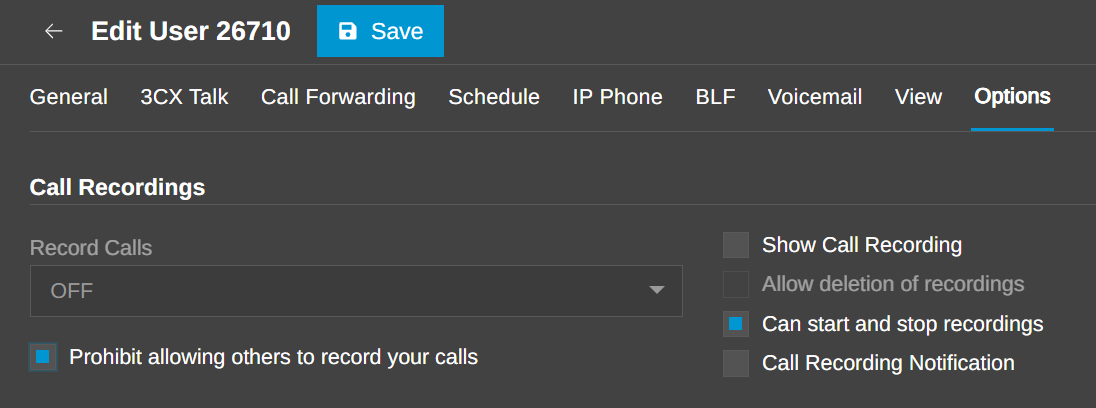
On the HR user's Options tab, enable Prohibit allowing others to record your calls. Other internal participants can no longer record calls involving this extension, although the HR user can still start a recording themselves. Note that this controls whether a recording is created, not who can open one that already exists.
To test it, place a non-sensitive internal call in each direction: a colleague calls HR, then HR calls the colleague. First confirm that the colleague's calls to an unprotected extension are recorded as normal, so a missing recording actually proves something. Then check that neither call with HR is recorded.
Audit a Recording Download
As the sales lead, download a non-sensitive coaching sample, then check that the download appears in the audit records. Auditing shows that a file was exported; how that file is shared, stored or deleted afterwards is down to your own policies.
Align With Your Existing Recording and Storage Settings
The new controls build on settings you already have. Each extension's recording scope (no calls, external calls only or all calls) still decides what that extension records, while the protection option covers recording by the other internal party. If a queue offers recording opt-in or opt-out, test both choices.
Copies matter too. Call Recording Notification can email a recording link and, if enabled, its transcription, which creates a separate copy outside the PBX. Storage settings handle recording quotas, cleanup of temporary recordings and remote archiving to SFTP, Google Cloud Storage, Amazon S3 or SharePoint. Archiving moves recordings off the PBX rather than deleting them, so access and retention for archived files are managed on the storage platform. The call recording guide covers the available options.
Start With One Department
Once these checks pass, you've confirmed three things: the sales lead can review only their department's recordings, HR calls can't be recorded by colleagues, and recording downloads are audited. That's delegated review and protected calls, without handing out admin rights.
Start with one department and its sensitive extensions, then roll the setup out further once the results check out. Repeat the checks whenever roles, department membership, recording settings or archive destinations change. For more on roles, see the user access roles guide.
Join the Discussion
Join the 3CX discussion in our dedicated Partner or Customer Forums. Follow us on X and LinkedIn to stay up to date on the latest news and feature releases.









 Copyright © 2026