





Control your deskphone from your softphone.
If you like answering calls on a physical phone - rather than from your softphone - this BETA allows you to do just that. You can also access an all-new, quick action panel for faster logging in/out of queues and more.
Use as a Softphone or with a Deskphone

Initiate and receive calls on your deskphone rather than your PC. Switching devices is done from the Settings page.
Quick Action Buttons
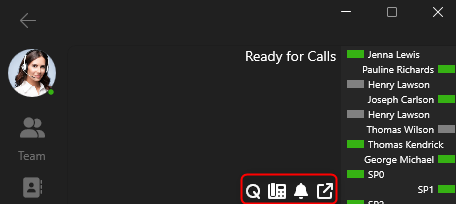
We’re introducing a quick action button panel in the keypad. From here you can:
- Login/Logout of queues
- Know your registered device [deskphone, softphone or smartphone]
- Ringer On/Off
- Keep on Top
Install and Update Yourself? Deploy as MSIX
If you want to control the roll out AND UPDATING of the software yourself (includes monitoring the 3CX blog for announcements) you can use the MSIX instead of the Microsoft Store or the MS Web installer.
Monitor 3CX.com Daily and Update App System-Wide Immediately
This method of deployment should only be used if you have a network software deployment tool that allows for fast and quick system-wide updating. You are expressly responsible for updating the app and in the case of an urgent security update requirement you must be able to deploy and update the app almost immediately. You will also commit to following the 3CX blogs and forums on a daily basis ensuring you are fully aware of any security updates that might need to be applied. If you as an admin or partner do not have this ability do not use this method of deployment! You are solely responsible for any damage that might occur from the failure to monitor our blogs and update systems immediately. By downloading and installing MSIX you accept this responsibility.
Steps to Install
- Accept the responsibility to monitor 3cx.com for updates and to deploy updates to systems within hours if need be.
- Download the 3CX Softphone MSIX from here.
- You need to have the Windows AppRuntime 1.4 installed, which can be found here.Otherwise, installation will fail with “Installer failed to install package dependencies.”
- Run the MSIX and click on install.
- Accept the EULA.
- Monitor blogs of 3CX.com on a daily basis and install updates system-wide if need be.
Note: You can also download the softphone from your 3CX Partner Portal > Downloads.
Roadmap
This new Windows softphone is our recommended Windows client and replaces the old legacy one and the electron app. Neither the electron app, nor the legacy client will receive any further security updates. Therefore we recommend switching to this app as soon as possible.
The following features will be delivered to this app in the coming months:
- Yealink headphone support (we’re awaiting the tested windows drivers from Yealink).
- Chat support will be available in June 2024.
- Video and Schedule conference support in July 2024.
Join our Beta Program
Future Softphone Beta releases will be available via the Microsoft Store. Search for '3CX BETA” to find future Softphone BETA releases. No form submission or account creation is required.
Do not run the production version of the 3CX Softphone alongside the BETA app, as this may cause conflicts.
For instructions on how to install and provision the 3CX Windows Softphone app refer to our User Manual.









 Copyright © 2026