





Better contact filtering, display of M365 & CRM contacts.
The latest beta for the brand new Windows softphone is available for try-outs. This release focuses on the overall better display of contacts and includes filtering options for team members and contacts alike. The new pop-up dialog informs you of an incoming call in real-time, no delays!
Compact BLF Panel
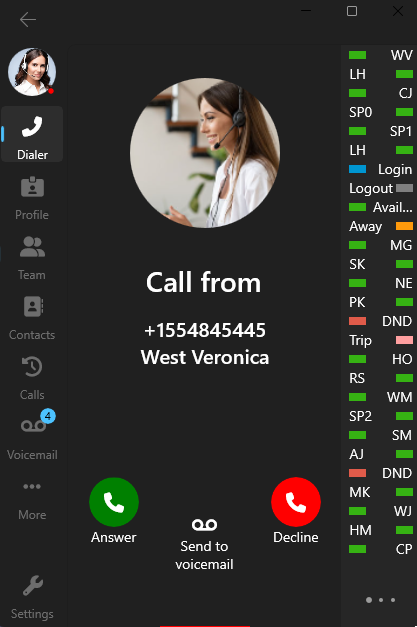
We’ve redesigned the BLF panel to a more compact and user-friendly interface. It now lists contacts based on their initials (first and last name). Hovering over an initial will display their full name and status.
Windows Pop-Up Dialog
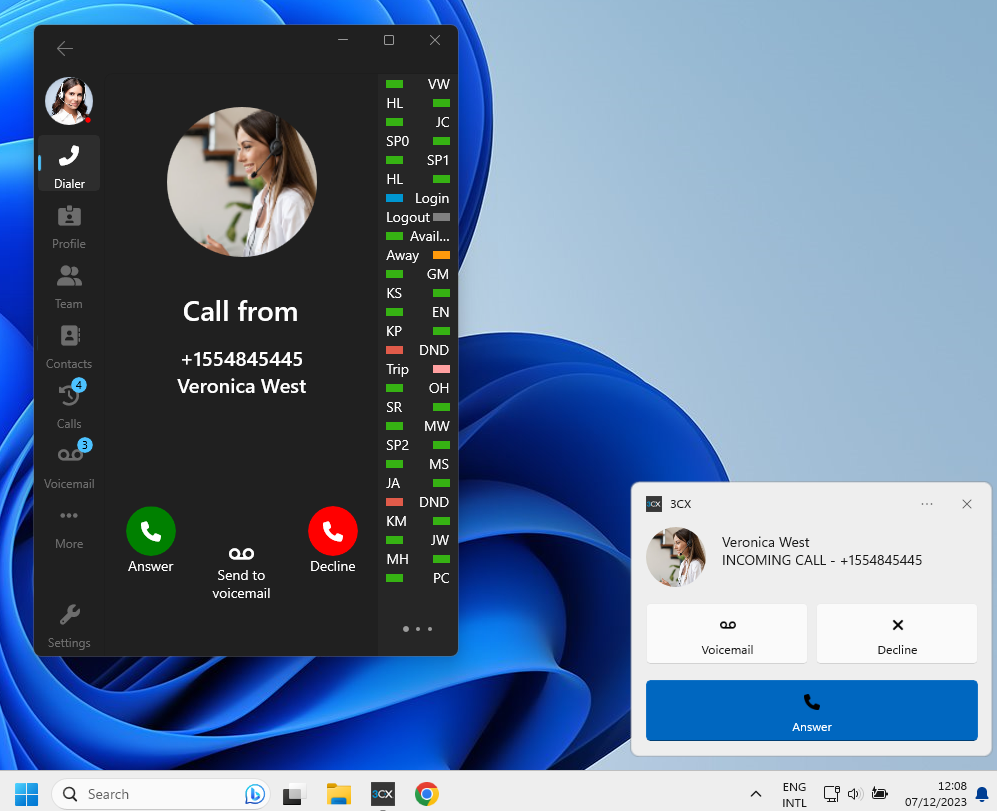
Be notified of an incoming call with the new Windows Pop-up Dialog. These pop-ups notify you in real-time, unlike the PWA or WhatsApp which may notify you of calls/chats that occurred when you were not at your PC. The Windows softphone behaves like a deskphone as opposed to a smartphone app.
A custom avatar as well as the first and last name of the contact are shown in the pop-up. Also included is an Append/Prepend logic for Queue/RingGroup/DID data.
Team Filtering
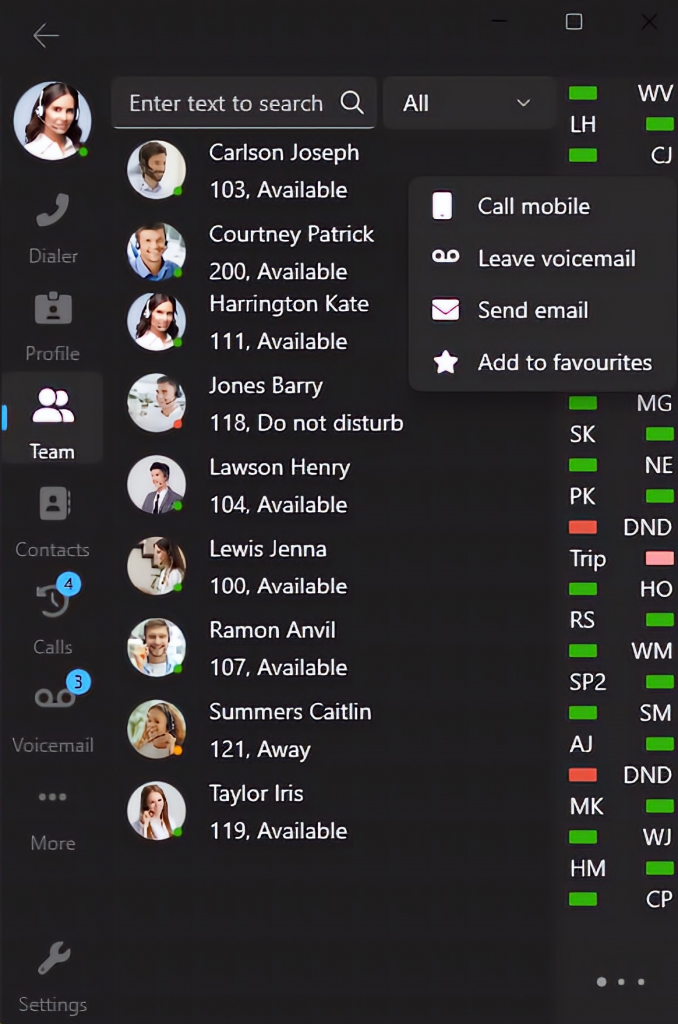
If you look next to the search bar, we’ve now added a new filtering option which enables you to filter team members based on your favorites, bridges and groups (departments). Right clicking on a team member will display a new context menu, allowing you to choose whether to call their mobile, leave a voicemail or add that person to your favorites list.
Contacts Filtering
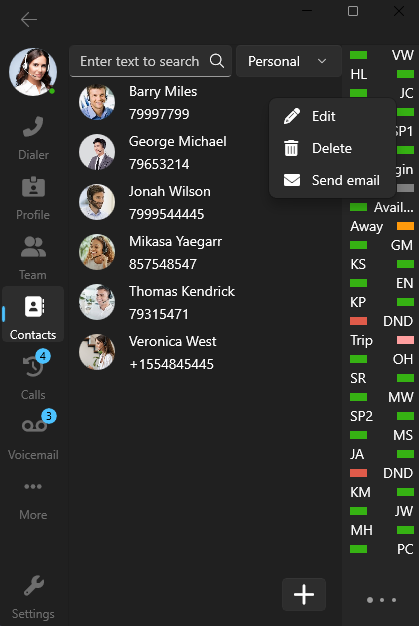
Just like the team view, we’ve added a new filtering option for your contacts. From here you can filter based on your personal contacts, company contacts, CRM (only those synchronized with the phonebook) and M365.
The new context menu appears when you right click on a contact and allows you to edit, delete or send an email. You can easily add a new contact by clicking on the “+” option at the bottom of the screen.
Editing & Adding Contacts
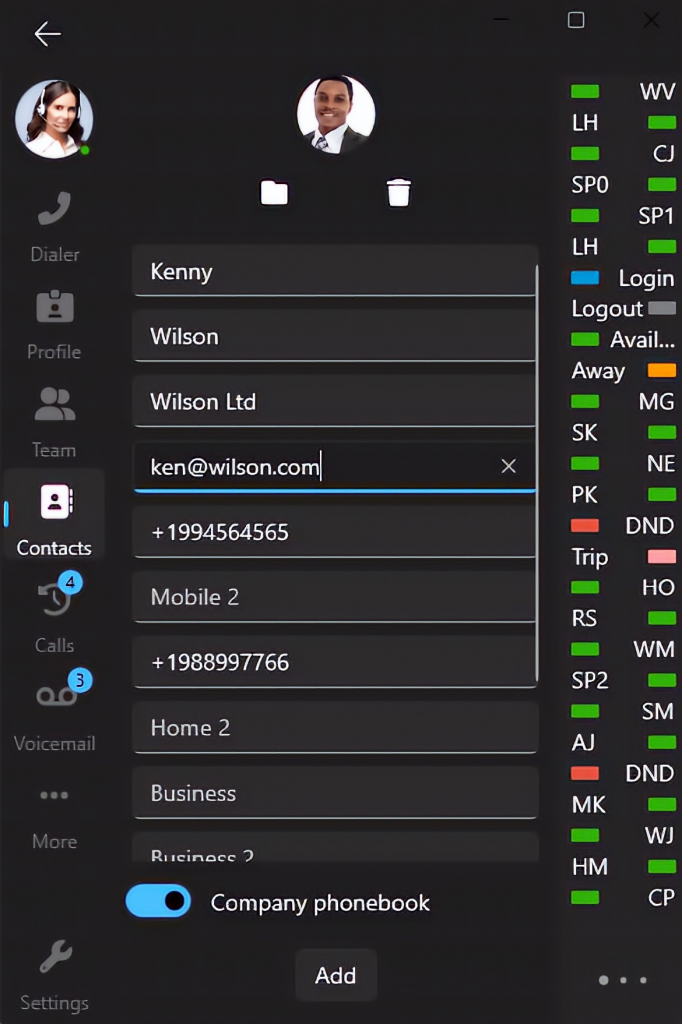
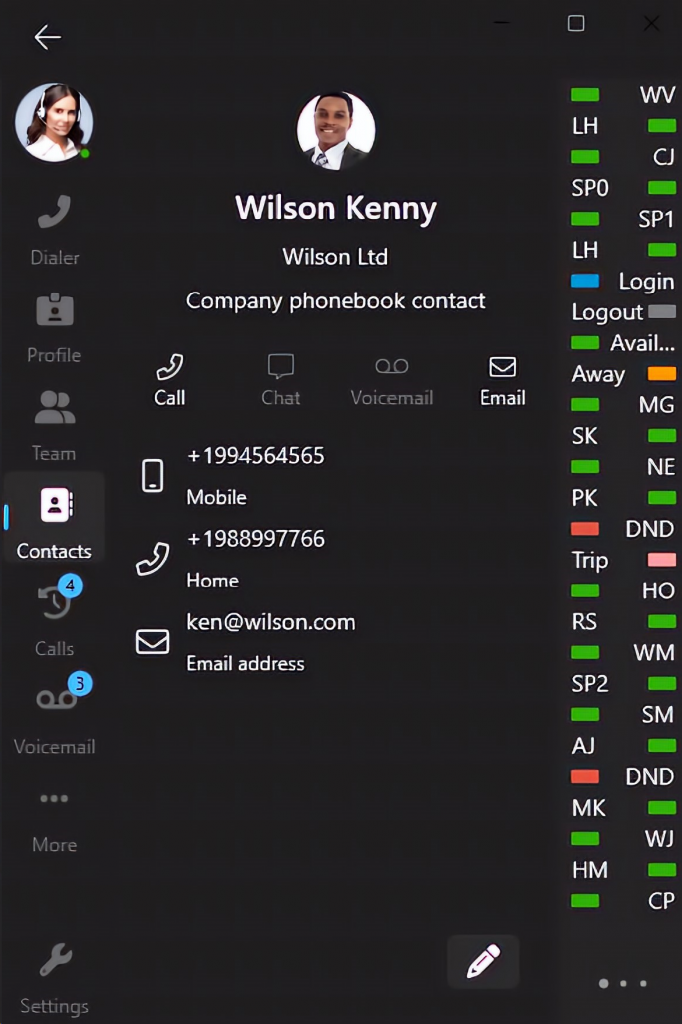
We’ve simplified adding and editing contacts to your personal or company phonebook. The toggle bar at the bottom of the screen allows you to choose which phonebook you want to add the contact to.
Try it out today
Download the Softphone app today from the Microsoft Store and head over to the new dedicated Windows Softphone Forum to let us know what you think.
For instructions on how to install and provision the new 3CX Windows softphone app you can also refer to our User Manual.









 Copyright © 2026