





Answer, drop, switch calls & more from your Yealink headset.
This latest 3CX Windows Softphone BETA adds Yealink headset support, giving you more options to control your calls from different devices, whether that’s a deskphone or a headset.
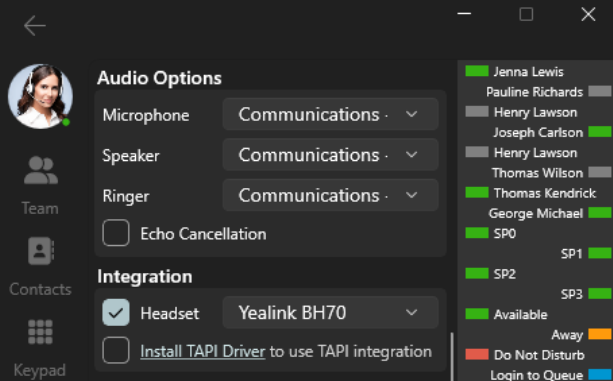
This latest integration enables you to answer, drop, decline, hold, mute and even switch calls all from your Yealink headset - via the headset or dock.
Configuration
- Connect: Plug your Yealink headset into your Windows PC.
- Enable Integration: Navigate to the Softphone Settings page and enable the ‘Headset’ checkbox.
- Select Headset: Choose your connected Yealink headset from the list.
- Dock Configuration (Optional): If your headset has a dock with dialing capabilities, enter the dock settings and select ‘3CXSoftphone’ as the outgoing softphone.
Note: To redial from the headset, you need to install the Yealink USB Connection tool.
Supported Headsets
These are the supported devices for the Yealink SDK as provided by Yealink:
- UH series: UH34, UH36, UH37, UH38
- WH series: WH62, WH63, WH66, WH67
- BH series: BH70, BH71, BH72, BH72+BT51, BH76
- Others: CPX00, MP50
Known Issues
The 3CX app may not respond to the Yealink integration in certain circumstances. We have already reported these issues to Yealink who have confirmed that they're aware of it and are working towards a solution.
- Certain headsets might not react to button presses unless they are running a firmware that is yet to be released by Yealink.
- When your Windows machine goes to sleep, Yealink headset integration is lost when resuming. You currently need to exit the Softphone and relaunch it. This will also be fixed in a future firmware release by Yealink.
Should you encounter these issues, report it directly to Yealink Support.
Coming Soon: Chat & Conferencing
Over the coming months we plan to add chat and conferencing functionality to the Windows Softphone. This means you can send messages without needing the web app.
Electron and Legacy Windows Softphone - Nearing EOL
It is imperative that you start moving away from the Electron and legacy Windows softphone to the new Windows store app. Both the electron and legacy softphone will no longer receive updates and at some point in the not too distant future, they will stop working with V20.
Join our Beta Program
To all our users who’ve joined the Beta Program in the last month - thanks so much! The next step is to make sure you’re reporting your issues. Don’t be shy! It’s in your interest to do so.
Future Softphone Beta releases will be available via the Microsoft Store. Search for '3CX BETA” to find future Softphone BETA releases. No form submission or account creation is required.
Do not run the production version of the 3CX Softphone alongside the BETA app, as this may cause conflicts.
For instructions on how to install and provision the 3CX Windows Softphone app refer to our User Manual.
View the complete Change Log.









 Copyright © 2026