




Test firmware updates on selected IP phones before deploying them across your business.
A firmware update that fails across dozens of IP phones can disrupt calls, affect employees and create additional work for IT. Testing a few devices first helps identify potential issues before they affect the wider business.
With 3CX V20 Update 10, Admins can deploy firmware to selected phones and check whether each device is running the assigned version. This makes it easier to test updates, identify problems and avoid unnecessary disruption during larger deployments.
Read on to see how to verify firmware updates before rolling them out across your organization.
Check Which Phones Have Successfully Updated
Assigning firmware doesn't necessarily mean the phone has installed it. With Update 10, Admins can go to Admin > Phones and compare two important details:
- Assigned Firmware: Version of firmware selected for the phone.
- Current Firmware: Version the registered phone is actually running.
Compare Current Firmware with the version selected for the update to identify which phones need further attention.
This is particularly useful when deploying new vendor firmware. Rather than updating every device at once, you can test a compatible firmware release on selected phones while keeping the rest on 3CX-tested firmware.
For IT teams managing large installations, this means fewer devices to troubleshoot if something goes wrong during testing.
A Practical Example: Updating 120 IP Phones
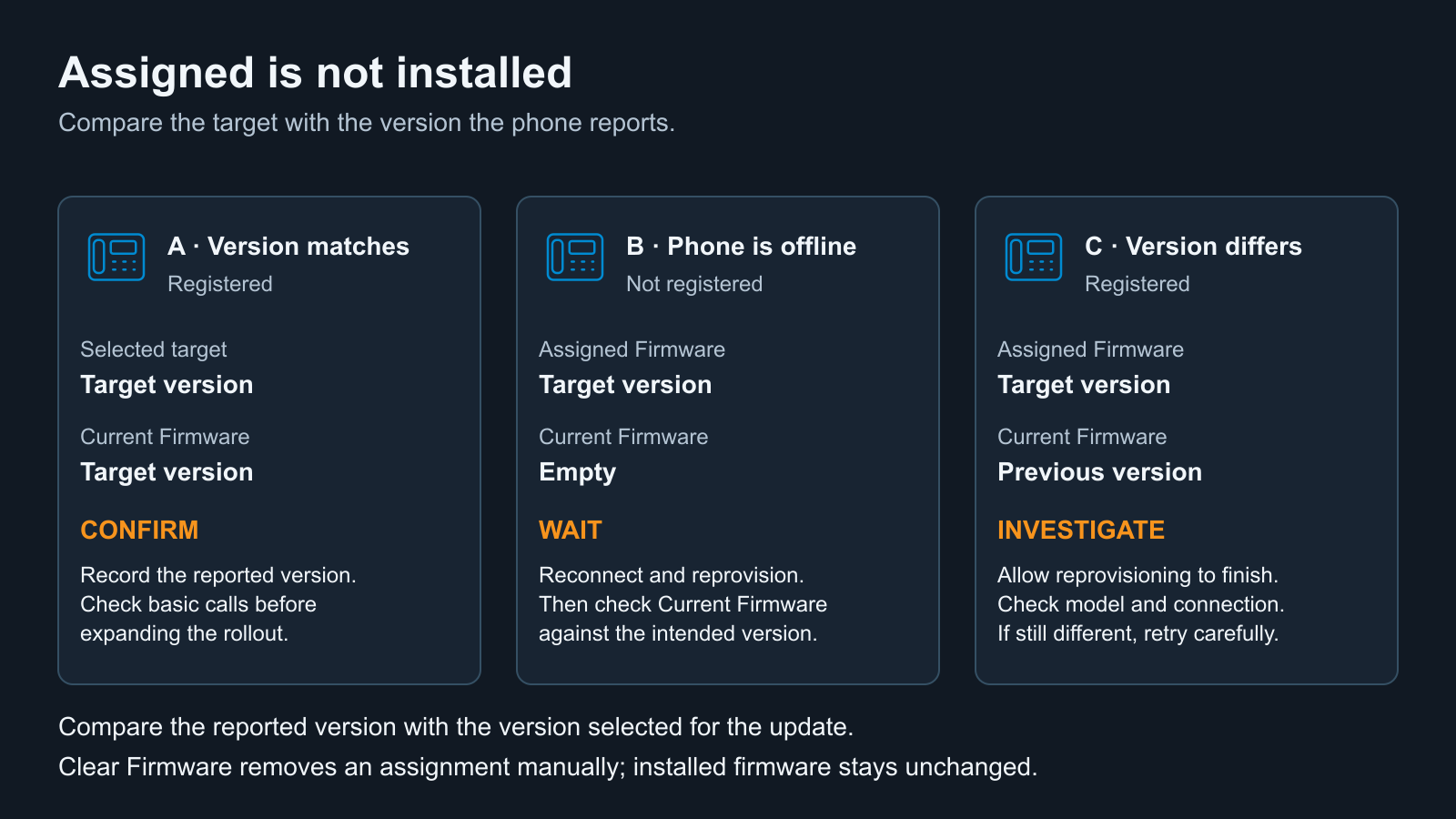
Imagine an IT Admin managing 120 desk phones across an office. A new compatible firmware release is available, but rather than deploying it to every phone immediately, the Admin selects three phones of the same model for testing.
After assigning the firmware, the results in 3CX show:
| Phone | Firmware Status | Next Step |
|---|---|---|
| Phone A | Selected firmware installed | Test calls and key features |
| Phone B | Offline. Current Firmware is blank | Wait for reconnection and check again |
| Phone C | Still running the previous version | Check provisioning and retry if needed |
- Phone A reports the expected firmware, but the Admin still needs to verify that calls and essential features work correctly.
- Phone B hasn't reconnected, so there's no confirmation the update has been installed. Its firmware assignment is retained while offline. Once the phone reconnects and provisions, the Admin can check its reported version again.
- Phone C still reports the older version. After provisioning and any reboot have finished, the Admin should check the registration status, configured phone model and any Connection or Mismatched model warnings. A Mismatched model warning alone doesn't explain the cause of the firmware version difference.
Instead of discovering these issues across 120 phones, the Admin can investigate them on just three devices.
This helps reduce the risk of widespread call disruption, limits troubleshooting work and gives IT more confidence before updating the remaining phones.
What If a Phone Hasn't Updated?
If a phone still reports the previous firmware, allow provisioning and any reboot to complete before checking again. If the version still differs, check its registration status, configured model and any connection warnings.
When retrying, remember:
- Upgrade Firmware assigns the model's Preferred firmware, which may differ from the version you're testing.
- Choose Different Firmware lets you select the specific firmware package again.
- Clear Firmware removes the assignment but doesn't uninstall or roll back firmware already on the device.
Firmware assignments can trigger immediate reprovisioning and a reboot, so plan updates outside working hours to minimize interruptions.
If automatic updates are enabled under Admin > Phones > Options > IP Phone Firmware, remember that scheduled updates use the model's Preferred firmware.
A manual firmware assignment should not be treated as a permanent version pin. A future scheduled update may apply the model's Preferred firmware instead of the version selected for testing.
For complete configuration instructions, see the IP Phone Firmware Management guide.
Test First, Roll Out With Confidence
Once your test phones report the expected firmware and their essential calling features work correctly, you can proceed with the next group.
A staged approach helps businesses avoid unnecessary downtime and reduces the time IT teams may spend resolving firmware issues across multiple devices.
With 3CX V20 Update 10, Admins can verify firmware versions, identify devices needing attention and expand deployments only when they're ready!
Join the Discussion
Join the 3CX discussion in our dedicated Partner or Customer Forums. Follow us on X and LinkedIn to stay up to date on the latest news and feature releases.









 Copyright © 2026