
It's been a busy summer at 3CX ready-ing our new V20. It’s a big release with quite a few changes under the hood and in the configuration logic, so we made a preview release showing you the new interface and how things are changing. It's not yet at the stage of an alpha or a beta although we’re not far off. Here are the top highlights:
New: Admin Console

Version 20 has an entirely new management console, named ‘Admin Console’. It’s now part of the 3CX client. Users can switch to the Admin Console directly from the 3CX client without needing a separate login or URL. We have greatly simplified configuration.
The management console will disappear, and with it two admin user roles: root admin and hosting admin. Before going to V20 you must assign one of the users as a System Owner, see this link how.
New: Departments
A significant feature of V20 is the introduction of "Departments". Departments are akin to Active Directory Organizational Units (OUs). Departments can be configured to have their own:
- Office hours
- Holidays
- Time zones
- Language
- Soon: Phonebook, CRM configuration & Blacklist
- Administrators, managers and owners
New: Security Roles
Departments serve as the foundation for the revamped security system. By employing departments and roles, administrators can define permissions with finer granularity. For instance, you can establish a "Sales" department with its own dedicated administrator in charge of user management and IVRs. Additionally, any system extension or trunk can be included as a member of a group, with trunks being system-wide by default.
Security roles are assigned based on the groups to which a user belongs. Consequently, if a user is part of the default group encompassing all users, and they are appointed as a group admin, they gain the authority to manage all users.
New: Easy to Remember URL
With the client and management console now merged into one site, we can have one easy to remember FQDN for users and admins. The web client slug is no longer needed - so for example:
Before V20: https://company.3cx.us/webclient/
In V20: https://company.3cx.us/
With the new easy to remember FQDN, and the capability for users to set their own password or utilize SSO, there is less reliance on the welcome email. Admins will be spared having to resend the welcome email to users.
New: Windows Softphone via the Microsoft Store
Available today is our new native Windows Softphone. It will work and look similar to the iOS or Android app and is designed to run in conjunction with our PWA webclient app. No bluetooth headset integration available yet but it's coming for Jabra and Yealink.
Secure Deployment via the Microsoft Store
The app will be deployed via the Windows store resulting in greater security right from the outset: each Windows native app is security checked by Microsoft allowing us to avoid the same situation we faced earlier this year. It also means we can separately update the softphone from the main 3CX build for better manageability.
New: SIP Server
V20 has a brand new SIP server with many new features:
- Queue strategies can now target busy agents
- Faster call pickup and call barge-in
- Transfer back on busy
- Ring groups can include an external number
- Improved Makecall service which triggers calls on your app or deskphone:
- Calls have the correct Caller ID
- Call progress tones are supported
- Works with any device
- Appears correctly in the reports
- Supports DECT phones
- Queues & IVR now have easy configuration of what to do when the office is open, on break, closed or on holiday.
We’ve also beefed up security, performance and testability allowing us to develop faster and for larger installations.
Reporting
With the new call manager we were able to simplify - and make more accurate - the call logs from which the reports are generated. Once we release Version 20, we can turn our attention to creating more and visual reports. We know reports need attention. This will be one of the first things we do after Update 1.
New: Debian 12
Debian 12 gives the latest versions of postgres, nginx along with the latest security patches future-proofing the install.
Not in this preview
Some features are not ready yet for the preview. Some might be in the final release, some in Update 1:
- Editing and Adding of CFDs (Existing ones will work)
- Teams Direct Routing Integration
- Bridges
- Hot Desking
- Certain other features might be added later, it’s not feature- complete yet.
How to get your hands on the v20 Preview
- Go to https://www.3cx.com/install/ (if you have an existing portal account, you can do it from there).
- Select self hosted and follow the steps.
- Select Linux - V20 Preview to get the ISO download link.
- Now download the configuration file or copy the link to the configuration file (step 3).
- Boot up the ISO and select either command line or web.
- Copy the file or paste the link to the configuration file.
- Login to the system!
Installing the Windows Softphone
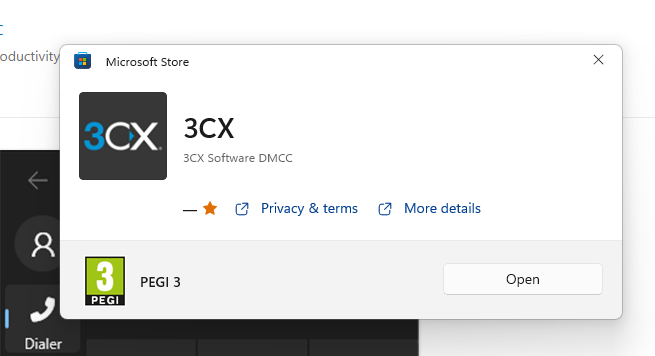
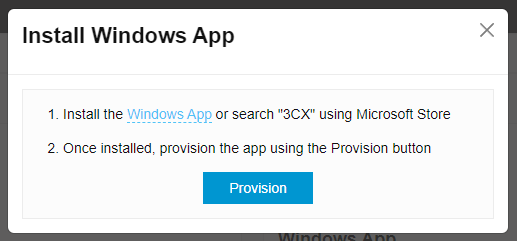
- Login to the V20 Web Client and go to “Apps > Windows App.”
- Click on the Windows App. This is the direct Windows store link:
https://apps.microsoft.com/detail/9NW77489NGJ0 - This starts the download from the Microsoft Store. Let it install, do not click open yet.
- Go back to V20 Web Client/apps and tap on the Provision Button found in the Windows App tile.
- The app will launch with your extension automatically configured.
- Windows Defender will prompt you to allow 3CX access.
Feedback and comments
Let us know your thoughts in our dedicated Partner or Customer Forums.