





Yealink Headset Support, Chat, and Call Recordings included in the latest Softphone.
This release of the 3CX Windows Softphone includes the best of our recent betas which introduced Yealink headset support and native chat and call recordings functionality. Take hands-free phone calls with your Yealink headset, start SMS chats, respond to WhatsApp, Facebook, and Live Chats, and access call recordings, all from a single, easy-to-use interface.
Native Chat Feature

Chats can now be managed from the softphone itself. Start single, group and SMS chats, as well as respond to chats from WhatsApp, Facebook, Website Live Chat and Queues.
Configuration
- The “Allow chat” option needs to be enabled from the PBX
- Set up SMS trunks, queues and external chats in the admin console
- From the Softphone, click on the “More” button and then “Chats”
- All your existing chats will be listed in the “Chat” list
- Click on the “+” button to create a new single, group or SMS chat
Integrated Call Recordings

Integrated call recordings allow the softphone and its user to view transcriptions, and listen to/download chosen recordings. By modifying permissions, managers can take advantage of this function and access the whole team’s recordings.
Configuration
- The “Show Call Recording” option needs to be enabled from the PBX
- From the Softphone, click on the “More” button and then “Recordings”
- Filter out the recordings by “My Recordings” and “All recordings” - this also depends upon your department role
Yealink Headset Support
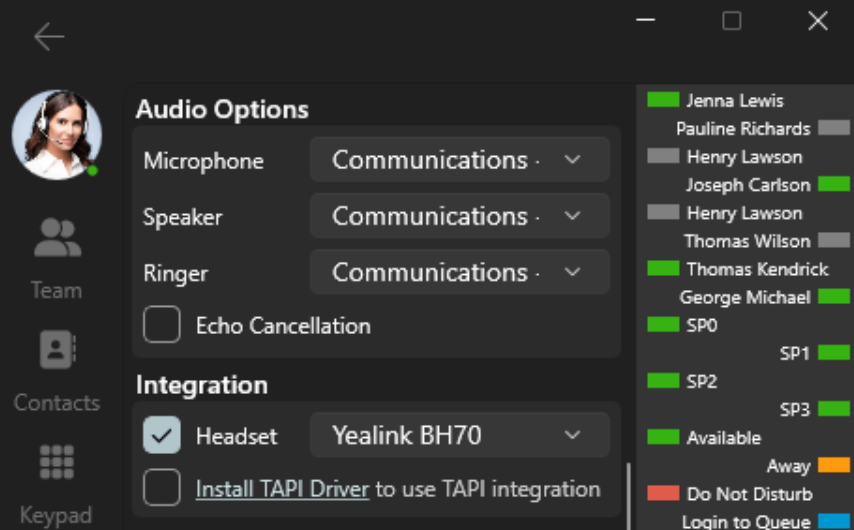
The newly added Yealink headset support enables you to answer, drop, decline, hold, mute and even switch calls all from your Yealink headset or dock. Allowing hands-free sales calls that enhance multitasking.
In order to redial from the headset, you need to install the Yealink USB Connection tool.
Configuration
Ensure you are using a supported headset device for the Yealink SDK, as provided by Yealink:
- UH series: UH34, UH36, UH37, UH38
- WH series: WH62, WH63, WH66, WH67
- BH series: BH70, BH71, BH72, BH72+BT51, BH76
- Others: CPX00, MP50
- Enable Integration: Navigate to the Softphone Settings page and enable the “Headset” checkbox.
- Select Headset: Choose your connected Yealink headset from the list.
- Dock Configuration (Optional): If your headset has a dock with dialing capabilities, enter the dock settings and select “3CXSoftphone” as the outgoing softphone.
Get the Latest Release
Download the latest softphone app from the Microsoft Store and head over to the Forum to let us know what you think.
For instructions on how to install and provision the 3CX Windows Softphone app refer to our User Manual.
View the complete Change Log.









 Copyright © 2026