


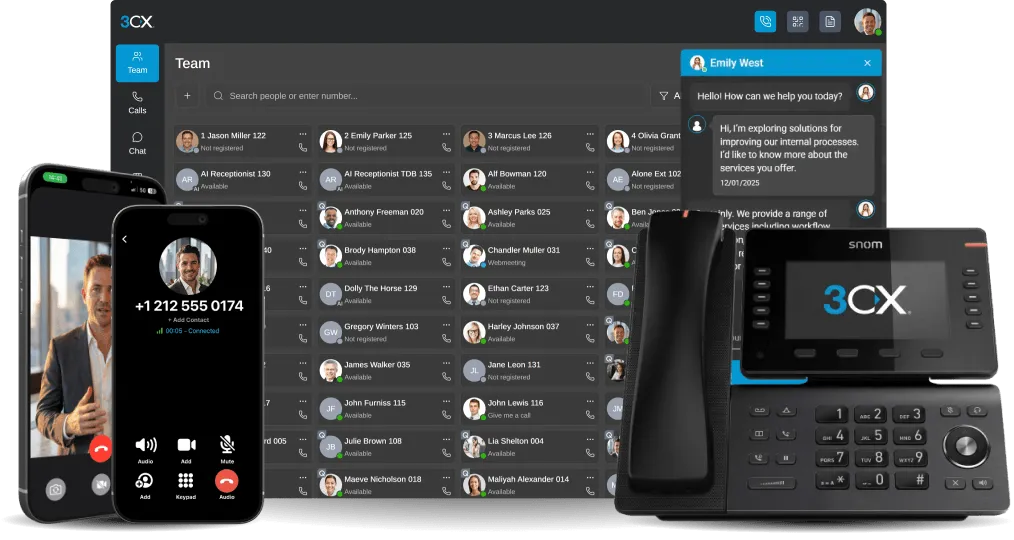


Bring customers, colleagues and specialists into one call, and manage every participant from a single panel.
V20 Update 10 adds a Conference shortcut to the top of the 3CX Web Client. Select your participants, start an audio conference in a few clicks, then run the whole call from a dedicated management panel. Read on to learn more.
Fewer Steps, More Control
Audio conferencing was already a strong feature in 3CX. Update 10 gives it a direct starting point and puts participant management in one place.
You can see who has actually joined, redial anyone who missed the call, and add or remove people without interrupting the conversation. Getting a customer and a specialist into the same call becomes simpler, and everyone works from the same context.
Bring a Customer and a Specialist Together
Take a common support scenario. A customer has a problem the support colleague can't resolve alone, so a specialist needs to join the conversation.
Select the Participants
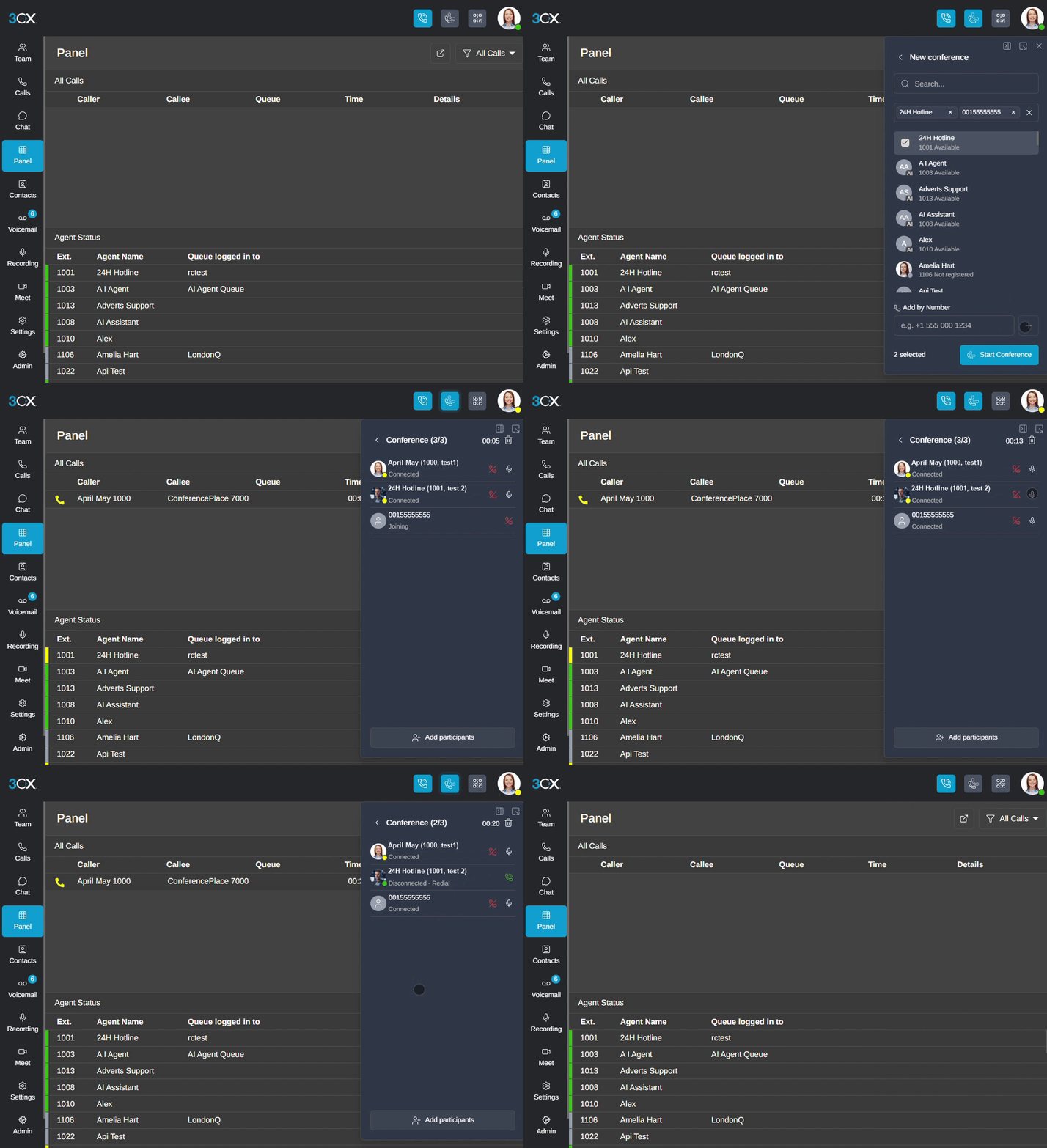
The support colleague hosts the conference and opens the new Conference shortcut. They can find colleagues and phonebook contacts, or add the customer by telephone number. The selected participants appear together before the conference starts, so the host can review who will be called.
Check Who Has Joined
Once the conference starts, the host sees a management panel showing each participant's connection state. Being selected is not the same as being connected, so check that the customer and specialist have joined before beginning the consultation.
Manage the Conversation as It Develops
The host can mute or unmute an individual participant, remove someone, or redial a person who didn't answer or became disconnected. If the specialist misses the first attempt, the host calls them again from the same panel.
The group can also grow during the discussion. If the specialist needs a colleague's input on another part of the problem, the host adds another user, contact or external number through Add participants.
Remove a Participant or End the Conference
When the specialist has finished, the host removes them and continues the discussion with the customer. Removing people and ending the conference are separate actions: the trash icon at the top of the management panel ends the conference for everyone.
Beyond Technical Support
A sales colleague could arrange a call with a customer and a product specialist before a purchase. The customer explains how they plan to use the product, the specialist checks the technical requirements, and the salesperson clarifies the commercial next steps.
A service coordinator could do the same with a customer and a field engineer. The engineer explains what needs attention, the customer describes access arrangements, and the coordinator agrees the next visit. In both cases, everyone can ask questions directly.
Keep Controls in View with the Pop-Up Dialer
Audio conferencing also works with the floating dialer. Keep call controls on screen while you check a customer's ticket or account in another application, and use the management panel to add or remove participants. See how the 3CX pop-out dialer keeps calling controls in view.
Get the Right People Talking, Faster
With Update 10, bringing the right people into one conversation takes fewer steps, and you stay in control from start to finish. For your next customer consultation or team discussion, start with the new Conference shortcut. The audio conferencing guide covers the details.
Join the Discussion
Join the 3CX discussion in our dedicated Partner or Customer Forums. Follow us on X and LinkedIn to stay up to date on the latest news and feature releases.









 Copyright © 2026