System owner replaces root admin. - Configure to avoid the warning!
A Recap on Update 8 So Far!
This week we spoke about our refactored Customer Portal Shopping cart, extended 3CX Hosting and the name change from 3CX StartUP to 3CX SMB - Small Business. You’ll also recall in our Update 8 Alpha blog a couple of weeks ago we showcased some key components that we’ve been working on for some time. These include:
- Easier setup and better integration with your Office 365
- CRM server side integration to add and search your contacts in your CRM, Microsoft or 3CX!
- Wider reporting features direct from the new Web Client
Missing System Owner Warning in Web Client

As a reminder, future major versions of 3CX will require a system owner instead of a root admin. Not in Update 8 but the next major version. In the previous release we added a warning pop-up banner to the management console if no system owner was assigned. In this release we extend this warning to the web client.
We recommend that Partners assign System Owner privileges to an extension user before applying the update. This is to avoid questions from End Users!
Do you Manage the System for your Customer?
If you do the system management for your customer, you can simply create an additional user for yourself with System Admin or System Owner rights. This is something you can agree with your customer. You can make your customer “System Owner” and then create a separate extension with “System Admin” rights for yourself. Alternatively - and providing your customer agrees - you can create an extension and make yourself System Owner. The difference between a System owner and a System Admin is that a System owner can listen to recordings whilst a System Admin can not.
Either way, you probably want to hide this “management extension” from the phonebook and team presence. Here is how:
Step 1: Create the System Admin / System Owner Extension
If you do not have access to the Admin Console (Web Client > Admin), but only have root admin access to the Management Console, then you need to create the user and assign the role from the Management Console. Follow these steps in your Management Console.
Create the User and Assign the Role from the Management Console
- Login to your management console with your root credentials.
- You will get a warning message telling you that you need to assign an extension user with System / Root privileges.
- If your current 3CX administrator does not have an extension you need to create one.
- Go to the user extension, either Add User or Edit by clicking on the name of an existing user to edit their role.
- Click on the Rights tab and select System Owner role in the Group Membership section.
- Your system and other users can now be managed through the Web Client.
Create the User and Assign the Role from the Web Client
 Here we describe the method via the new “Admin Console” Remember! Only a System Owner can create a System Administrator or another System Owner.
- Login to the Admin Console (Web Client > Admin)
- If you’re the System Owner, and want to keep this role you do not need to do anything further.
If you want to assign the System Owner and / or System Administrator role to someone else, you need to follow these steps.
- Go to the users section and “Add User” or Edit an existing user
- Select from the ‘Role’ dropdown menu the permission you want to assign.
- Assign System Owner / System Administrator roles to the user extensions responsible for ownership and management of your system.
Step 2: Add a new Group
This step will hide the System Admin extension from the Teams page and Phonebook. You can skip this step if you don't want this.
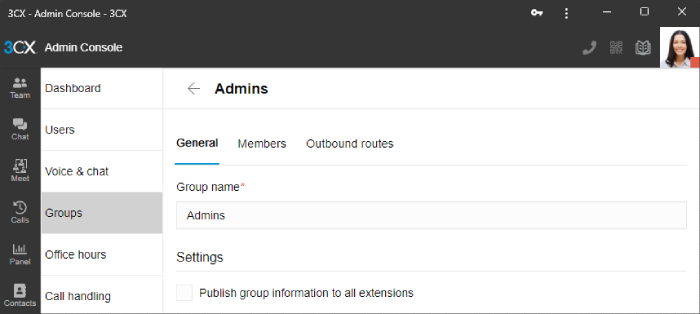
- Go to Groups and press +Add Group
- Name the Group, for example “Admins”
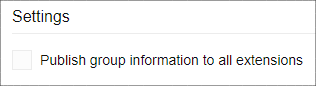
- Uncheck ‘Publish group information to all extensions”
- Go to the Members tab and add the System Admin.
- Press back to save.
Step 3: Remove System Owner / System Admin from Default Group
By default the extension will still be part of the Default Group and so it will show up in the phonebook and in “Team” by virtue of its “Default” group membership. To hide the extension:
- Go to Groups and search Default.
- Edit the Group.
- Go to Members and remove the System Owner / System Admin extension.
How to Get V18 Update 8 BETA
Only recommended for testing! This is a beta version, not suitable for production systems. Current V18 Update 7 users running on Linux can try out Update 8 Beta. Go to updates: "Update 8 Beta." 3CX FREE and 3CX SMB hosts will be automatically updated.
View the complete changelog here.
Stay Informed
Hit the follow button on Twitter and LinkedIn for blog updates. Join us in the 3CX Community Forum to tell us what you think about the latest features!