





No need to re-install, switch to multi company mode from the console.
Today, we present our latest feature development, the ‘Multi-Company Switch’, giving you the flexibility to switch from single to multi-tenant mode within the same 3CX instance - available shortly with Update 6.
Warmly welcomed in V20 Update 2 - by Partners, MSPs and VoIP providers wanting to host smaller customers, as well as companies with multi-company environments with basic to moderate communication requirements on a single 3CX instance - we’ve continued to build on the multi-company momentum of the last months.
The initial release gave admins the ability to isolate data and users per tenant while still managing everything centrally. Since then, we’ve added per-tenant prompt folders and made tenant setup and management easier through ongoing improvements.
For Partners/MSPs, it’s a cost-effective way to make SMB customers profitable by consolidating them onto one system. Read on to learn more about it, how to use it and where to get configuration help.
Two Modes: Single or Multi Company (Multi-Tenant)
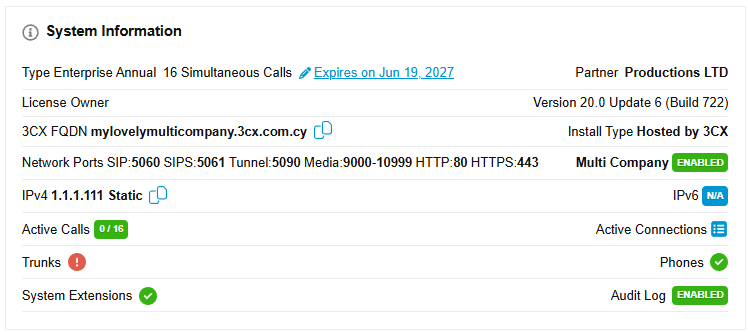
The Multi-Company Mode feature provides the flexibility to switch your 3CX system between two operational modes with the current Multi-Company Mode status displayed clearly within the System Information section of the Dashboard.
In Single-Tenant Mode the system operates as a standard, single-instance PBX, serving one company with different departments. If your system is in single-tenant mode an OFF is displayed.
In Multi-Tenant Mode the system can host and manage multiple independent companies, keeping their data and calls separate. When you are in multi-tenant mode, Enabled is displayed.
Multi-tenant Licensing
Multi-tenant is licensed in the same way as any other 3CX license with a minimum requirement for multi-tenant licenses set at 16SC PRO and above. When the license key does not support Multi-Company Mode N/A is displayed. A tooltip will indicate that a license key upgrade to 16 or more simultaneous calls is required.
Global and Company Prompts in Multi-Company Mode
In Multi Company Mode, each company has its own company-specific prompt folder to store all prompts for that company.
This allows a company’s owner to create company prompts for their specific company, and Admins to create global prompts, shared by all companies in the multi-tenant. Use the globally shared prompts for IVR, Queues, Department Menu and Holidays.
System Checks for Successful Switch from Single to Multi-Company
If you’re accessing the Multi-Company page the system checks your configuration giving you appropriate warnings and notices.
Currently the following are not compatible with Multi-Company: CRM and / or MS365 and / or Teams integration. Warnings will be given for these and you’ll need to disable them before continuing. Also a warning is shown when users are in multiple departments.
We also recommend you do not publish department information to all extensions to avoid any unintentional data sharing.
You can switch back to Single Mode at any time.
How to Set Up Your 3CX Multi-Tenant
There are two ways of creating tenants:
Manually by creating a department and then assigning / creating users in the department. It’s also possible to assign the company owner appropriate rights so that the company can do its own system management.
Programmatically by creating tenants programmatically using the new 3CX XAPI configuration API.
Find all the details on our recently updated guide: 3CX Multi-Company / Multi-Tenant Setup Guide/.
Join the V20 discussion in our dedicated Partner or Customer Forums. Follow us on X and LinkedIn to stay-up-to date on further developments.









 Copyright © 2026